
TL;DR
Key Takeaways
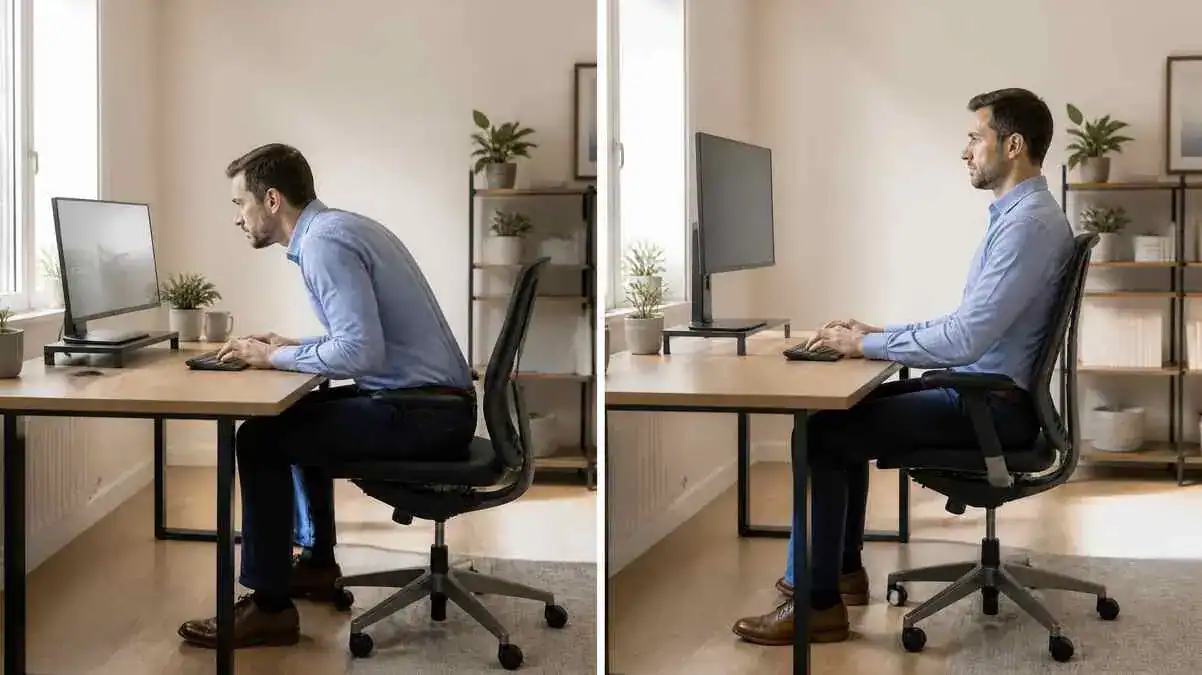
- Place the main monitor directly in front of the body.
- Start with the correct monitor height by keeping the top of the screen at eye level or slightly below.
- Begin with the screen about an arm’s length away.
- Adjust the viewing distance based on screen size, text clarity, eyesight, personal comfort, and the work being done.
- Center the monitor with the body and the main keyboard position.
- Adjust the screen tilt and room lighting to reduce glare and reflections.
- Increase the font size or display scaling if reading requires leaning forward.
- Check the monitor height again after adjusting the chair because chair height changes eye level.
- In a multi-monitor setup, keep the primary screen directly in front and place less-used screens to the side.
- Seek professional evaluation if pain continues despite reasonable ergonomic changes, or if numbness, tingling, weakness, worsening headaches, or symptoms after an injury develop.
Quick Monitor Setup Check
- Is the monitor centered with the body?
- Is the top of the screen near eye level or slightly below?
- Can the text be read without leaning forward or squinting?
- Does the neck stay in a relaxed, natural position?
- Is glare controlled without changing posture?
- Can the entire display be viewed without repeated head turning?
Quick Answer
The correct monitor height usually places the top of the screen at eye level or slightly below. The monitor should sit directly in front of the user, with the eyes looking slightly downward instead of sharply up or down.
About an arm’s length is a practical starting viewing distance, but the final position should be adjusted for screen size, chair height, visual needs, eyewear, the type of work being done, and overall comfort.
A comfortable monitor height and position depends on more than screen height alone. Monitor height, viewing distance, screen centering, screen angle, glare, and text readability all work together.
The user should be able to read the screen without leaning forward, squinting, twisting the body, or holding the neck in an awkward position. If any of these movements become necessary, the monitor setup should be adjusted until the screen can be viewed comfortably in a relaxed sitting position.
Quick Monitor Position Check
| Setup Check | Comfortable Sign | Possible Problem |
| Monitor height | Top of the screen is at eye level or slightly below | Chin lifts or head tilts downward |
| Viewing distance | Text is easy to read without leaning | Leaning forward or pulling the head back |
| Screen centering | Monitor sits directly in front of the body | Head stays turned to one side |
| Screen tilt | Comfortable viewing angle with a relaxed neck | Head tilts to compensate |
| Text readability | Text is clear without squinting | Leaning closer or eye strain |
| Glare | Screen is easy to see without reflections | Squinting, head tilting, or repeated repositioning |
| Head position | Head stays in a neutral position | Neck bends forward or backward |
| Backrest contact | Back stays against the chair while working | Sitting forward to see the screen |
Table of Contents
When to Worry
Mild Discomfort That May Improve With Adjustment
Mild discomfort does not always mean there is a serious problem. Even with the correct monitor height, long screen sessions may still lead to mild neck, shoulder, or upper-back discomfort.
Mild eye fatigue or an occasional screen-related headache may improve after a small setup change. This is more likely when discomfort eases after the monitor is moved or the lighting is adjusted.
Squinting may improve after reducing glare, increasing text size, or changing the viewing distance. Stiffness that eases after standing up or changing position may also point to prolonged sitting or a setup that needs a small adjustment.
A monitor setup may feel almost right without feeling fully comfortable. In this case, small changes to screen height, distance, angle, or readability may help.
When Professional Evaluation May Help
Professional evaluation may help when pain keeps returning after reasonable ergonomic changes.
Persistent neck pain or frequent headaches should not automatically be blamed on monitor position without further assessment.
Ongoing blurred vision or visual discomfort may also deserve attention, especially when screen, lighting, and text adjustments do not help. An eye-care professional may be able to determine whether vision or eyewear affects comfortable screen use.
Evaluation may also help when symptoms reduce work ability or sitting tolerance. Pain that spreads beyond the usual neck, shoulder, or upper-back area deserves more caution.
Symptoms linked to an earlier injury should not be treated as a simple monitor setup problem. The same applies when pain gets worse instead of improving. Numbness, tingling, or weakness may point to a problem beyond normal ergonomic discomfort.
These symptoms should receive professional attention.
Warning Signs That Need Prompt Medical Attention
Prompt medical attention is important when symptoms are sudden, severe, or quickly getting worse.
Warning signs include:
- Sudden severe pain after an injury
- Major weakness
- Significant numbness
- Loss of balance
- Trouble walking
- Fever with pain
- Unexplained weight loss
- New bowel or bladder changes
- Rapidly worsening neurological symptoms
These warning signs should not be explained by workstation changes alone. Monitor adjustment may improve comfort, but it cannot replace medical evaluation when serious symptoms appear.
Symptoms / Signs
The body often shows clear signs when the correct monitor height or screen position does not match the user. These signs may involve head position, shoulder posture, reading habits, or visual comfort.
Signs the Monitor May Be Too High
A monitor may sit too high when the user:
- Lifts the chin while viewing the screen
- Tilts the neck backward
- Looks upward for long periods
- Holds the shoulders tense
- Moves the head forward or backward to compensate
- Develops neck or shoulder discomfort during long sessions
- Finds it hard to relax the upper body
These signs may become more noticeable as screen time increases. They describe how the user sits and views the display, but they do not confirm the cause of any pain.
Signs the Monitor May Be Too Low
A low screen often pulls the gaze downward.
The user may:
- Tilt the head down
- Move the chin toward the chest
- Push the head forward
- Round the shoulders
- Curve the upper back
- Feel neck tightness
- Notice upper-back tension
- Become tired during prolonged viewing
A slight downward gaze is normal. The concern is repeated or deep head bending that changes the user’s usual sitting position.
Signs the Monitor May Be Too Far Away
A distant screen may be hard to read without changing posture.
Common signs include:
- Leaning forward
- Moving away from the backrest
- Squinting
- Moving the head toward the screen
- Rounding the shoulders
- Struggling to read the text
- Repositioning the body or monitor often
The screen may still be at a suitable height. Poor text clarity or excessive viewing distance can create the same forward-leaning pattern.
Signs the Monitor May Be Too Close
A screen may sit too close when the user:
- Pulls the head backward
- Struggles to view the whole display
- Uses extra eye-focusing effort
- Notices blurred vision
- Develops dry eyes
- Gets headaches during screen use
- Feels visual fatigue
These signs relate more to viewing comfort than monitor height alone. Monitor size and the type of work may also affect how close the screen feels. Viewing distance problems often create different posture and vision changes.
The table below highlights the main differences.
Screen Too Close vs Screen Too Far Away
| Distance Problem | User Behavior | Possible Discomfort | What to Check |
| Screen too close | Pulls the head backward | Eyestrain, blurred vision, headaches, visual fatigue | Increase the viewing distance if practical |
| Screen too far away | Leans toward the display | Rounded shoulders, neck strain, difficulty reading text | Improve readability before moving the screen closer |
Signs the Monitor May Be Off-Center
An off-center monitor may cause the user to face one side for long periods.
Signs include:
- Holding the head turned to one side
- Rotating the neck repeatedly
- Twisting the torso
- Leaning toward one display
- Holding one shoulder higher than the other
- Feeling neck or shoulder tension after computer work
The head and torso should normally face the main screen without repeated turning. This becomes especially important when one monitor receives most of the user’s attention.
Signs Glare or Small Text Is Affecting Posture
Glare and poor text readability can change posture even when the monitor position appears suitable.
The user may:
- Squint
- Lean toward the screen
- Tilt the head
- Move closer to or farther from the display
- Change the screen angle repeatedly
- Develop headaches
- Notice eye fatigue
- Feel neck fatigue
These patterns suggest that screen position is not the only factor to check. Reflections, font size, display clarity, and viewing distance may also affect how the user sits.
Signs the Setup May Not Match the User
A monitor setup may look correct on paper but still fail to fit the person.
Possible signs include:
- The screen needs frequent repositioning.
- The chair must be adjusted often to view the display.
- The user leans forward despite a suitable monitor height.
- The setup feels almost correct but remains uncomfortable.
- The user cannot read while staying against the backrest.
- The user turns the head repeatedly when working with multiple displays.
These signs suggest that monitor height, viewing distance, screen centering, readability, and chair position may not work well together. They do not automatically mean that one setting alone is wrong.
Causes of Incorrect Monitor Height and Position
The correct monitor height depends on more than the screen stand alone. Chair height, viewing distance, screen size, text clarity, lighting, and daily sitting habits can all affect how the monitor feels during use.
The Monitor Is Too High
A monitor may sit too high when a stand or monitor riser raises the screen beyond the user’s normal line of sight. This can also happen when the chair height changes after the screen has already been positioned.
Large monitors may create problems when the user centers the whole display at eye level instead of checking the usual viewing area. Eye-level guidance can also become less helpful when it is treated as a fixed rule for every screen and every user.
Bifocal or progressive lenses may require a lower screen position. A high display can make the user tilt the head backward to look through the correct part of the lens.
Monitor too high
↓
Neck extends
↓
Neck muscles work harder
↓
Neck and shoulder strain increases
The Monitor Is Too Low
A fixed stand may not offer enough height adjustment. Laptop screens also sit low when they remain flat on the desk.
A low desk surface can place the display below the user’s normal eye level. If the work surface itself does not match the user’s seated position, checking the desk height can help determine whether the desk is contributing to the problem. The same problem may appear after the chair is raised or when nearby objects force the screen into a lower position.
Monitor too low
↓
Head moves downward or forward
↓
Forward-head posture develops
↓
Upper-back tension increases
↓
Neck discomfort may follow
The table below compares the most common signs of a monitor that sits too high or too low.
Monitor Too High vs Monitor Too Low
| Setup Problem | Posture Pattern | Common Signs | Likely Adjustment |
| Monitor too high | Neck extends upward | Chin lifted, upward gaze, shoulder tension, neck discomfort | Lower the monitor slightly |
| Monitor too low | Head bends downward or forward | Forward-head posture, rounded shoulders, neck tightness, upper-back tension | Raise the monitor or improve eye-level alignment |
The Screen Is Too Far Away
A deep desk can place the screen beyond a comfortable viewing distance. A large gap between the keyboard and monitor may create the same problem.
The screen may also be pushed back to create more desk space. Small text, weak display scaling, or poor readability can make this distance feel even greater.
Large displays may still sit too far away when their placement is based only on size. The user should still be able to read the screen without leaning forward.
Screen too far away
↓
User leans forward to read
↓
Backrest contact decreases
↓
Shoulders round
↓
Postural stress increases
The Screen Is Too Close
A shallow desk can leave little room between the user and the monitor. An oversized display may also feel too close, even when it is placed as far back as the desk allows.
A monitor arm pulled too far forward can reduce the viewing distance. Some users also move the screen closer instead of increasing the font size or display scaling. In other cases, bringing the monitor closer becomes a habit rather than a true viewing need.
Screen too close
↓
Eye-focusing effort rises
↓
Visual fatigue develops
↓
Eyestrain and headaches may occur
The Monitor Is Off-Center
A monitor should align with the user’s body during normal work. When the screen sits to one side, the head often stays turned instead of facing forward.
This may happen when the keyboard and monitor are centered differently, the main display sits off to one side, or two monitors receive equal placement even though one is used much more often. Some desk shapes also make proper centering difficult.
Monitor off-center
↓
Head remains turned
↓
Torso may twist
↓
Uneven muscular effort develops
↓
Neck and shoulder discomfort increases
Glare Changes the Viewing Position
Screen glare often changes posture even when the monitor sits at a suitable height and distance. Reflections from windows, overhead lighting, or nearby reflective surfaces may encourage the user to lean, tilt the head, or squint to see the display more clearly.
A bright screen in a dark room, poor screen angle, or uncontrolled daylight can also increase visual effort.
Glare
↓
Squinting begins
↓
User leans or tilts the head
↓
Neck and eye effort increases
↓
Fatigue develops
Text Is Too Small or Hard to Read
Poor readability can change posture without changing the monitor position. Small font size, weak display scaling, poor contrast, blurred text, or display settings that reduce text clarity may all encourage the user to move closer.
Changes in visual needs can also affect comfortable viewing over time.
Small text
↓
User moves toward the screen
↓
Head shifts forward
↓
Shoulders round
↓
Neck and upper-back strain increases
The Chair Changes Eye Level
Chair position directly affects eye level. A chair that sits too low or too high changes how the user views the screen.
The same problem may occur when the chair is adjusted after the monitor has already been positioned. Poor backrest contact, excessive seat depth, or reduced lower-back support may also move the body forward and change the relationship between the eyes and the display.
Chair-height mismatch
↓
Eye level changes
↓
User tilts the head or changes sitting position
↓
Monitor setup becomes difficult to maintain
↓
Discomfort increases
Long Sitting Makes Small Setup Problems Worse
Even a small monitor setup problem may feel worse after hours of continuous computer work.
Prolonged sitting, reduced movement, and static posture allow stiffness and muscle fatigue to build gradually. As posture awareness fades during the day, small positioning problems often become more noticeable.
Readers who spend much of the day working at a computer may also benefit from the Desk Job Back Pain: Why Desk Jobs Cause Back and Neck Pain guide, which explains how prolonged desk work and workstation habits contribute to everyday discomfort.
Long sitting
↓
Movement decreases
↓
Stiffness builds
↓
Posture fatigue rises
↓
Minor monitor problems feel worse
What It May Indicate
The correct monitor height is only one part of a comfortable workstation. Similar symptoms can have different ergonomic causes, so posture patterns should be interpreted carefully before changing the setup.
When working from home, the home office ergonomics guide explains how the monitor can be considered alongside fixed furniture, limited space, and other parts of the home workspace.
The Monitor May Be Too High
A lifted chin, upward gaze, and neck extension often suggest that the monitor sits higher than the user’s normal line of sight.
Many people tolerate a slightly lower monitor more comfortably than one that is too high because prolonged upward viewing places greater demand on the neck muscles.
Eyewear can also change the most comfortable screen position. Users with bifocal, trifocal, or progressive lenses often prefer a slightly lower monitor to avoid tilting the head backward.
The screen should be checked during normal work instead of while sitting in an unusually rigid posture.
The Monitor May Be Too Low
A downward head position or repeated forward leaning may suggest that the screen sits too low.
However, monitor height may be only one part of the problem. Small text, poor display scaling, glare, or inadequate chair support can produce a similar posture even when the monitor height appears reasonable.
The Viewing Distance May Be Wrong
Leaning toward the display often suggests that the screen sits too far away or is difficult to read.
Pulling the head backward may suggest that the monitor sits too close. Viewing distance should always be judged together with screen size and text readability. About an arm’s length is a useful starting point, but it is not an exact rule for every user or every display.
The Problem May Be Readability, Not Height
A monitor may sit at a suitable height while still being difficult to read. Small text, weak contrast, blurred display settings, or glare may encourage the user to lean forward or change head position.
In some situations, increasing the font size or display scaling improves comfort without moving the monitor.
The Problem May Be Chair Fit
Chair fit can influence monitor comfort because chair height changes eye level. Slumping lowers the head relative to the screen, while sitting forward can make the monitor seem farther away than it actually is.
Chair discomfort often relates to pelvic support, seat pressure, or lower-back support. Monitor-related discomfort more often appears as changes in neck angle, repeated head turning, or increased eye effort.
Monitor position is only one part of a comfortable workstation. For a broader guide to setting up the chair, desk, monitor, keyboard, mouse, and other workstation components, see Complete Ergonomic Desk Setup: How to Create a Comfortable Workstation.
Both problems can occur together, but they are not the same. Improving one does not always correct the other.
The table below highlights the differences between common chair-fit issues and monitor-position problems.
Chair Problem vs Monitor Problem
| Problem Area | Common Signs | Main Relationship | First Adjustment to Review |
| Chair fit | Slumping, sitting forward, pressure while sitting, poor lower-back support | Changes eye level and sitting posture | Check chair height, backrest contact, and seat support |
| Monitor position | Neck bending, head turning, leaning toward the screen, eye strain | Changes head position and viewing angle | Check monitor height, centering, viewing distance, and readability |
Eyestrain Is Different From Neck Strain
Eyestrain and neck strain may occur together, but they often have different causes.
Eyestrain commonly includes:
- Squinting
- Dry eyes
- Blurred vision
- Headaches
- Visual fatigue
These signs are more closely linked to glare, text size, screen brightness, display clarity, and viewing distance.
Neck strain more often includes:
- Neck tightness
- Shoulder tension
- Upper-back discomfort
- A heavy feeling in the neck
- Pain when turning the head
These signs are more closely linked to monitor height, screen centering, and holding the head in one position for long periods.
The table below summarizes the main differences.
Eyestrain vs Neck Strain
| Pattern | Common Signs | Main Setup Factors | Practical Check |
| Eyestrain | Squinting, dry eyes, blurred vision, headaches, visual fatigue | Glare, text size, brightness, contrast, viewing distance | Improve readability before changing monitor position |
| Neck strain | Neck tightness, shoulder tension, upper-back discomfort, pain during head turning | Monitor height, screen centering, sustained head position | Check head posture during normal work |
Stiffness Is Different From Nerve-Like Symptoms
Stiffness after long periods of computer work often improves with movement or small workstation changes. Ergonomic discomfort may also become less noticeable after adjusting the monitor or changing sitting position.
Symptoms such as numbness, tingling, weakness, spreading pain, or loss of coordination deserve more caution. These signs should not be assumed to result from monitor position alone and may require professional evaluation.
The Discomfort May Not Be Ergonomic Alone
Not every symptom during computer work comes from monitor position. Recent injuries, previous neck or shoulder injuries, persistent symptoms, or discomfort that does not change after reasonable ergonomic adjustments may point to other factors.
Ongoing vision problems, worsening headaches, or neurological symptoms also deserve professional assessment rather than repeated workstation adjustments alone.
What to Do
Small monitor adjustments often work best when they follow a clear order. The chair should be set first, followed by monitor height, viewing distance, screen angle, and readability. After that, the entire setup should be tested during normal work instead of relying on appearance alone.
Adjust the Chair First
Begin by creating a stable sitting position before changing the monitor.
- Adjust the seat height.
- Keep both feet well supported.
- Sit comfortably against the backrest.
- Establish the normal working posture.
- Adjust the monitor only after the user’s eye level is stable.
A monitor cannot be positioned accurately if chair height continues to change.
Center the Main Monitor
Place the main monitor directly in front of the body.
- Align the screen with the main keyboard position.
- Keep the head and torso facing forward.
- Check alignment while sitting in the normal working position instead of reaching or leaning.
Proper centering helps reduce repeated neck rotation during computer work.
After centering the monitor, the guide on proper keyboard position explains how to position the keyboard so it aligns naturally with the body and supports relaxed shoulders, neutral wrists, and comfortable typing.
Set the Correct Monitor Height
To establish the correct monitor height, begin with the top of the screen at eye level or slightly below.
- Let the eyes look slightly downward.
- Avoid holding the gaze upward for long periods.
- Adjust the screen for its size, the type of work being done, visual needs, and any eyewear.
- Test the position during normal computer work rather than while sitting unusually straight.
The goal is a relaxed head and neck position that can be maintained comfortably throughout the workday.
Set a Comfortable Viewing Distance
Begin with the monitor about an arm’s length away.
- Check whether the text is easy to read.
- Increase the distance for large or wide displays if needed.
- Move the monitor only enough to prevent leaning forward or pulling the head backward.
- Avoid treating one viewing distance as correct for everyone.
Comfortable viewing depends on screen size, readability, and the individual user as much as on distance alone.
Adjust Screen Angle and Tilt
Adjust the screen tilt until the display is easy to view with a relaxed head and neck.
- Tilt the monitor to support a comfortable line of sight.
- Reduce reflections whenever possible.
- Do not use screen tilt to compensate for incorrect monitor height.
- Recheck that the neck stays relaxed after making the adjustment.
A small tilt adjustment often works best after the monitor height and viewing distance have already been set.
Improve Text Readability
If the user still leans toward the screen, improve readability before moving the monitor closer.
- Increase the font size when needed.
- Adjust the display scaling.
- Improve text contrast.
- Correct blurred text or unclear display settings.
- Check that the screen can be read comfortably without changing posture.
Better readability often reduces unnecessary leaning and repeated posture changes.
Reduce Glare
Glare can encourage awkward posture even when the monitor sits in a good position.
- Adjust the screen angle.
- Move the monitor if needed.
- Change the room lighting when practical.
- Reposition the screen relative to nearby windows.
- Use blinds or shades to reduce strong daylight.
- Confirm that reflections no longer cause squinting or leaning.
The goal is a clear view of the display without changing head or body position.
Test the Setup During Normal Work
A monitor setup should always be tested while performing everyday tasks instead of relying only on measurements.
- Use the computer for a normal work session.
- Check whether the head and shoulders stay relaxed.
- Notice any leaning, twisting, or repeated repositioning.
- Make sure the back remains against the chair while reading.
- Change only one setting at a time.
- Recheck the setup after several normal work periods.
Small adjustments are often easier to evaluate when only one setting changes at a time.
Keep Changing Position
Even a well-adjusted monitor cannot remove the effects of sitting in one position for too long.
- Avoid staying in the same position for long periods.
- Take regular opportunities to move.
- Change sitting position throughout the day.
- Stand or walk briefly whenever practical.
Movement helps reduce stiffness and postural fatigue that can build during prolonged computer work.
Step-by-Step Monitor Adjustment Checklist
- Adjust the chair.
- Sit in the normal working position.
- Center the main monitor.
- Set the top of the screen near eye level.
- Check for a slight downward viewing angle.
- Start with the monitor about an arm’s length away.
- Check that the text is easy to read.
- Adjust the screen tilt.
- Reduce glare and reflections.
- Test the setup during normal work.
- Change only one setting at a time.
- Recheck the setup after adding or changing accessories.
Ergonomic & Support Options
Helpful accessories can make it easier to achieve the correct monitor height and maintain a comfortable viewing position. However, no accessory automatically creates a good setup. Each one still needs proper adjustment.
Monitor Stand
A monitor stand may help when the existing base allows height adjustment. If available, check whether the stand also allows screen tilt. The monitor should remain far enough away for comfortable viewing, so the stand should not force the display too close to the user.
Monitor Riser
A monitor riser may help raise monitor height when the screen sits too low and the original stand offers little or no height adjustment.
A riser should lift the display only until the viewing position becomes comfortable. Raising the screen too high may create a different posture problem.
A monitor riser improves height but usually does not change viewing distance or screen angle.
Monitor Arm
A monitor arm offers greater flexibility than many fixed stands.
It may allow adjustments to:
- Height
- Viewing distance
- Screen angle
- Screen centering
A monitor arm may be especially useful for large monitors or multiple-display setups. It should always match the monitor’s size and weight, and extra adjustment options do not guarantee correct placement.
The table below compares the most common monitor support options.
Monitor Stand vs Monitor Riser vs Monitor Arm
| Support Option | Main Use | Adjustment Range | Limitation |
| Monitor stand | Adjust monitor height using the existing stand | Usually height and sometimes tilt | Adjustment range may be limited |
| Monitor riser | Raise a monitor with a fixed stand | Height only | Does not improve distance or screen angle |
| Monitor arm | Adjust height, distance, angle, and centering | Wide adjustment range | Must match the monitor’s size and weight |
Large-Monitor Placement
Large monitors often require a little more viewing distance than smaller screens. The entire display should remain visible without repeated head turning. Text should stay easy to read without leaning toward the screen.
Monitor size alone does not determine the correct viewing distance. The final position should still match the user’s posture, visual needs, and normal work tasks.
Dual-Monitor Positioning
The primary monitor should remain directly in front of the user. Place the secondary monitor to the side according to how often it is used.
Frequent head turning becomes more likely when both screens receive equal placement despite different levels of use. Keep both displays at a practical viewing distance whenever possible.
The table below summarizes practical placement differences.
Single Monitor vs Dual Monitors
| Setup | Main Placement | Head-Movement Risk | Practical Guidance |
| Single monitor | Centered directly in front of the body | Low | Align the monitor with the body and main keyboard |
| Dual monitors | Center the primary monitor and place the secondary monitor to the side | Higher if both screens receive equal use | Position screens according to how often each display is used |
Monitor Setup for Glasses
People who wear bifocal, trifocal, or progressive lenses may prefer a slightly lower monitor than users with single-vision lenses.
A monitor placed too high may encourage the head to tilt backward to look through the correct part of the lens. Lowering the screen slightly often allows a more natural viewing angle without unnecessary neck extension.
The most comfortable position depends on the individual, the lens design, and the type of work being performed. There is no single monitor height that suits every glasses wearer.
Chair Height and Eye Level
Chair position changes the user’s eye level, so the chair should always be adjusted before making final monitor changes.
Raising or lowering the chair changes how the eyes align with the screen. It may also affect foot support and keyboard height, so monitor height should be checked again after the chair is adjusted.
For a detailed guide to chair adjustment, see Desk Chair Height and Positioning: A Step-by-Step Guide to Proper Adjustment.
Lower-Back Support
Good lower-back support may help reduce slumping and make it easier to maintain a stable head position during computer work.
For more detailed guidance on mouse placement, wrist alignment, arm position, and comfortable mouse use, see the guide on proper mouse position.
However, lumbar support cannot correct monitor height, viewing distance, screen centering, or glare. These parts of the workstation should always be adjusted separately.
Font Size and Display Scaling
If the user continues to lean toward the screen despite a reasonable viewing distance, improving readability may help more than moving the monitor.
Increasing the font size, adjusting display scaling, improving contrast, or correcting blurry text can make the display easier to read while helping the user maintain a more relaxed posture.
Movement Still Matters
A well-positioned monitor supports comfortable viewing, but it cannot eliminate every effect of prolonged sitting.
When a sit-stand workstation is used, a good standing desk ergonomics setup can help keep the monitor at a comfortable viewing position when the user switches to standing.
Changing sitting position throughout the day and taking regular opportunities to move may help reduce stiffness and postural fatigue. Even with an ergonomic workstation, the body benefits from regular movement.
FAQ
What Is the Correct Monitor Height?
The correct monitor height usually places the top of the screen at eye level or slightly below. This is a starting point rather than a fixed rule. The final position should match the user’s posture, screen size, visual needs, eyewear, and work tasks.
How High Should a Monitor Be?
A monitor should usually sit with the top of the screen at about eye level or slightly below while the user sits in a normal working position. The ideal height depends on the individual rather than a single measurement.
Should the Top of a Monitor Be at Eye Level?
Yes. For most people, placing the top of the monitor at eye level or slightly below is a practical starting point. Small adjustments may still be needed based on screen size, the work being done, vision, and eyewear.
Where Should a Monitor Be Positioned?
The monitor should sit directly in front of the user and align with the body’s center and the main keyboard position. This helps reduce repeated head turning and torso twisting.
How Far Should a Monitor Be From the Eyes?
About an arm’s length is a useful starting distance. The final position should allow comfortable reading without leaning forward, squinting, or pulling the head backward.
What Is the Correct Height and Distance for a Monitor?
The monitor should sit near eye level or slightly below and begin about an arm’s length away. The best setup allows comfortable viewing without leaning, squinting, or bending the neck.
How Can Someone Tell if a Monitor Is Too High?
Common signs include lifting the chin, looking upward for long periods, neck extension, shoulder tension, and discomfort during extended computer use.
Should a Monitor Be Tilted Up or Down?
The monitor should be tilted just enough to support a comfortable line of sight and reduce glare. Screen tilt should not replace correcting monitor height or viewing distance.
What Happens if a Monitor Is Too High?
A monitor that sits too high may cause the neck to remain extended for long periods. This increases the work required from the neck muscles and may contribute to neck and shoulder discomfort during prolonged screen use.
Is It Better to Look Up or Down at a Monitor?
A slight downward gaze is usually more comfortable than looking upward for long periods. However, the head should not bend sharply downward.
Can a Poor Monitor Setup Cause Back Pain?
A poor monitor setup may encourage leaning, slouching, or twisting, which can increase postural strain during computer work. However, persistent back pain should not automatically be blamed on monitor position alone.
Why Does Someone Lean Forward to See the Screen?
Leaning forward may happen because the screen is too far away, the text is too small, glare reduces visibility, display clarity is poor, the chair does not support a stable sitting position, or habitual forward-head posture has developed.
Can Glare From a Monitor Cause Headaches?
Glare may increase visual effort, causing squinting, eye fatigue, and headaches during screen use. Persistent or worsening headaches should be evaluated by a healthcare professional.
Can Dual Monitors Cause Neck Strain?
Yes. Repeated head turning and poor placement of the primary screen may increase neck strain during prolonged computer work.
How Should Dual Monitors Be Positioned?
The primary monitor should stay directly in front of the user. The secondary monitor should sit to the side according to how often it is used, helping reduce unnecessary head rotation.
Does Monitor Size Change Viewing Distance?
Yes. Large or wide monitors often require a greater viewing distance so the entire display can be seen comfortably without repeated head movement or leaning.
Do Progressive Lenses Change Monitor Height?
They can. Many users with progressive lenses find a slightly lower monitor more comfortable. The final position depends on the individual and the lens design.
Sources & References
- Canadian Centre for Occupational Health and Safety (CCOHS) – Office Ergonomics: Positioning the Monitor
- UK Health and Safety Executive (HSE) – Good Posture When Using Display Screen Equipment
- University of Northern British Columbia – Monitor Ergonomics Guide (PDF)
- University of California Office of the President – Work Surface and Monitor Heights (PDF)
- Ontario Health and Safety Centre – Office Ergonomics Reference Guide: Computer Screens / Monitors
- Mayo Clinic – Office Ergonomics: Your How-To Guide
- WorkSafe Queensland – Setting Up Your Workstation
- Oregon State University Environmental Health and Safety – Comfortable Computing (PDF)
- Oregon OSHA – Evaluating Your Computer Workspace (PDF)
Related Articles
A comfortable monitor setup is only one part of an ergonomic workstation. These related guides can help improve the rest of the setup and explain other factors that affect comfort during computer work.
Complete Ergonomic Desk Setup: How to Create a Comfortable Workstation — Build a complete workstation by setting up the chair, desk, monitor, keyboard, and other components to work comfortably together.
Desk Chair Height and Positioning: A Step-by-Step Guide to Proper Adjustment — Adjust chair height, back support, armrests, and seat position so monitor height and posture work together.
Desk Job Back Pain: Why Desk Jobs Cause Back and Neck Pain — Discover why prolonged computer work can contribute to back and neck discomfort and how workstation habits play a role.
Update Note
Last reviewed: July 25, 2026
5 thoughts on “Monitor Height and Position: How to Set Up a Screen for Comfortable Viewing”
Comments are closed.