
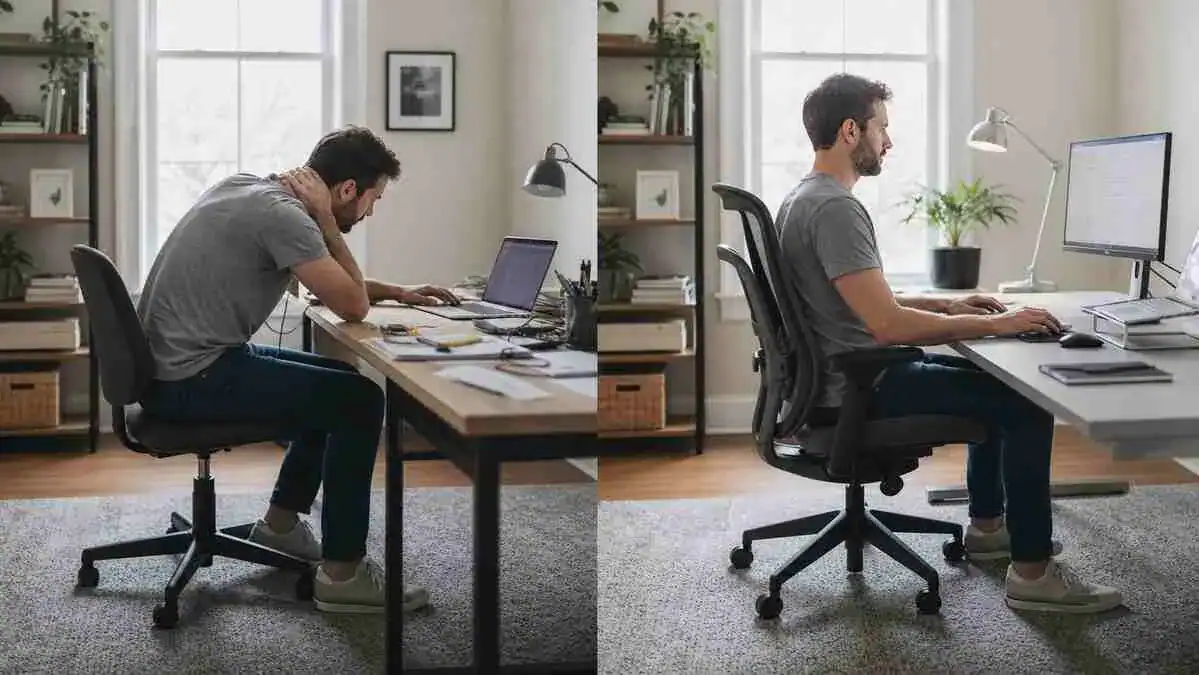
TL;DR
Key Takeaways
An ergonomic desk setup is a workstation arranged to support the body, keep work tools within comfortable reach, and reduce unnecessary physical strain during computer work. Instead of forcing the body to fit the workstation, the workstation should fit the individual.
Many people focus on maintaining one “perfect” posture all day. In reality, comfort depends more on a well-designed workstation and regular movement than on staying in one position for hours. Even the best ergonomic sitting position becomes less comfortable if the body never changes position.
The biggest contributors to an ergonomic workstation include:
- A chair that fits the person’s body and provides comfortable support
- A monitor positioned for easy viewing without leaning forward
- A keyboard and mouse placed close enough to reduce unnecessary reaching
- Regular posture changes and movement throughout the workday
These components work together as one system. Small improvements across the entire workstation often make a bigger difference than replacing a single piece of equipment.
There is no single desk setup that works for everyone. Body size, work tasks, available workspace, and daily habits all influence what feels comfortable. A good ergonomic office desk setup is individualized rather than based on standard measurements or someone else’s workstation.
If discomfort continues despite improving the workstation, or if symptoms include persistent numbness, weakness, or progressively worsening pain, workstation adjustments alone may not be enough. These symptoms should be evaluated by a qualified healthcare professional rather than assumed to result only from the desk setup.
Quick Answer
An ergonomic desk setup is a workstation arranged to support the body, keep the spine in a comfortable position, and place work tools within easy reach. Instead of making the body adapt to the workstation, a well-designed ergonomic workstation is built around the individual. This helps reduce unnecessary physical strain and supports more comfortable computer work.
A complete ergonomic desk setup includes:
- A supportive chair
- An appropriately sized desk
- A well-positioned monitor
- A keyboard and mouse within comfortable reach
- A practical laptop setup when a laptop is used
- Foot support if the feet cannot rest comfortably on the floor
- Lighting that allows comfortable screen viewing
Together, these components encourage better posture, reduce unnecessary reaching, and support comfortable working throughout the day.
Even the best workstation cannot replace movement. An ergonomic setup works best when paired with regular posture changes, occasional standing, and short walking breaks. Lasting comfort depends on both a well-arranged workstation and avoiding long periods in the same position.
Main Parts of a Complete Ergonomic Desk Setup
| Workstation Component | Primary Purpose |
| Chair | Supports the body and spine during sitting |
| Desk | Provides an appropriate working height and sufficient leg space |
| Monitor | Helps maintain a comfortable viewing position |
| Keyboard | Allows relaxed arm and wrist positioning |
| Mouse | Reduces unnecessary reaching and upper-body tension |
| Laptop Setup | Supports better screen and input positioning when using a laptop |
| Foot Support | Helps support the legs when feet cannot rest comfortably on the floor |
| Lighting | Improves visibility and may reduce awkward viewing positions |
Table of Contents
When to Worry
Signs That Often Improve With Ergonomic Changes
An ergonomic desk setup can often improve mild discomfort related to long hours of computer work. These symptoms usually develop gradually and often become more noticeable after prolonged sitting or screen use.
The following signs often improve after changing posture, standing, walking, or making workstation adjustments:
- Mild soreness after long desk sessions
- Stiffness that eases after standing or walking
- Neck or shoulder tension during prolonged screen use
- Lower-back discomfort linked to workstation setup
- Symptoms that improve after changing position or adjusting the workstation
These patterns often suggest that posture, prolonged sitting, or workstation fit may be contributing to reduced comfort rather than indicating a serious medical problem.
When Professional Evaluation May Be Helpful
Sometimes discomfort does not improve even after reviewing the workstation and making ergonomic changes. When symptoms persist or gradually worsen, another factor may be contributing.
Consider seeking professional evaluation if:
- Pain keeps returning despite workstation improvements
- Symptoms gradually worsen over time
- Sitting or working comfortably becomes increasingly difficult
- Pain begins to interfere with everyday activities
- Discomfort spreads beyond the original area, such as into an arm or leg
A workstation can influence comfort, but it does not explain every type of pain. Persistent symptoms deserve professional assessment instead of repeated workstation adjustments alone.
Warning Signs That Need Prompt Medical Attention
Some symptoms should not be treated as routine ergonomic discomfort.
Seek prompt medical attention if any of the following occur:
- New weakness in an arm or leg
- Severe numbness or loss of sensation
- Severe pain after an injury or fall
- Loss of bladder or bowel control
- Rapidly worsening neurological symptoms
These warning signs may indicate a condition that requires urgent medical evaluation rather than further workstation adjustments.
Common Workstation Discomfort vs. Warning Signs
| Common Ergonomic Discomfort | May Need Professional Evaluation |
| Mild stiffness after desk work | Pain that continues despite workstation improvements |
| Symptoms improve with movement | Symptoms become progressively worse |
| Tension related to prolonged sitting | Pain interferes with daily activities |
| Temporary neck or shoulder tightness | Numbness or tingling |
| Mild lower-back soreness | Weakness or pain spreading into an arm or leg |
Symptoms / Signs
Common Signs of a Poor Ergonomic Desk Setup
A poor ergonomic desk setup can gradually make desk work feel less comfortable. Symptoms often develop during or after computer work and may become more noticeable after spending long periods at the workstation.
Common signs include:
- Pressure or aching in the lower back
- Neck tightness during or after desk work
- Shoulder tension
- Wrist or forearm discomfort
- A frequent need to change sitting position
- Feeling uncomfortable after working at a desk
- Sitting becoming less comfortable as the day goes on
These patterns can affect one area of the body or several areas at the same time. The exact symptoms often vary from person to person.
When these symptoms develop regularly during office or computer work, they may also be associated with desk job back pain.
Posture Changes That May Develop During Desk Work
People may also notice gradual changes in the way they sit while working. These posture changes often develop during prolonged computer use without the person realizing it.
Common posture changes include:
- Slouching in the chair
- Leaning forward toward the screen
- Leaning to one side
- Forward-head posture
- Rounded shoulders
- Feet dangling or sliding forward instead of resting comfortably
- Difficulty staying fully supported by the chair
These posture patterns usually develop gradually as the workday progresses rather than appearing all at once.
Symptoms That Often Change With Movement
Many workstation-related symptoms are not constant. They often change after standing, walking, or simply changing position. Recognizing these patterns can help to understand when discomfort may be related to prolonged desk work.
People commonly notice:
- Stiffness after prolonged sitting
- Pain when standing after a long work session
- Symptoms easing after standing or walking
- Discomfort becoming more noticeable later in the workday
- Temporary relief after changing posture
These changing symptom patterns are common during desk work. However, persistent or worsening symptoms should be assessed separately, as discussed in the previous section.
Causes of Discomfort Related to an Ergonomic Desk Setup
An ergonomic desk setup affects how the body sits, reaches, views the screen, and stays supported during computer work. When the workstation does not fit the person, the body often works harder to perform everyday tasks comfortably.
Discomfort rarely comes from one item alone. The chair, desk, monitor, keyboard, mouse, laptop, and daily work habits all work together to influence posture, muscle effort, and overall sitting comfort.
A Workstation That Does Not Fit the Person
An ergonomic workstation should fit the individual instead of forcing the individual to adapt. Body size, chair adjustment, desk height, and monitor position all influence how comfortably the workstation functions.
Standard desk measurements do not suit everyone. A setup that feels comfortable for one person may place another person’s shoulders, arms, legs, or screen in an awkward position.
This is why copying someone else’s workstation rarely produces the same results. Several small issues often work together, such as a chair that sits too low, a desk that is too high, and a monitor that encourages leaning forward.
Each issue may seem minor on its own. Together, they can increase muscular effort and reduce comfort throughout the workday.
Poor Chair Fit Reduces Whole-Body Support
Chair fit affects much more than the lower back. It influences how the spine, pelvis, legs, shoulders, and arms work with the rest of the workstation.
For detailed instructions on adjusting seat height, chair position, armrests, and overall chair fit, see the Desk Chair Height and Positioning guide.
A chair may provide poor support when:
- The backrest does not support the spine well
- Lumbar support does not fit the lower back
- The seat height leaves the feet unsupported
- The knees rest in an awkward position
- The seat is too deep
- The seat is too shallow
- The armrests lift the shoulders or block access to the desk
- The adjustment controls make proper fitting difficult
A seat that is too deep can make it difficult to sit fully against the backrest. A seat that is too shallow may provide less support beneath the thighs. Incorrect seat height can also leave the feet dangling or place unnecessary pressure on the legs.
Armrests can create another problem when they prevent the chair from moving close enough to the desk. They may also keep the shoulders raised instead of allowing them to remain relaxed.
Together, these chair-fit problems reduce whole-body support. The muscles then work harder to keep the body upright, which may lead to earlier fatigue during desk work.
Cause → Effect
Poor chair fit
↓
Reduced body support
↓
More muscular effort
↓
Earlier fatigue
↓
Reduced sitting comfort
Desk Height Influences the Entire Working Position
Desk height affects the position of the shoulders, elbows, wrists, keyboard, and monitor. It also changes how closely the chair can fit beneath the work surface.
A desk that is too high may encourage raised shoulders or uncomfortable arm positions. It can also make the keyboard and mouse harder to use without extra effort.
A desk that is too low may encourage leaning forward, bending, or working with awkward arm positions. It also changes the relationship between the monitor, chair, and keyboard.
Leg space beneath the desk matters as well. Limited clearance can restrict the knees or prevent the chair from moving close enough to the desk, encouraging the person to sit farther away and reach forward.
Frequently used equipment should remain within a comfortable working zone. When the keyboard, mouse, phone, or documents are too far away, repeated reaching, twisting, or leaning becomes more likely.
Desk measurements can provide a starting point, but they do not guarantee correct desk ergonomics for every individual. The desk must work together with the chair, equipment, and the person’s body size.
Monitor Position Changes Head and Neck Posture
Monitor position influences how the head, neck, shoulders, and upper body move during computer work. A screen can contribute to discomfort when it sits too low, too high, too far away, or off-center.
A monitor that is too low may encourage the head to move forward and the neck to bend downward. A monitor that is too high may cause the chin to lift or the neck to remain in an awkward viewing position.
When the screen sits too far away, people often lean toward it to see more clearly. An off-center monitor may lead to repeated head turning or a rotated upper body.
Monitor placement affects more than the neck. People frequently change their entire sitting position just to view the screen, which can encourage forward-head posture, rounded shoulders, leaning, and repeated neck movement.
Over time, these viewing habits can increase neck muscle tension and reduce upper-body comfort.
Cause → Effect
Monitor positioned too low
↓
Forward-head posture
↓
Neck muscle tension
↓
Upper-body discomfort
Keyboard and Mouse Placement Can Increase Upper-Body Strain
The keyboard and mouse influence how far the arms must reach during computer work. When either device sits too far away, the body naturally begins moving toward the desk.
Repeated reaching can pull the shoulders forward and increase muscle effort throughout the upper back. It can also place greater demands on the forearms and wrists.
A mouse placed far to the side may keep the arm away from the body for long periods.
For more detailed guidance on mouse placement, arm position, wrist alignment, and comfortable mouse use, see the guide on proper mouse position.
Likewise, a keyboard positioned too deep on the desk can encourage leaning forward or working without back support.
Keeping both input devices close helps reduce unnecessary reaching. It also makes it easier to keep the upper arms closer to the body during everyday computer tasks.
Keeping the keyboard and mouse close to the body helps reduce unnecessary reaching and upper-body effort during long computer sessions.
Cause → Effect
Keyboard or mouse positioned too far away
↓
Repeated reaching
↓
Shoulder fatigue
↓
Upper-back tension
Laptop-Only Workstations Create Multiple Setup Challenges
A laptop combines the screen, keyboard, and touchpad into a single device. This design makes it difficult to position both the screen and input devices comfortably at the same time.
Placing the laptop low enough for comfortable typing often leaves the screen below a comfortable viewing height. Raising the screen then makes the built-in keyboard and touchpad more difficult to use.
Laptop-only workstations may involve:
- A low screen position
- A cramped keyboard position
- Limited touchpad space
- Difficulty keeping both the hands and screen comfortable
- Less flexibility when arranging the workstation
Many people respond by leaning forward, rounding their shoulders, or bending the neck downward.
These posture changes often begin gradually and become more noticeable during prolonged computer work. Laptop ergonomics usually involve balancing viewing comfort with hand position.
Common Workstation Problems and the Discomfort They May Contribute To
| Workstation Problem | Common Effect on Comfort |
| Chair does not fit the user | Reduced body support and earlier muscle fatigue |
| Desk height is mismatched | Uncomfortable arm, shoulder, and wrist position |
| Monitor positioned too low or too far away | Increased neck and upper-body strain |
| Keyboard or mouse too far away | More reaching and shoulder tension |
| Laptop-only setup | Awkward neck and arm positioning |
| Limited leg space | Reduced sitting comfort and more frequent position changes |
Long Periods of Sitting Reduce the Benefits of a Good Setup
Even a well-designed workstation cannot completely offset the effects of prolonged sitting. An ergonomic desk setup supports comfortable working, but remaining in one position for long periods gradually increases muscle fatigue and reduces overall comfort.
Static sitting limits normal body movement. Over time, the muscles that help maintain posture continue working, even if the person is sitting in a comfortable position. As this effort builds, stiffness and the need to change position often become more noticeable.
Changing posture throughout the day is part of good ergonomics—not a sign that the workstation has failed. A comfortable workstation should make movement easier rather than encourage staying in one position for hours.
Cause → Effect
Prolonged sitting
↓
Reduced movement
↓
Muscle fatigue
↓
Stiffness
↓
Reduced comfort
Everyday Work Habits Can Reduce Ergonomic Comfort
Workstation comfort depends on more than furniture and equipment. Everyday work habits also influence how the body moves and how much physical effort is required throughout the day.
Common habits that may reduce ergonomic comfort include:
- Leaning toward the monitor
- Sitting while twisted
- Reaching repeatedly for frequently used items
- Multitasking across multiple work areas
- Holding a phone between the neck and shoulder
- Working with poor viewing angles
- Allowing screen glare to encourage awkward posture
Several of these habits are also common sitting mistakes that cause back pain, particularly during long periods of desk work.
These habits often increase unnecessary movement or encourage awkward positions, even when the workstation itself is well arranged.
Workstation improvements are usually most effective when combined with healthier work habits that reduce repeated reaching, twisting, and prolonged static positions.
Work Habit vs. Potential Effect on Comfort
| Work Habit | Possible Effect |
| Sitting in one position for long periods | Increased stiffness and muscle fatigue |
| Frequently leaning toward the screen | More neck and shoulder tension |
| Reaching repeatedly for the mouse or other items | Upper-body fatigue |
| Holding a phone between the neck and shoulder | Neck muscle strain |
| Working with screen glare | Awkward viewing posture and visual discomfort |
| Rarely changing posture | Reduced comfort over the workday |
What It May Indicate
The common workstation-related discomfort may suggest without diagnosing medical conditions. In many cases, symptoms indicate that one or more parts of the workstation could fit the person better. However, persistent or worsening symptoms should not automatically be assumed to result only from poor ergonomics.
The Workstation May Not Fit the User Properly
Discomfort does not always mean the workstation is poorly designed. More often, it suggests that one or more workstation components may not fit the individual.
Several small issues can combine to reduce comfort, including:
- A chair and desk that do not work well together
- A monitor positioned too high, too low, or too far away
- A keyboard or mouse that requires repeated reaching
- Foot support that does not match the chair height
- A laptop setup that encourages awkward working positions
Rather than one major problem, multiple small mismatches often create unnecessary physical strain during computer work.
Chair-Fit Problems May Feel Different From Desk Setup Problems
Chair-fit problems and desk setup problems often feel different, even though they may occur together.
Chair-fit problems commonly involve:
- Difficulty sitting comfortably
- Feeling that the lower back is unsupported
- Feet not resting comfortably
- Pressure beneath the thighs
- Frequent repositioning in the chair
Desk setup problems more commonly involve:
- Neck tension
- Shoulder discomfort
- Wrist or forearm strain
- Reaching toward the keyboard or monitor
- Awkward upper-body posture
Although these patterns can provide useful clues, they do not allow someone to identify the exact cause of discomfort on their own. More than one workstation issue may be contributing at the same time.
Chair-Fit Problems vs. Desk Setup Problems
| Chair-Fit Problems | Desk Setup Problems |
| Lower-body support feels poor | Upper body works harder to reach equipment |
| Feet are unsupported | Monitor position encourages leaning |
| Seat depth feels uncomfortable | Keyboard or mouse requires reaching |
| Frequent repositioning in the chair | Neck and shoulders become tense during computer work |
| Sitting comfort decreases quickly | Visual or arm position feels awkward |
Muscle Fatigue Often Develops Gradually During Desk Work
Muscle fatigue rarely appears suddenly during computer work. Instead, it usually builds slowly as the muscles continue supporting the body in a static position.
People often notice:
- Neck tightness
- Shoulder fatigue
- Lower-back aching
- Feeling stiff after sitting
These symptoms may become more noticeable later in the workday, especially after long periods of uninterrupted desk work.
Changing position, standing, or walking often helps improve comfort because it reduces continuous muscle loading and allows the body to move more naturally.
Cause → Effect
Static posture
↓
Continuous muscle activity
↓
Gradual fatigue
↓
Reduced comfort
↓
More frequent position changes
Temporary Stiffness May Improve With Movement
Many people experience temporary stiffness after sitting for a long time. They may also notice discomfort when standing up or reduced flexibility immediately after leaving the desk.
These symptoms often improve with movement because prolonged sitting reduces normal body movement throughout the day.
Occasional stiffness that improves after walking or changing position is different from symptoms that continue despite workstation improvements or regular movement.
Persistent Symptoms May Suggest More Than a Workstation Issue
Sometimes workstation improvements do not fully explain ongoing discomfort.
If symptoms continue despite improving workstation ergonomics, repeatedly return, or gradually become worse, another factor may be contributing.
Professional evaluation may be appropriate if discomfort includes:
- Persistent numbness
- Persistent tingling
- Weakness
- Symptoms that interfere with work or daily activities
These situations deserve professional assessment rather than continued workstation adjustments alone.
Temporary Workstation Discomfort vs. Persistent Symptoms
| Temporary Workstation-Related Pattern | Persistent Pattern That Deserves Evaluation |
| Improves after standing or walking | Continues despite workstation improvements |
| Mainly appears during desk work | Gradually becomes more frequent |
| Changes with posture or movement | Interferes with daily activities |
| Mild stiffness after prolonged sitting | Persistent numbness or tingling |
| Muscle fatigue improves with rest | Weakness or spreading symptoms |
Poor Ergonomics and Medical Conditions Are Not Always the Same
Poor ergonomics, posture-related discomfort, muscle fatigue, and medical conditions are not the same thing.
An ergonomic desk setup may contribute to muscle fatigue, temporary stiffness, or posture-related discomfort during computer work. However, it does not automatically explain every symptom a person experiences.
Likewise, improving workstation ergonomics may help many people work more comfortably, but persistent or worsening symptoms should not automatically be assumed to result only from desk setup.
Comparison: Common Ergonomic Discomfort vs. Symptoms That Need More Attention
| Common Ergonomic Discomfort | Symptoms That Need More Attention |
| Muscle fatigue | Persistent weakness |
| Temporary stiffness | Worsening pain |
| Chair discomfort | Persistent numbness or nerve-related symptoms |
| Workstation strain linked to posture or sitting | Symptoms unrelated to posture or sitting |
| Often improves after ergonomic adjustments and movement | May require professional evaluation despite workstation improvements |
What to Do
Improving an ergonomic desk setup often starts with reviewing the entire workstation instead of focusing on one piece of equipment. Small, thoughtful changes and healthier work habits can gradually improve comfort, but persistent or worsening symptoms should still be evaluated by a healthcare professional.
Review the Entire Workstation Instead of One Item
Many people assume a single problem—such as an uncomfortable chair—is responsible for all of their discomfort. In reality, several workstation components often work together to influence posture and comfort.
A complete workstation review should include:
- Chair
- Desk
- Monitor
- Keyboard
- Mouse
- Laptop setup
- Foot position
- Lighting
- Frequently used work items
Looking at the workstation as one connected system often provides a clearer picture than changing one item in isolation.
Quick Ergonomic Desk Setup Review
- Chair supports comfortable sitting
- Feet are comfortably supported
- Monitor is easy to view
- Keyboard and mouse are within comfortable reach
- Frequently used items are close
- Lighting allows comfortable viewing
- Laptop setup supports comfortable posture
- Enough space to change sitting position
Make Small Ergonomic Changes One Step at a Time
Improving an ergonomic desk setup does not require changing everything at once. Making several adjustments at the same time can make it difficult to know which change actually improves comfort.
Small changes are usually easier to evaluate. After making one adjustment, it helps to work normally for several days before deciding whether another change is needed.
Examples of gradual changes include:
- Adjusting the chair position
- Moving the monitor
- Repositioning the keyboard
- Relocating the mouse
- Improving the lighting
A gradual approach allows the workstation to improve over time instead of chasing a single “perfect” setup.
Change Position Throughout the Day
Even the best workstation cannot replace regular movement. Remaining in one position for long periods reduces natural movement and gradually increases muscle fatigue.
Changing sitting position throughout the day helps reduce prolonged static loading. An ergonomic workstation should make these posture changes easy rather than encourage staying still for hours.
Helpful ways to add movement include:
- Alternating sitting positions
- Standing occasionally
- Taking short walks
- Performing gentle stretches if comfortable
Movement supports the workstation instead of competing with it.
Cause → Effect
Changing position regularly
↓
More movement
↓
Reduced prolonged static loading
↓
Less muscle fatigue
↓
Improved comfort
Build Healthy Work Habits Into the Day
A well-designed workstation works best when supported by healthy daily habits. Small changes in how people work can reduce unnecessary physical effort throughout the day.
Helpful habits include:
- Avoiding unnecessary reaching
- Keeping commonly used items nearby
- Looking directly at the monitor instead of leaning toward it
- Keeping the workspace organized
- Reducing repeated awkward movements
- Alternating computer tasks when practical
These habits help the workstation function more effectively and make comfortable working positions easier to maintain.
Simple Daily Habits That Support an Ergonomic Desk Setup
| Habit | Why It Helps |
| Change sitting position regularly | Reduces prolonged static posture |
| Keep work items nearby | Reduces repeated reaching |
| Look directly at the monitor | Helps reduce unnecessary leaning |
| Take short movement breaks | Encourages regular body movement |
| Organize the workspace | Makes comfortable working positions easier to maintain |
| Review workstation setup occasionally | Helps identify changes that may improve comfort |
Monitor Changes Over Time
Workstation comfort can change as work habits, equipment, or daily routines change. Reviewing how the body responds over time often helps identify useful improvements.
It can be helpful to notice:
- Whether comfort improves after workstation adjustments
- Whether symptoms become less frequent
- Whether discomfort appears at certain times of the day
- Whether particular tasks consistently increase discomfort
Recognizing these patterns can guide future workstation improvements without encouraging self-diagnosis.
Know When Ergonomic Changes May Not Be Enough
An ergonomic desk setup supports comfort, but it cannot solve every type of discomfort.
Professional evaluation should be considered if:
- Symptoms continue despite workstation improvements
- Discomfort becomes progressively worse
- Persistent numbness or weakness develops
- Pain interferes with normal daily activities
- Symptoms continue even outside work-related situations
Improving workstation ergonomics supports healthier working habits, but it should not replace appropriate medical evaluation when symptoms persist or worsen.
When to Continue Improving the Workstation vs. When to Seek Professional Advice
| Continue Reviewing the Workstation | Consider Professional Evaluation |
| Mild discomfort linked to desk work | Symptoms continue despite improvements |
| Symptoms improve after movement | Symptoms become progressively worse |
| Small adjustments improve comfort | Persistent numbness or weakness |
| Discomfort mainly occurs during computer work | Symptoms interfere with daily life |
| No warning signs are present | New neurological symptoms develop |
A Simple Approach to Improving an Ergonomic Desk Setup
Notice discomfort
↓
Review the workstation
↓
Make one ergonomic adjustment
↓
Work normally for several days
↓
Evaluate comfort
↓
Improve further if needed
↓
Seek professional evaluation if symptoms persist or worsen
Ergonomic & Support Options
The main parts of an ergonomic desk setup work together to support comfortable computer work. Each workstation component contributes to the overall setup, and even small changes can affect how the rest of the workspace feels throughout the day.
Build the Workstation Around the Person
The basic principle of ergonomics is simple: the workstation should fit the person, not the other way around.
Every workstation component influences the others. Changing the chair may affect monitor height. Adjusting the desk may change arm position.
Moving the monitor may alter sitting posture. Comfort depends on how the entire workstation works together rather than on a single “perfect” chair or desk.
Several factors influence the best workstation arrangement, including:
- Body size
- Daily work tasks
- Sitting habits
- Available workspace
An ergonomic workstation is most effective when these factors are considered together.
Ergonomic Desk Setup System
Chair
│
Desk
│
Monitor
│
Keyboard & Mouse
│
Lighting
│
Movement Habits
│
Overall Comfort
Start With a Supportive Chair
The chair forms the foundation of most desk setups because it supports the body during prolonged computer work.
A supportive chair commonly includes:
- An adjustable backrest
- Adjustable seat height
- Appropriate seat depth
- Armrests
- A stable sitting position
These features help the chair fit a wider range of body sizes and work environments. The chair should provide stable support and enough adjustment to work comfortably with the desk, monitor, keyboard, and foot position
Choose a Desk That Supports Comfortable Working
A suitable desk should provide enough space for comfortable work while supporting a natural working position.
An appropriate desk allows:
- Comfortable arm positioning
- Adequate leg room
- Sufficient workspace
- Natural working posture
Different workstation designs can support these goals, including fixed desks, adjustable desks, and sit-stand desks. Each option has advantages depending on the individual and the type of work being performed. The right desk height also depends on the person’s body size and seated working position.
Position the Monitor for Comfortable Viewing
Monitor placement influences how comfortably the head, neck, and upper body work throughout the day.
A dedicated guide on correct monitor height and monitor position explains how screen height, viewing distance, screen alignment, monitor tilt, and dual-monitor placement work together to support comfortable viewing during computer work.
A well-positioned monitor supports:
- Comfortable viewing distance
- Comfortable viewing height
- A centered viewing position
- Practical dual-monitor arrangements when needed
Poor monitor placement often encourages leaning, forward-head posture, or repeated neck movement while trying to see the screen more clearly.
The exact position may vary with screen size, vision needs, work tasks, and the rest of the workstation
Main Workstation Components and Their Primary Roles
| Component | Main Purpose |
| Chair | Supports the body while sitting |
| Desk | Creates an appropriate working surface |
| Monitor | Supports comfortable viewing |
| Keyboard | Helps maintain relaxed arm and wrist position |
| Mouse | Reduces unnecessary reaching |
| Laptop accessories | Improve screen and input positioning |
| Foot support | Helps support the lower body |
| Lighting | Improves visibility while working |
Keep the Keyboard and Mouse Within Comfortable Reach
The keyboard and mouse should allow the arms to work in a relaxed, natural position throughout the day. When these input devices are positioned too far away, people often begin reaching forward without realizing it.
Repeated reaching can increase shoulder tension, place extra demand on the forearms and wrists, and encourage leaning toward the desk.
Keeping the keyboard and mouse within comfortable reach helps reduce unnecessary upper-body effort during long computer sessions. Even small positioning improvements may make everyday computer work feel more comfortable.
The goal is to keep both devices close enough for relaxed use without repeated reaching or shoulder movement.
For more detailed guidance on keyboard height, distance, wrist position, and typing posture, see the guide on proper keyboard position.
Improve Laptop Ergonomics
Laptops combine the screen, keyboard, and touchpad into one device. While convenient, this design often makes it difficult to keep both the screen and hands in comfortable positions at the same time.
Many laptop users benefit from accessories such as:
- A laptop stand
- An external keyboard
- An external mouse
These accessories provide greater flexibility when arranging the workstation by allowing the screen and input devices to be positioned more independently. This ergonomic laptop setup guide explains how to position a laptop, external keyboard, mouse, and screen together for more comfortable work.
The most useful setup depends on how long the laptop is used and whether separate input devices are available.
Support the Feet and Lower Body
Lower-body support contributes to comfort throughout the entire workstation. When the lower body feels stable, the rest of the body often requires less effort to maintain a comfortable sitting position.
Helpful forms of lower-body support include:
- Feet resting comfortably on the floor
- A footrest when the feet cannot reach the floor comfortably
- Adequate leg clearance beneath the desk
- A stable sitting position
The position of the feet and legs can influence comfort in the hips, lower back, shoulders, and upper body because the body functions as one connected system. The hip pain when sitting guide explains how prolonged sitting, chair fit, pressure, and lower-body positioning may contribute when discomfort is centered around the hips.
Create Comfortable Lighting Conditions
Lighting plays an important role in workstation comfort. It affects how easily the screen can be viewed and how often people change posture to avoid reflections or improve visibility.
Comfortable lighting should support:
- Easy screen viewing
- Reduced glare
- Fewer monitor reflections
- Less visual fatigue
Both natural light and artificial lighting can work well when arranged to minimize glare and support comfortable viewing. Lighting should make the screen and work materials easy to see without reflections that encourage leaning or head turning.
Workspace Factors and Why They Matter
| Workspace Factor | Why It Matters |
| Comfortable lighting | Supports easier screen viewing |
| Reduced glare | Helps maintain comfortable viewing posture |
| Frequently used items nearby | Reduces unnecessary reaching |
| Adequate desk space | Allows comfortable equipment placement |
| Clear work area | Makes posture changes easier |
Organize the Workspace to Reduce Reaching
Workspace organization affects more than efficiency. It also influences how often the body reaches, twists, or leans during everyday work.
Keeping commonly used items within comfortable reach can help reduce unnecessary movement throughout the day. It also makes it easier to maintain comfortable working positions while performing routine tasks.
The goal is not to improve productivity but to support physical comfort by reducing repeated awkward movements.
Sit-Stand Workstations Can Add Variety
Sit-stand desks allow people to alternate between sitting and standing during the workday. This variety can help reduce long periods spent in one position.
However, standing is not automatically better than sitting. Comfort still depends on a well-arranged workstation, regular movement, and suitable equipment.
Whether sitting or standing, posture changes and movement remain important parts of a healthy workstation.
Ergonomic Accessories May Improve Comfort
Accessories can improve workstation flexibility when matched to individual needs. They should support the existing workstation rather than replace good ergonomic habits.
Common ergonomic accessories include:
- Monitor risers
- Document holders
- Laptop stands
- Footrests
- Ergonomic keyboards
- Ergonomic mice
These tools may help improve comfort by making it easier to arrange equipment around the individual instead of forcing the individual to adapt to the equipment. An accessory is useful only when it solves a specific fit or positioning problem without creating another one.
Understand the Role of Lumbar Support
Lumbar support helps support the natural curve of the lower back while sitting. Understanding what lumbar support is and how it works can help explain its role within an ergonomic workstation. It may be built into a chair or added with an external lumbar cushion.
Good lumbar support depends on both the type of support and how well it matches the person’s sitting position. The support should match the curve of the lower back without pushing the body forward or limiting comfortable movement. The guide to where lumbar support should be explains how to position and adjust the support for comfortable lower-back contact.
Know When a Seat Cushion May Help
Seat cushions may improve sitting comfort for some people by changing how pressure is distributed across the seating surface.
In some situations, a seat cushion may also support longer periods of comfortable sitting. However, it does not replace an ergonomic workstation or good sitting habits.
A supportive workstation, regular movement, and appropriate chair fit remain the foundation of long-term comfort. The cushion should work with the chair rather than raise the body so much that the desk, armrests, or foot position no longer fit.
Ergonomic Equipment Has Limits
No single piece of ergonomic equipment can guarantee comfort or eliminate every source of discomfort.
An adjustable chair, standing desk, lumbar support, or seat cushion may all contribute to a better workstation, but none replaces healthy work habits or regular movement.
Comfort usually depends on several factors working together, including:
- A well-arranged workstation
- Appropriate equipment
- Regular movement
- Individual adjustment
- Consistent work habits
Viewing ergonomics as a complete system rather than a single product often leads to better long-term workstation comfort.
Ergonomic Equipment and Its Main Role
| Equipment | Primary Role |
| Adjustable chair | Supports sitting posture |
| Adjustable desk | Improves workstation flexibility |
| Laptop stand | Raises screen position |
| External keyboard | Improves arm and wrist positioning |
| External mouse | Reduces awkward reaching |
| Footrest | Supports lower-body positioning |
| Lumbar support | Supports the lower back |
| Seat cushion | Improves sitting comfort |
Complete Ergonomic Workstation Checklist
- Chair supports comfortable sitting
- Desk provides enough working space
- Monitor is easy to view
- Keyboard and mouse are comfortably positioned
- Laptop accessories are used when needed
- Feet are comfortably supported
- Lighting minimizes glare
- Frequently used items remain nearby
- Regular movement is part of the workday
- Workstation is reviewed periodically
FAQ
What is an ergonomic desk setup?
An ergonomic desk setup is a workstation arranged to fit the individual rather than forcing the individual to adapt to the workspace. It combines the chair, desk, monitor, keyboard, mouse, lighting, and other equipment to support comfortable computer work and reduce unnecessary physical strain.
Why is an ergonomic desk setup important?
A well-designed workstation supports comfortable posture, reduces unnecessary reaching, encourages movement, and helps people work more comfortably during long periods of computer use. It also allows the body to work more naturally throughout the day.
What are the main parts of an ergonomic workstation?
An ergonomic workstation typically includes a chair, desk, monitor, keyboard, mouse, and appropriate lighting. Depending on the setup, it may also include foot support and laptop accessories such as a laptop stand, external keyboard, and external mouse. Together, these components help create a comfortable workstation that supports healthy posture and reduces unnecessary physical strain during computer work.
Can an ergonomic desk setup help reduce back and neck discomfort?
Improving workstation ergonomics may help reduce unnecessary physical strain and improve comfort during computer work. However, workstation changes cannot explain every type of back or neck discomfort, and persistent or worsening symptoms should be evaluated by a healthcare professional.
Can a laptop be used as an ergonomic workstation?
Yes, but laptops often work best with accessories such as a laptop stand, an external keyboard, and an external mouse. These tools provide greater flexibility when positioning the screen and input devices, making it easier to create a comfortable workstation.
Does a standing desk replace an ergonomic chair?
No. Standing desks and ergonomic chairs serve different purposes. A sit-stand desk allows people to alternate between sitting and standing, while an ergonomic chair supports the body during seated work. Regardless of desk type, workstation fit, regular movement, and good work habits remain essential.
Can an ergonomic desk setup improve comfort when working from home?
Yes. The same ergonomic principles apply whether someone works in a traditional office or at home. Arranging the chair, desk, monitor, keyboard, lighting, and other workstation components to fit the individual may improve comfort and reduce unnecessary physical strain during computer work.
What are common ergonomic mistakes people make?
Common ergonomic mistakes include sitting in one position for long periods, leaning toward the monitor, repeatedly reaching for the keyboard or mouse, ignoring lighting or screen glare, and using a laptop without arranging the workstation properly. Focusing on a single piece of equipment instead of the entire workstation can also reduce comfort, as an ergonomic desk setup works best when all components support each other.
How often should an ergonomic workstation be reviewed?
It is helpful to review a workstation whenever equipment changes, work habits change, recurring discomfort develops, or the work environment is modified. Small periodic reviews often identify simple improvements before discomfort becomes a larger problem.
When should workstation discomfort be evaluated by a healthcare professional?
Professional evaluation is recommended if:
- Symptoms continue despite workstation improvements
- Discomfort becomes progressively worse
- Persistent numbness or weakness develops
- Symptoms interfere with daily activities
- Symptoms continue outside work-related situations
These situations may involve factors beyond workstation ergonomics and deserve appropriate medical assessment.
What is the ideal monitor position for desk work?
The ideal monitor position varies from person to person because body size, desk height, chair fit, and work tasks all influence comfortable viewing. In general, the monitor should be easy to view without repeated leaning, awkward neck movement, or unnecessary twisting.
What is the best chair height for an ergonomic workstation?
The best chair height is one that allows comfortable sitting while working with the rest of the workstation. It should support stable sitting and work well with the desk, monitor, and foot position rather than relying on a single standard measurement.
Should the keyboard and mouse be at the same height?
In most workstation setups, positioning the keyboard and mouse at a similar working height helps reduce unnecessary reaching and supports a more relaxed arm position. The exact placement depends on the person’s workstation and work tasks.
Is a footrest necessary for every workstation?
No. A footrest is not necessary for everyone. It can be helpful when the feet cannot rest comfortably on the floor after the chair has been adjusted appropriately. The goal is to support a stable and comfortable lower-body position rather than using a footrest by default.
Sources & References
- Mayo Clinic — Office Ergonomics: Your How-To Guide
- National Institutes of Health (NIH) — Computer Workstation Ergonomics: Self-Assessment Checklist
- Computer Workstation Ergonomics: Current Evidence for Evaluation, Corrections, and Recommendations for Remote Evaluation
- University of Minnesota — Setting Up Your Ergonomic Office Space
- OSHA / New Mexico Workers’ Compensation Administration — Ergonomic Workstation Set-Up
- U.S. Army Public Health Command — You Can Arrange Your Desk So That It’s Right For You
- University of Pittsburgh — Workstation Design Guidelines
- Health and Safety Executive (HSE) — Reducing Awkward Postures
- Cambridge University Hospitals NHS Foundation Trust — Seating and Ergonomics
- Chelsea and Westminster Hospital NHS Foundation Trust — Desk Health Ergonomics
- The University of Adelaide — Workstation Ergonomic Guidelines
Related Articles
Readers who want to learn more about comfortable sitting, posture, and workstation ergonomics may also find these Backrested guides helpful:
- Why Sitting Causes Back Pain — Explains how prolonged sitting and reduced movement contribute to discomfort and provides the foundation for understanding sitting-related back pain.
- Best Sitting Position for Back Pain — Builds on workstation ergonomics by showing how body positioning can improve comfort during sitting.
- How to Sit Properly in a Chair to Avoid Back Pain — Provides step-by-step guidance on comfortable sitting technique after readers have optimized their workstation.
Update Note
Last Reviewed
Reviewed and updated: July 16, 2026.
2 thoughts on “Complete Ergonomic Desk Setup: How to Create a Comfortable Workstation”
Comments are closed.