
TL;DR
Key Takeaways
- Good home office ergonomics starts with fitting the workspace to the person rather than forcing the body to fit the furniture.
- Stable seating, supported feet, and enough legroom create a comfortable base for desk work.
- The keyboard and mouse should stay close enough for the shoulders and arms to remain relaxed.
- The main screen should sit ahead and be easy to see without repeated leaning, twisting, or straining to read.
- For sustained laptop work, raising the screen and using a separate keyboard and mouse can make the setup easier to adjust.
- A supported, neutral position is a flexible starting point. There is no single “perfect” posture, so regular movement and position changes also matter.
- Persistent or worsening symptoms, numbness, weakness, symptoms after major trauma, or other concerning changes need appropriate professional evaluation rather than repeated workstation adjustments.
Quick Answer
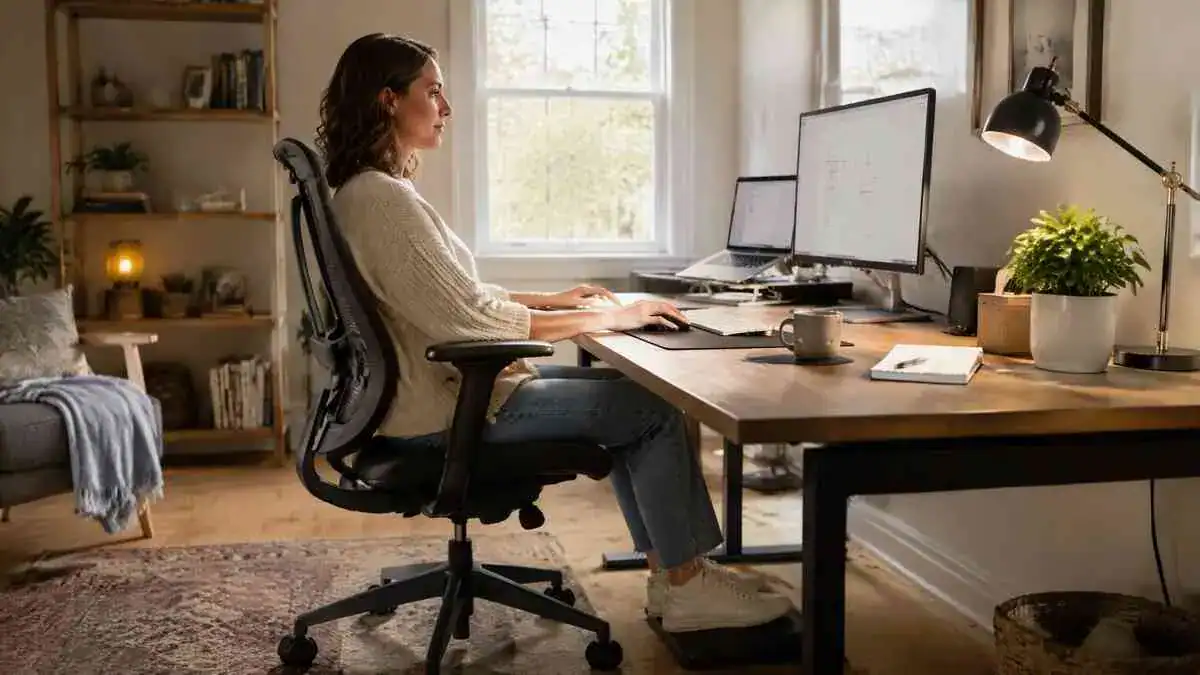
Good home office ergonomics starts with a chair that supports the body and feet, followed by a work surface that fits that seated position. For an ergonomic home office setup, the keyboard and mouse should stay close, and the screen should be easy to see without leaning. For sustained laptop work, the screen and input devices should be separated when practical.
Knowing how to set up an ergonomic home office also means allowing regular movement and position changes.
Table of Contents
When to Worry
Most discomfort linked with home office ergonomics does not mean something serious is wrong.
However, symptoms that persist, worsen, affect normal activities, or involve changes in strength or sensation deserve more attention.
When Desk Discomfort Needs Professional Evaluation
Professional evaluation may be appropriate when pain lasts for several weeks, keeps returning, or continues to get worse. Symptoms that interfere with work, sleep, walking, driving, or other daily activities also deserve attention.
Other reasons to seek professional evaluation include:
- pain that travels into an arm or leg
- recurring numbness or tingling
- weakness in an arm, hand, or leg
- reduced grip or repeatedly dropping objects
- a noticeable loss of normal movement or function
- eye pain, blurred vision, or other visual symptoms that persist or keep returning
These patterns should not automatically be blamed on posture or an ergonomic setup. Medical evaluation takes priority when symptoms are progressive, neurological, unexplained, or limiting normal function.
When Symptoms Need Urgent Medical Attention
Some symptoms need urgent medical attention rather than further workstation changes. These include:
- new bladder or bowel changes
- numbness around the saddle area, including the genitals, buttocks, or inner thighs
- new or rapidly worsening weakness
- pain, numbness, tingling, or weakness affecting both legs
- a new inability to walk or major problems with balance
- severe back or neck pain after a significant fall, crash, or other trauma
- severe spinal pain with fever or chills
- sudden neurological symptoms, such as problems with speech, vision, or movement
These warning signs should not be treated as ordinary desk discomfort. Urgent local medical care or emergency services may be needed.
Symptoms and Signs
Problems with home office ergonomics can show up as changes in comfort, posture, or work habits. These signs may help identify a possible mismatch between the body and the workspace, but they do not prove what is causing the discomfort.
The Body Feels Stiff or Tired During Work
Discomfort may slowly build as the workday continues. The lower back may feel achy or pressured, while the neck or upper back may feel tight. Shoulder, hip, forearm, or hand fatigue may also develop.
Stiffness after sitting is another common pattern. These symptoms may become more noticeable after long periods with little change in position.
The Body Keeps Adjusting to the Workspace
Repeated body adjustments can provide useful clues. A person may keep sliding forward, perch on the chair edge, lean toward the screen, or shift to one side.
Other signs include shrugged shoulders, repeated reaching, crossing the legs for stability, or moving the feet around to find support. Frequent repositioning may also suggest that the current working position is difficult to maintain comfortably.
The Screen Is Hard to View Comfortably
Screen-related signs can include squinting, leaning closer, looking down for long periods, or tilting the head. A person may also keep turning toward a screen that sits off to one side.
Tired or dry eyes and headaches may appear after prolonged screen work. These symptoms can occur along with repeated changes in head or body position when the screen is difficult to view comfortably.
The Hands and Arms Do Not Feel Relaxed
Bent wrists, pressure from a hard desk edge, and repeated reaching are useful signs to notice.
One shoulder may also sit higher during mouse use, while the forearm or hand becomes tired during prolonged computer work.
Numbness, tingling, weakness, or repeatedly dropping objects needs more caution. These symptoms should not automatically be blamed on the workstation or posture because other problems can cause similar signs.
Home Office Signs and What to Check
These common signs can point to parts of the workspace that may be worth checking. They do not show what is causing pain or other symptoms.
| Observable Sign | What to Check First |
| Shoulders keep rising | Work surface or keyboard height |
| Feet dangle | Chair height or foot support |
| Body leans toward screen | Screen distance, text size, or visibility |
| One arm keeps reaching | Mouse position |
| Body slides forward | Chair fit, backrest contact, or work reach |
| Wrists press on desk edge | Keyboard position or desk-edge contact |
| Head repeatedly turns | Screen placement |
What Causes Poor Home Office Ergonomics?
Poor home office ergonomics often develops when home furniture, work equipment, and daily habits do not fit together well. Fixed furniture, awkward device positions, limited movement, and makeshift work areas can make the body compensate by reaching, leaning, twisting, or holding uncomfortable positions.
The Home Furniture Does Not Fit the Work
Many homes use fixed-height desks, dining tables, or ordinary household chairs for work. These pieces may work well for their original purpose but may not match the person or the computer task.
A chair-to-table mismatch can leave the work surface too high or too low. Limited legroom, armrests that block close desk access, or unsupported feet can create other problems. When fixed furniture does not fit, the body may compensate by reaching, leaning, or lifting the shoulders. Over time, these changes may contribute to fatigue or discomfort.
Cause chain:
Fixed furniture mismatch → body compensates → reaching, leaning, or shoulder elevation → fatigue or discomfort.
The Chair Does Not Support the Body Well
Chair fit affects how the rest of the workstation feels. An unsuitable desk chair height may leave the feet dangling, while a seat that is too deep may put pressure behind the knees or make it harder to sit against the backrest.
Poor backrest contact can leave the body sitting forward instead of using the backrest. Armrests may also raise the shoulders or stop the chair from moving close enough to the desk.
The Keyboard and Mouse Are Too High or Far Away
Proper keyboard position can help the shoulders, arms, and wrists work in a more comfortable position. If the keyboard or work surface is too high, the shoulders may lift while wrists bend. This can increase sustained muscle effort and contribute to neck, shoulder, forearm, or hand discomfort.
Poor mouse position, such as placing the mouse too far away, can pull the elbow away from the body and make the arm reach repeatedly. Pressure from a hard desk edge may also add contact stress around the wrist or forearm.
Cause chain:
Keyboard or desk too high → shoulders lift and wrists bend → sustained muscle effort → neck, shoulder, forearm, or hand discomfort.
The Screen Encourages Leaning or Twisting
Poor monitor height and position can change how the head and upper body are held. A screen that is too low, too high, too far away, or off to one side may encourage these changes. Small text, glare, and poor lighting can make viewing harder as well.
Poor visibility may lead to squinting, leaning closer, tilting the head, or repeatedly turning toward the screen. These changes can increase sustained neck and shoulder effort and may contribute to fatigue.
Cause chain:
Poor visibility → squinting, leaning, or head movement → greater sustained neck and shoulder effort → fatigue.
A Laptop Creates a Screen-and-Keyboard Trade-Off
A laptop creates a special challenge because its screen and keyboard are attached. If the keyboard sits at a comfortable typing height, the screen may remain too low. If the screen is raised, the attached keyboard may become too high.
Cause chain:
Attached laptop screen and keyboard → comfortable screen height conflicts with comfortable typing height → neck, wrist, or shoulder compromise.
This trade-off can place the neck, shoulders, or wrists in less comfortable positions during sustained work. An ergonomic laptop setup can separate the display from the keyboard and mouse, giving each part more flexibility.
Staying in One Position for Too Long Adds Strain
Sitting itself is not automatically the problem. Long periods of uninterrupted work, too few breaks, and little position variation are more useful factors to consider.
Long static work reduces opportunities to change position. Muscles may stay active for longer, while repeated typing or mouse use adds more work for the hands and arms. This combination can lead to muscle fatigue, stiffness, and posture fatigue as the work session continues.
Cause chain:
Long static work → less position variation → muscle fatigue or stiffness → discomfort.
Similar problems can develop during long gaming sessions. Back pain from gaming may involve too few position changes along with chair fit, screen position, control reach, and lower-back support, so a comfortable computer setup still needs to allow movement.
Home-Working Habits Can Make the Setup Harder to Use
Work from home ergonomics can become more difficult when the work area changes throughout the day. A person may work from a couch, bed, dining table, or another surface that was not designed for sustained computer work.
Working with a laptop on the lap can also encourage leaning or awkward viewing and typing positions. Holding a phone between the shoulder and ear may add another sustained position.
Soft couch seating can allow the body to sink while the equipment remains poorly supported.
Small habits can make the workspace harder to use as well. Clutter may reduce legroom, while frequently used items placed too far away can encourage repeated reaching. Continuing to work through growing discomfort may also allow the same uncomfortable pattern to continue for longer.
Common home workspaces often have different limitations. The table below shows practical adjustments that may make these setups easier to use.
| Common Home Setup | Practical Adjustment |
| Dining table | Adjust the chair where possible, support the feet if needed, and keep work devices close |
| Fixed-height desk | Match the chair to the work surface as closely as practical and use stable foot support if the chair must be raised |
| Ordinary household chair | Check seat depth, back support, foot support, and whether the chair can move close enough to the work surface |
| Laptop-only setup | Raise the display for sustained work and use an external keyboard and mouse when practical |
| Couch or bed | Use a more stable work surface and supported seating when possible |
| Small workspace | Clear legroom and keep frequently used items within easy reach |
What It May Indicate
Patterns noticed during home office ergonomics checks can provide clues about how well the workspace fits the person. They may point to a workstation mismatch, an interaction between different parts of the setup, or a need for more position changes. These observations can guide what to check, but they cannot diagnose the cause of pain or other symptoms.
The Workspace May Not Fit the Person
Repeated leaning, reaching, sliding forward, dangling feet, or raised shoulders may suggest that the furniture and work equipment do not fit the person well.
The body may keep changing position because the chair, desk, screen, or input devices do not work comfortably together.
These patterns are useful clues, not a diagnosis. A visible workstation mismatch may help identify something worth checking, but it does not prove why discomfort is occurring.
One Part of the Setup May Be Affecting Another
A home office workstation works as a connected system. A complete ergonomic desk setup considers how these different parts work together, because changing one part can improve one problem while creating another.
For example, raising the chair may make typing more comfortable but leave the feet unsupported.
Changing chair height can also affect how the screen lines up with the person. A deep seat may prevent good backrest contact, while armrests may stop the chair from moving close enough to the desk.
Laptop changes can have the same effect. A laptop stand may improve screen position, but sustained work usually needs a separate keyboard and mouse so the hands do not have to follow the raised screen.
The Setup May Need More Movement, Not a More Rigid Posture
There is no single “perfect” posture that needs to be held throughout the workday. A supported sitting position is better treated as a comfortable starting point that still allows natural movement.
Comfort, support, and position changes matter more than forcing the body into exact right angles. Constantly correcting posture can become another form of static sitting if the person tries to hold the body rigidly in one position.
The goal is not to freeze the body in a posture that looks ideal. The working position should provide support while still allowing the person to shift and move naturally.
Symptoms May Not Be Caused by Ergonomics Alone
Symptoms that appear during desk work do not automatically mean poor ergonomics caused them. Health, previous injuries, stress, sleep, activity levels, repeated tasks, and other factors may also influence how a person feels during the workday.
Changing the workstation can help reveal possible aggravating factors. For example, a symptom that changes with reach, support, or position may provide a useful clue. However, feeling better after an adjustment does not prove a diagnosis or identify the underlying cause.
Persistent, worsening, radiating, or neurological symptoms need separate attention rather than being treated only as an ergonomic problem.
What to Do
Improving home office ergonomics works best when the workspace is checked in a clear order. The goal is to make the chair, work surface, devices, and daily work habits fit together while leaving room for comfortable movement.
Start With a Home Office Ergonomics Checklist
A simple home office ergonomics checklist can prevent one adjustment from being made without considering the rest of the workspace. A useful order is:
- Clear the work area.
- Position the chair.
- Support the feet.
- Check backrest contact.
- Bring the keyboard and mouse close.
- Position the screen.
- Improve the setup for sustained laptop use.
- Reduce screen glare.
- Keep frequently used items within easy reach.
- Test the setup during normal work.
These steps provide a practical starting point for an ergonomic home office setup. The setup can then be adjusted based on how the person works rather than how it looks in a single sitting position.
Make the Chair and Work Surface Work Together
The chair should sit close enough to the work surface without blocking the legs. There should be enough leg clearance to sit comfortably and change position.
The feet should have stable support while the shoulders remain relaxed. The forearms can stay roughly level with the keyboard as a practical starting point.
If the chair must be raised to match a high work surface, a stable footrest may be needed so the feet do not dangle. The body should not have to stretch upward or lift the shoulders just to reach the desk.
Bring the Keyboard and Mouse Within Easy Reach
The keyboard should sit directly ahead, with the mouse immediately beside it. This allows the elbows to stay near the body and reduces repeated reaching.
The shoulders should remain relaxed, while the wrists stay generally aligned with the forearms rather than bending sharply. Hard desk edges should not create pressure against the wrists or forearms.
More detailed keyboard and mouse positioning can be checked separately when finer adjustments are needed.
Make the Screen Easy to See
The main screen should sit directly ahead and be easy to read without leaning or repeatedly turning the head. Roughly an arm’s length is a useful starting distance, but readability matters more than following one exact distance.
The top of the screen can start around or slightly below eye level. Text should remain easy to read, and screen position may need to change based on vision or eyewear. Glare from windows or bright lights should also be reduced.
These are starting principles rather than exact rules. More detailed monitor positioning can be adjusted separately when needed.
Improve a Laptop-Only Home Workspace
For sustained laptop work, separating the screen from the input devices gives the setup more flexibility. A laptop stand, laptop riser, or external monitor can raise the display while a separate keyboard and mouse remain at a comfortable working height.
This avoids forcing the screen and hands to share the same height during longer work sessions.
Adapt a Kitchen or Dining Table
A kitchen or dining table can serve as a home workspace, but its fixed height may not match the person’s seated elbow height. The same desk height principles can help when deciding how the chair and work surface should fit together. Where possible, the chair can be adjusted so the hands reach the work surface without lifting the shoulders.
If raising the chair leaves the feet unsupported, a stable footrest can provide support. The keyboard and mouse should remain close, with enough clear space under the table for the legs and normal movement.
For laptop work, the screen can be raised independently while a separate keyboard and mouse remain closer to the hands. A keyboard tray may also help when the table creates an unsuitable working height and the space allows one.
Change One Thing at a Time
Changing one part of the setup at a time makes it easier to notice what affects comfort. A person might change the mouse reach, screen position, foot support, back support, or break pattern and then work normally for a while.
If the symptom pattern changes, that response may help identify a possible aggravating factor. It does not prove what caused the symptom or provide a diagnosis.
Move and Change Position During the Day
An ergonomic workspace should still allow movement. Brief position changes give the body a chance to move away from sustained working positions and reduce long periods of sitting too long without movement.
Simple options include standing briefly, walking to get water, changing tasks, standing for some phone calls, or alternating between supported sitting and standing when that option is available.
Recommendations for timing vary. Changing position or moving about every 20–30 minutes and taking at least a brief break each hour can serve as practical prompts. They should not be treated as rigid rules that every person must follow exactly.
Ergonomic and Support Options
Equipment can support home office ergonomics, but no single item makes a workspace ergonomic by itself. The useful option depends on the person, the task, and how the equipment works with the rest of the workstation. An “ergonomic” label does not guarantee a good individual fit.
A Home Office Chair
A home office chair should fit the person and the work being done. Useful features include enough adjustability for stable foot support, suitable seat depth, useful backrest contact, and comfortable access to the desk.
The chair should also allow the person to approach the work surface without the chair or armrests getting in the way. Fit and adjustability matter more than an “ergonomic” label because body size, task demands, and the rest of the workstation can affect how well a chair works. Understanding what makes an office chair ergonomic can help separate useful chair features from the label itself.
If a dedicated office chair is needed, the How to Choose an Office Chair guide explains what to check for fit, adjustments, support, and workstation compatibility before buying.
Footrest
A footrest can help when the chair needs to be raised to match the desk or keyboard and the feet no longer reach the floor comfortably.
Stable foot support can reduce dangling and make the seated position feel more stable. The support can come from the floor or a footrest. The important point is that the feet have a stable place to rest.
Lumbar Support
Lumbar support can make supported sitting easier by gently supporting the natural low-back curve. It should feel supportive without creating a hard pressure point or forcing the lower back into an excessive arch.
If a chair lacks useful low-back support, a small cushion or rolled towel may provide a simple, low-cost option. Lumbar support serves a different purpose from seat cushioning and should not be used to force the body into a rigid posture.
Laptop Stand and External Devices
A laptop stand or riser can raise the laptop screen, while an external monitor can provide a separate viewing surface. An external keyboard and mouse can then stay at a more suitable height for the hands.
This combination separates viewing height from typing height. That flexibility can make sustained laptop work easier to fit into a home workstation.
Monitor Riser or Monitor Arm
A monitor riser or monitor arm can help when the existing desk or work surface cannot be changed. It can raise or center the screen without requiring a change in chair height.
The purpose is to make the screen position easier to adjust within the existing workspace.
Keyboard Tray and Input Options
A keyboard tray may help when a fixed work surface places the keyboard too high for comfortable use. It can create a more suitable working height without changing the entire desk.
A compact keyboard may also help when a wide number pad pushes the mouse farther away. Reducing that width can bring the mouse closer and reduce outward reaching.
Alternative input devices may suit some people, but they are not automatically better. Their usefulness depends on individual fit, the task, adjustment, and gradual adaptation.
Document Holder and Headset
A document holder can keep printed materials closer to the screen. This can reduce repeated downward viewing and frequent changes in visual focus.
For frequent calls, a headset can keep the hands free and help avoid holding a phone between the shoulder and ear.
Standing Desk
A standing desk is optional. It can add position variation to an ergonomic home office, but it is not required and should not be treated as a cure for discomfort.
A good standing desk ergonomics setup should fit the desk, monitor, keyboard, and mouse to the user while standing.
Standing for long periods can become another fixed position. The goal is to create opportunities for variation, movement, and recovery rather than simply replacing prolonged sitting with prolonged standing.
Ergonomic Support Options at a Glance
Different support options can help with different workspace needs. This table summarizes what each option may help with.
| Option | May Help With |
| Footrest | Providing stable foot support when the chair must be raised |
| Lumbar roll or small cushion | Filling a low-back support gap without hard pressure |
| Laptop stand or riser | Raising the laptop display |
| External keyboard and mouse | Separating typing position from laptop screen height |
| Monitor riser or arm | Adjusting screen height or position when the work surface cannot change |
| Keyboard tray | Creating a lower working height when a fixed surface is too high |
| Compact keyboard | Bringing the mouse closer when keyboard width increases reach |
| Document holder | Keeping printed material closer to screen height |
| Headset | Reducing the need to hold a phone between the shoulder and ear |
| Standing desk | Providing another working position and more opportunity for position variation |
FAQ
How to Set Up an Ergonomic Home Office?
For good home office ergonomics, the workspace should be fitted to the person in a practical order. Start with the chair and stable foot support, then check the work surface, keyboard and mouse, screen, and laptop setup. The workspace should also allow regular movement instead of requiring one fixed posture all day.
What Are the Signs of Poor Home Office Ergonomics?
Observable signs may include leaning toward the screen, reaching for the mouse, shrugging the shoulders, dangling the feet, sliding forward in the chair, bending the wrists, or repeatedly changing position to get comfortable.
These signs can suggest that part of the workspace needs checking, but they do not diagnose the cause of discomfort.
Should Feet Be Flat on the Floor When Working at a Desk?
The feet do not have to rest directly on the floor. The main principle is stable foot support. If the chair height allows the feet to rest comfortably on the floor, that can provide the needed support. If the chair must be raised and the feet no longer reach the floor comfortably, a stable footrest can provide support instead.
How Can a Laptop Be Used More Ergonomically for Long Work Sessions?
For sustained laptop work, the display can be raised with a laptop stand or riser, or an external monitor can be used. A separate keyboard and mouse can then stay at a comfortable working height.
How Often Should Someone Move While Working From Home?
There is no single movement schedule that suits everyone. As practical prompts, a person may change position or move about every 20–30 minutes and take at least a brief break each hour. These are flexible reminders rather than strict rules.
Is a Standing Desk Necessary for an Ergonomic Home Office?
No. A standing desk is not required for an ergonomic home office. It can provide more position variation, but prolonged standing can also become a static posture. Regular movement and position changes matter more than simply replacing sitting with standing.
How Can a Home Office Be Made More Ergonomic?
An existing home office can be improved by checking where the body has to reach, lean, twist, or lose support. Small changes to chair position, foot support, device reach, screen position, lighting, and movement habits can make the workspace fit the person better.
The goal is not to create one “perfect” posture. It is to support comfort, workstation fit, and easy position changes during the workday.
How Can Someone Work Comfortably at Home Without an Office Chair?
A dedicated office chair is not always necessary. A stable chair may work if it provides useful back support, allows stable foot support, and fits reasonably well with the work surface.
The seat should not make it difficult to use the backrest or create uncomfortable contact behind the knees. The chair should also allow the person to get close enough to the work surface without repeated leaning or reaching.
Sources & References
The home office ergonomics guidance in this article is based on occupational ergonomics resources, clinical guidance, academic workstation recommendations, and research on sitting, movement, posture, and visual comfort.
The main references used include:
- Computer Workstations eTool
- Ergonomics – Environment, Health & Safety – UW–Madison
- Office Ergonomics: Your How-To Guide
- Computer Workstation Ergonomics: Self-Assessment Checklist
- How to Optimize Your Work Environment and Stay Healthy
- Computer Workstations & Ergonomics
- Ergonomics – Environmental Health and Safety
- Ergonomics Program: The Computer Workstation
- Computer Vision Syndrome
- Computers, Digital Devices, and Eye Strain
- Workplace Solutions: Using Total Worker Health® Concepts to Reduce the Health Risks from Sedentary Work
- Low Back Pain and Sitting Time, Posture and Behavior in Office Workers: A Scoping Review
- No Consensus on Causality of Spine Postures or Physical Activities and Low Back Pain
- “Sit Up Straight”: Time to Re-evaluate
- Sit-Stand Workstations and Impact on Low Back Discomfort
Soft CTA
A comfortable home office ergonomics setup depends on how the different parts of the workspace work together. These related guides can help with the next parts of the setup.
- Complete Ergonomic Desk Setup: How to Create a Comfortable Workstation
This guide explains how the chair, desk, keyboard, mouse, monitor, and other parts of a workstation can work together as a complete setup. - Desk Chair Height and Positioning: A Step-by-Step Guide to Proper Adjustment
This guide explains how to adjust chair height and position for better support and a more comfortable relationship with the work surface. - Ergonomic Laptop Setup: How to Set Up a Laptop for Comfortable Work
This guide explains laptop setup in more detail, including how to improve the relationship between screen height and input-device position during sustained work.
Update Note
Last reviewed and updated: September 17, 2026
This article reflect current home office ergonomics guidance, workstation setup principles, home-working considerations, and safety information.
11 thoughts on “Home Office Ergonomics: How to Set Up a Comfortable Workspace”
Comments are closed.