
TL;DR
Key Takeaways
- Desk chair height should support the whole sitting position, not just the legs. The feet, hips, knees, thighs, elbows, and desk all need to work together.
- Keep both feet resting fully on the floor or on a stable footrest to provide steady lower-body support.
- Aim for the knees and hips to stay at about 90 degrees or slightly more open, with the thighs roughly level or sloping slightly downward.
- Raise or lower the chair until the keyboard can be reached with relaxed shoulders and elbows close to desk height. Avoid lifting the shoulders while typing.
- After setting the seat height, check the seat depth, backrest, armrests, and distance from the desk to make sure the chair still fits well.
- The average chair height or standard adjustment range is only a starting point. The correct chair height depends on the user’s body proportions and the height of the desk.
- Even a properly adjusted chair cannot prevent discomfort if someone stays in the same position for long periods. Regular posture changes and short movement breaks remain important.
- If numbness, tingling, weakness, or worsening pain continues despite reasonable chair and workstation adjustments, professional evaluation is recommended.
Quick Answer
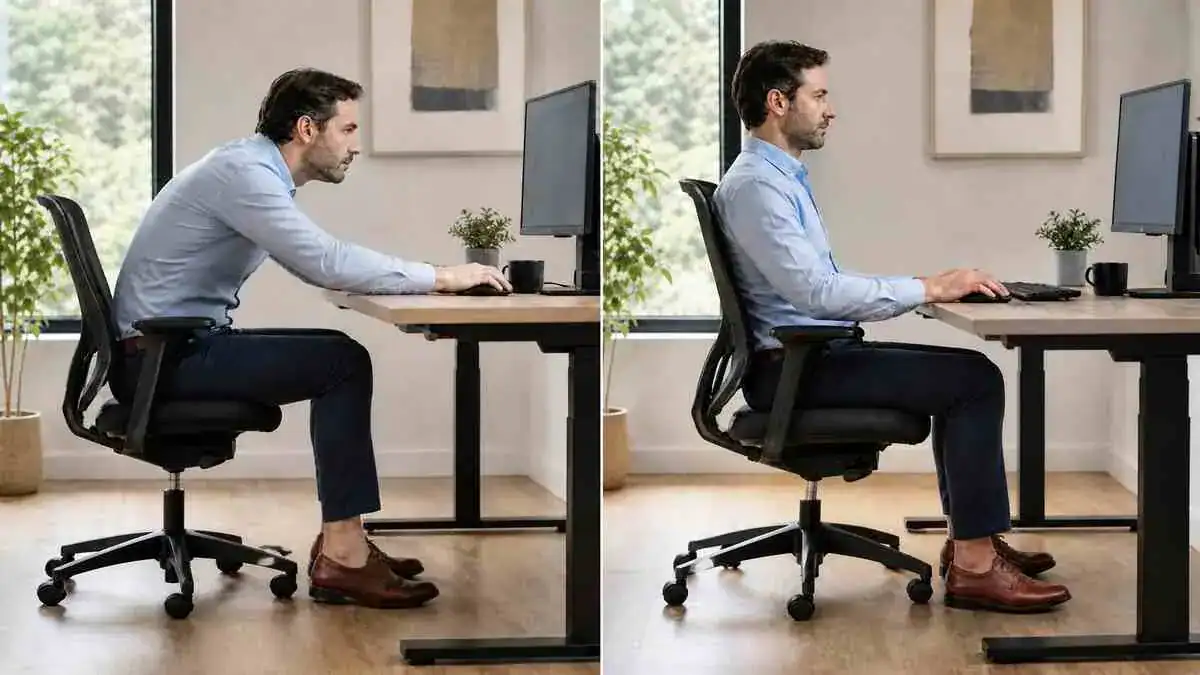
The correct desk chair height allows the feet to rest flat on the floor or on a stable footrest, keeps the knees and hips near 90 degrees or slightly more open, and lets the elbows reach the desk or keyboard without raising the shoulders. The chair should also support the thighs, lower back, and arms without creating pressure behind the knees.
A properly adjusted chair supports the body as one system. The knees should stay near hip level or slightly lower, and the thighs should remain supported while staying roughly level or sloping slightly downward. This creates a more stable sitting position without forcing the body into an awkward posture.
The chair should also sit close enough to the desk that the keyboard and mouse can be used with the elbows near the body instead of reaching forward. When using a fixed-height desk, the chair may need to be raised for comfortable desk access. If that leaves the feet unsupported, a stable footrest can restore lower-body support while maintaining proper upper-body positioning.
A quick visual check can help confirm whether the chair height is close to correct before making detailed adjustments.
Quick Desk Chair Height Check
| Check | Correct Sign | Possible Problem |
| Feet | Fully supported | Dangling or toe-only contact |
| Knees and hips | Near 90° or slightly more open | Knees much higher than hips |
| Thighs | Supported without pressure | Pressure under the thighs |
| Shoulders | Relaxed | Raised while typing |
| Elbows | Near desk or keyboard height | Reaching upward |
| Back | Supported by the backrest | Sitting forward or slouching |
Table of Contents
When to Worry
Discomfort That Often Improves With Adjustment
A poor desk chair height can cause mild stiffness, pressure, or tingling during long periods of sitting. These symptoms often improve after movement or a simple chair adjustment.
Mild aching or stiffness during or after a long sitting session often reflects temporary posture fatigue or a workstation that needs adjustment.
It may improve after:
- Standing
- Walking
- Changing position
- Adjusting the chair
Temporary pressure under the thighs may occur when the chair is too high or the feet are not fully supported. This pressure should ease after lowering the chair or using a stable footrest.
Occasional tingling may also settle quickly after standing or changing position. Symptoms that fade within several hours or by the next day are generally less concerning than symptoms that continue, return frequently, or become worse.
When Professional Evaluation May Help
Professional evaluation may be appropriate when pain continues for several weeks despite reasonable chair and workstation adjustments. Increasing difficulty sitting through a normal workday also deserves attention.
Other reasons to seek professional advice include:
- Recurrent numbness or tingling in the arms, legs, or feet
- Weakness linked with sitting or certain positions
- New or worsening symptoms in someone with a previous spinal or joint condition
- Symptoms that interfere with concentration or normal work
These patterns may involve more than chair height or posture alone. An appropriate healthcare professional can assess the symptoms and recommend the next step.
The table below highlights the difference between discomfort that often improves with ergonomic changes and symptoms that deserve closer attention.
Temporary Discomfort vs Symptoms That Need Evaluation
| Pattern | Often Improves With Adjustment | Professional Evaluation May Be Needed |
| Stiffness | Improves with movement | Persists for weeks |
| Tingling | Resolves after changing position | Recurrent or persistent |
| Pain | Mainly after long sitting | Severe, progressive, at rest, or at night |
| Weakness | Not expected | Any meaningful or worsening weakness |
Warning Signs That Need Prompt Medical Attention
Some symptoms should not be treated as a routine desk chair adjustment issue.
Prompt medical attention is important for:
- Sudden, severe back or neck pain
- Significant weakness
- Loss of coordination
- Difficulty controlling bladder or bowel function
- Persistent or worsening numbness, tingling, or burning pain
- Neurological symptoms that do not improve after changing posture or chair height
Chair adjustments may reduce an ergonomic trigger, but they cannot diagnose or treat an underlying medical condition.
Symptoms / Signs
Incorrect desk chair height often shows up through posture changes, pressure points, or repeated movements. These signs can help identify whether the chair sits too low, too high, or simply does not fit the user well.
Signs the Chair May Be Too Low
A chair may be too low when the knees rise noticeably above the hips. The hips may feel tightly bent, and the user may feel compressed between the chair and the desk.
Other visible signs include:
- The desk feels too high.
- The shoulders rise while typing.
- The pelvis rolls backward.
- The lower back rounds.
- The user pushes away from the desk.
- The user slouches to create more space.
These signs usually become more noticeable during longer computer tasks.
Signs the Chair May Be Too High
A chair may be too high when the feet dangle or only the toes touch the floor. The user may also feel pressure under the thighs or behind the knees.
Other common signs include:
- The feet tuck under the chair.
- Sitting near the front edge of the seat.
- Losing contact with the backrest.
- Leg discomfort.
- Numbness or tingling during sitting.
These signs often indicate that the lower body does not have stable support.
Chair Too Low vs. Chair Too High
| Sign | Chair Too Low | Chair Too High |
| Feet | Supported | Dangling or tucked |
| Knees | Above hips | May be lower, but feet unsupported |
| Thigh pressure | Less common | More common |
| Desk relationship | Desk feels too high | Desk may feel easier to reach |
| Backrest use | Slouching possible | User may sit forward |
| Common discomfort | Hip and lower-back strain | Thigh, leg, and lower-back discomfort |
Signs the Seat May Be Too Deep
A seat may be too deep when its front edge presses behind the knees. The user may struggle to sit fully against the backrest without feeling pressure.
Other signs include:
- Scooting forward
- Perching near the seat edge
- Frequent shifting or fidgeting
- Reduced leg movement
- Losing steady contact with the backrest
A deep seat often makes it difficult to use the chair’s full support comfortably.
Signs the Backrest or Armrests May Be Incorrect
The backrest may not fit well when the lower back slouches or the user finds it difficult to sit upright without support.
Armrest problems may show through:
- Raised shoulders
- Elbows pushed outward
- Leaning to one side
- Keeping the chair too far from the desk
- Reaching forward for the keyboard or mouse
These signs can appear even when the seat height seems close to correct.
Discomfort Patterns During Desk Work
Poor chair fit may lead to discomfort in several areas during or after desk work.
Common patterns include:
- Lower-back ache or pressure
- Neck and shoulder tightness
- Upper-back tension
- Thigh or buttock discomfort
- Hip or groin stiffness
- Wrist or forearm discomfort
- Brief stiffness when standing
- Difficulty straightening fully after prolonged sitting
- Frequently rubbing the neck, shoulders, or lower back
These symptoms do not confirm a specific condition. Instead, they suggest that chair fit, body position, or workstation alignment may need closer attention. When discomfort is centered around the hips, hip pain when sitting may also be related to prolonged sitting, chair fit, pressure, or lower-body positioning.
Causes of Incorrect Desk Chair Height and Positioning
Incorrect desk chair height usually results from a mismatch between the chair, the desk, and the user’s body. Seat depth, backrest position, armrests, and prolonged sitting habits can also affect how well the chair supports the body.
The Chair Is Too Low for the Desk
When the chair sits too low, the hips remain below the knees. This closes the hip angle and may cause the pelvis to roll backward.
As the pelvis rolls backward, the lower back rounds. The desk then feels too high, causing the shoulders to lift during typing.
A backward pelvic position may also shift more seated pressure toward the base of the spine, which may contribute to tailbone pain when sitting.
Cause → Effect
Chair too low → Hips below knees → Pelvis rolls backward → Lower back rounds → Desk feels too high → Shoulders lift during computer work
The Chair Is Too High for the User
When the chair sits too high, the feet lose stable contact with the floor. Pressure may then build beneath the thighs.
The user may sit forward or tuck the feet under the chair to feel more stable. This reduces contact with the backrest and may increase leg or lower-back discomfort.
Cause → Effect
Chair too high → Feet lose support → Pressure builds under the thighs → User sits forward → Backrest contact decreases → Leg and lower-back discomfort may develop
The Desk and Chair Do Not Work Together
A fixed-height desk can force the user to choose between comfortable upper-body positioning and proper lower-body support. A high desk may require the chair to be raised so the elbows can comfortably reach the work surface.
However, raising the chair may leave the feet unsupported. A desk that sits too low may instead encourage the user to bend the trunk and neck toward the keyboard.
For this reason, proper chair height cannot be judged by the chair alone. Desk height and keyboard height also need to be considered.
The Seat Is Too Deep
A deep seat can press against the backs of the knees, making it difficult to sit fully against the backrest.
The user may then scoot forward or perch near the front edge of the seat. As contact with the backrest decreases, stable sitting becomes harder to maintain.
Cause → Effect
Seat too deep → Pressure behind the knees → Backrest becomes difficult to use → User scoots forward → Stable support decreases
The Backrest Does Not Support the Lower Back
The backrest may not provide useful support when it does not match the natural curve of the lower back. The pelvis may then tilt backward, causing the lumbar spine to round.
This position can increase the muscle effort needed to stay upright and may place greater loading on the lower back during prolonged sitting.
The Armrests Block Desk Access
Armrests that are too high, too wide, or too long may prevent the chair from moving close to the desk. The user must then reach forward to use the keyboard or mouse.
Reaching forward can round the shoulders and move the head closer to the screen. Over time, this position may increase tension in the neck and upper back.
The Chair Does Not Fit the User’s Body
The correct chair fit depends on body proportions, not body height alone. Lower-leg length affects seat height, while thigh length affects seat depth.
Torso height influences backrest and lumbar support contact. Arm length also affects how well the elbows, armrests, and desk align.
A chair may offer a normal or average adjustment range but still fail to fit a particular user.
Long Periods of Sitting Change the Way the Chair Is Used
During focused work, the user may stop noticing gradual posture changes. The body may slowly lean forward or slide toward the front of the seat.
This increases static loading and muscle fatigue. As a result, even a correctly adjusted chair can become uncomfortable when the user stays in the same position for too long.
The same pattern can occur during long gaming sessions, when attention on the game may lead to gradual forward leaning or reduced position changes. Back pain from gaming may also involve chair fit, screen position, control reach, and lower-back support, so chair height is only one part of the setup.
What It May Indicate
Patterns related to desk chair height can help show whether the main issue comes from seat height, seat depth, desk height, or overall chair fit. These patterns can guide the next adjustment, but they cannot diagnose the cause of pain or nerve-related symptoms.
The Chair May Be Too Low
A chair may be too low when the knees remain above the hips and the user feels compressed between the chair and the desk.
Raised shoulders, a desk that feels too high, and rounding of the lower back also suggest that the seat is too low. Together, these signs indicate that the chair may not provide enough height for comfortable desk work.
The Chair May Be Too High
Dangling feet or toe-only floor contact often suggest that the chair sits too high for the user. Pressure beneath the thighs may develop because the lower body lacks stable support.
Tucking the feet, sitting near the front edge of the seat, or losing contact with the backrest may also indicate excessive chair height. These are often attempts to create stability or reduce pressure.
The Seat Depth May Not Fit
Pressure behind the knees may indicate that the seat pan is too deep. The user may not be able to sit fully against the backrest without discomfort.
Constant scooting forward and poor lumbar contact support the same conclusion. In this situation, changing chair height alone may not solve the fit problem.
The Problem May Be Desk Height, Not Chair Height Alone
A chair can support the feet well while leaving the desk too high for relaxed typing. The shoulders may then rise even though the lower body feels stable.
The opposite can also happen. The chair may match the desk, but the feet may lose contact with the floor. This commonly occurs with a fixed-height desk that is too high for the user.
A footrest can restore lower-body support when the chair must be raised. A keyboard tray may help when the working surface remains too high. The chair and desk height should therefore be assessed together rather than as separate parts of the workstation.
The Chair May Not Fit the User
A chair may not fit when its adjustment range cannot reach a comfortable position. The seat may also remain too deep or too shallow even after available adjustments.
Other signs of a basic size mismatch include:
- Armrests that cannot move out of the way
- A backrest shape that does not match the user’s body
- Poor lower-back contact
- Limited desk access despite repeated adjustments
Chair controls can improve fit only within the chair’s design limits. Adjustment cannot solve a chair that is fundamentally too large, too small, or poorly shaped for the user. Understanding what makes an office chair ergonomic can help explain why usable adjustment ranges, support, and body fit matter in the first place.
The Discomfort May Come From More Than the Chair
A chair is only one part of a workstation. Discomfort can also result from prolonged sitting, repeated reaching, a static posture, or poor monitor and keyboard placement.
Previous injuries or underlying joint or spinal conditions may also contribute to ongoing symptoms. If discomfort continues at rest, occurs at night, or does not improve after reasonable workstation changes, a professional evaluation may be appropriate.
Temporary Stiffness Is Different From Nerve-Related Symptoms
Brief stiffness after sitting for a long time is common and often improves after standing, walking, or changing position.
Numbness, tingling, burning sensations, or weakness are different. These symptoms may suggest that more than routine chair adjustment is involved. If they persist, worsen, or keep returning, they should not be treated as a normal workstation issue and should be assessed by a qualified healthcare professional.
What to Do
Improving desk chair height works best when adjustments are made in a logical order. Changing several controls at once can make it difficult to tell which adjustment helped.
Start with the seat height, then check foot support, seat depth, backrest position, armrests, and the chair’s relationship to the desk. Finish by checking the monitor during normal work and making small changes only when needed.
After adjusting the chair, review the correct monitor height and monitor position to help keep the head and neck in a comfortable viewing position and complete the workstation setup.
If it is not obvious which chair adjustment to make first, the table below matches common desk-chair problems with the first setting to check.
Common Chair Setup Problems and What to Check First
| What the User Notices | Likely Setup Issue | Adjustment to Check |
| Raised shoulders | Chair too low or desk too high | Raise chair; restore foot support |
| Feet dangle | Chair too high | Lower chair or add footrest if desk requires height |
| Pressure behind knees | Seat too deep | Reduce seat depth |
| Leaning toward desk | Chair too far away or armrests blocking access | Move closer; lower or remove armrests |
| Lower-back slouching | Poor backrest contact | Adjust backrest or lumbar support |
| Reaching for keyboard | Chair too far away | Move chair closer |
Adjust the Chair in the Right Order
A simple adjustment sequence helps create a balanced workstation without overlooking an important setting.
- Set the seat height.
- Check foot support.
- Check seat depth.
- Sit fully against the backrest.
- Adjust the armrests.
- Move the chair close to the desk.
- Coordinate the chair with desk height.
- Check basic monitor alignment.
- Test the setup during normal work.
- Change one setting at a time if further adjustments are needed.
Set the Seat Height
Raise or lower the chair until the feet rest securely on the floor or on a stable footrest.
Aim to keep the knees near hip level or slightly lower so the hips remain open. The thighs should stay supported without strong pressure beneath them.
Before finishing the adjustment, confirm that the elbows can comfortably reach the desk or keyboard without raising the shoulders.
Support the Feet
The feet should rest fully on the floor whenever possible. If the chair must be raised to match a fixed-height desk, use a stable footrest to restore lower-body support.
Avoid letting the feet dangle, touching the floor only with the toes, or wrapping the feet around the chair base. Stable foot support helps maintain a balanced sitting position.
Check the Seat Depth
Sit fully against the backrest before checking office chair seat depth.
There should be about two to three fingers of space between the front edge of the seat and the backs of the knees. If the chair allows seat-depth adjustment, shorten the seat when pressure develops behind the knees.
The goal is to support the thighs while allowing the legs to move comfortably.
Adjust the Backrest
Sit fully back so the backrest supports the natural curve of the lower back. After adjusting the chair, learn How to Sit Properly in a Chair to Avoid Back Pain to maintain comfortable sitting posture throughout the workday.
If the chair provides adjustable lumbar support, position it so it fills the lower-back curve without forcing an exaggerated posture. The guide to where lumbar support should be explains how to position and adjust the support for comfortable lower-back contact. A simple lumbar roll can also help when built-in support is limited.
The backrest should encourage comfortable support while still allowing natural movement instead of holding the body rigidly.
Adjust the Armrests
The shoulders should stay relaxed and the elbows should rest comfortably near the sides of the body. See Best Sitting Position for Back Pain to understand how overall body alignment supports long-term sitting comfort.
Lower, narrow, or remove the armrests if they:
- Raise the shoulders
- Push the elbows outward
- Prevent the chair from moving close to the desk
Armrests should support comfortable working rather than interfere with it.
Move the Chair Close to the Desk
Position the chair close enough that the keyboard and mouse can be reached without leaning forward.
Keep the elbows near the torso instead of working with straight arms. If the armrests prevent the chair from moving close enough, adjust or remove them before changing other settings.
For more detailed guidance on mouse placement, wrist alignment, and comfortable mouse use, see the guide on proper mouse position.
Test the Chair During Normal Work
After making adjustments, use the workstation normally for a while instead of judging comfort immediately.
Ask these questions during regular desk work:
- Do the shoulders stay relaxed?
- Do the feet remain fully supported?
- Does the body lean forward?
- Does the seat edge create pressure behind the knees?
- Can the backrest still support the lower back?
- Is there repeated reaching or twisting?
- Does discomfort improve, stay the same, or move to another area?
These checks help identify whether additional adjustments are still needed.
Make One Change at a Time
Adjust only one chair control before testing the setup again.
Work normally for a period of time and observe posture and comfort. If another adjustment is needed, change only one setting before testing again.
Changing multiple controls at once makes it difficult to know which adjustment improved or worsened the setup.
Review the Setup After Adding Accessories
Adding accessories changes how the chair fits the body and workstation.
For example:
- A seat cushion increases the effective seat height.
- A footrest changes lower-body support.
- A lumbar roll changes backrest contact.
- A keyboard tray changes the relationship between the chair and the desk.
After adding any accessory, recheck the chair height, foot support, desk access, and overall sitting position before returning to normal work.
When the workstation is built around a laptop, the ergonomic laptop setup guide explains how to coordinate the screen, keyboard, mouse, and chair after adding accessories for more comfortable work.
Use this checklist to review the full chair-adjustment process from start to finish.
Checklist: Step-by-Step Desk Chair Adjustment
- Set seat height.
- Check foot support.
- Check knee and hip position.
- Check seat depth.
- Sit against the backrest.
- Adjust lumbar contact.
- Adjust armrests.
- Move close to the desk.
- Check keyboard reach.
- Test during normal work.
- Change one setting at a time.
- Recheck after adding accessories.
Ergonomic & Support Options
Correct desk chair height is only one part of a comfortable workstation. Learn more in Complete Ergonomic Desk Setup to understand how the chair, desk, monitor, keyboard, and mouse work together to create a comfortable workstation.
The best results come from matching the chair to the user, the desk, and the work being performed rather than relying on average measurements or standard settings.
Find the Proper Desk Chair Height
The proper desk chair height is based on how well the chair fits the user, not on a universal measurement.
A well-adjusted chair usually allows:
- Feet to stay fully supported
- Knees to remain near hip level or slightly lower
- Thighs to stay level or slope slightly downward
- Shoulders to remain relaxed
- Elbows to rest comfortably near desk or keyboard height
These signs are more useful than focusing on a specific seat height measurement alone.
Average Chair Height vs Correct Chair Height
Average, standard, or typical chair height usually describes a product’s adjustment range. These measurements help compare chairs, but they do not show whether a chair fits a particular person or workstation.
Average Chair Height vs Correct Chair Height
| Term | What It Means | Limitation |
| Average chair height | Common product measurement | Does not account for user or desk |
| Standard office chair height | Typical adjustment or product range | May not fit every body |
| Correct chair height | Height that supports the user and workstation | Must be tested individually |
Correct chair height is different. It describes the position that allows the user to work comfortably while maintaining proper support. A shorter, average-height, or taller user may all need different chair settings, even when using the same model.
Lower-leg length, desk height, and the working position are more useful than relying on a universal measurement.
Chair Height for Shorter Users
Shorter users often need to raise the chair to reach a fixed-height desk comfortably. When this happens, the feet may no longer rest flat on the floor.
A stable footrest can restore lower-body support while keeping the upper body aligned with the work surface. If the chair has adjustable seat depth, shortening the seat can also make it easier to use the backrest.
When available, a keyboard tray may reduce the need to raise the chair by bringing the keyboard closer to elbow height. When working from home with a fixed desk or limited furniture choices, the home office ergonomics guide explains how to adapt the wider workspace when the chair and work surface cannot both be adjusted.
Chair Height for Taller Users
Taller users may need a chair with a greater seat-height range and enough leg clearance beneath the desk.
Seat depth should support most of the thighs without pressing behind the knees. It is also important to confirm that the desk provides enough space for comfortable leg movement.
Even with a taller chair, the chair and desk should be checked together to ensure they work as a system.
Footrest vs Lowering the Chair
Lowering the chair improves foot support but may leave the desk too high for comfortable typing. Raising the chair improves access to the desk, but it can leave the feet unsupported.
Footrest vs Keyboard Tray
| Option | Best Used When | Main Benefit | Limitation |
| Footrest | Chair must be raised for a high desk | Restores foot support | Does not lower keyboard |
| Keyboard tray | Work surface is too high | Brings keyboard closer to elbow height | Requires desk compatibility |
In many cases, the better approach is to first align the upper body with the work surface, then add a stable footrest if the feet no longer reach the floor comfortably.
When a fixed-height desk remains too high, a keyboard tray may provide another practical solution by lowering the working level.
Seat Depth and Backrest Support
Seat depth affects whether the backrest can provide steady support.
When sitting fully against the backrest, there should be about two to three fingers of space between the front edge of the seat and the backs of the knees. This allows the thighs to stay supported without creating unnecessary pressure.
Avoid sitting on the front edge of the chair whenever possible. Full contact with the backrest provides more consistent support during desk work.
Lumbar Support
Lumbar support should match the natural curve of the lower back without forcing the spine into an exaggerated position. Understanding what lumbar support is and how it works can help explain why this lower-back contact matters while sitting.
Good lumbar contact can reduce the effort needed to remain comfortably against the backrest throughout the workday. Different types of lumbar support vary in how they provide and adjust that support. The goal is comfortable support, not a rigid sitting posture.
If lumbar support hurts the back even after the chair is adjusted, the discomfort may involve more than chair height or basic positioning.
Armrest Height and Desk Access
Armrests work best when they allow the shoulders to stay relaxed and the elbows to remain close to the body. They should not prevent the chair from moving close to the desk.
Maintaining a relaxed upper-body posture is more important than trying to match the armrests exactly to the height of the desktop.
Chair Tilt and Seat Angle
Many people are comfortable with the seat in a level position, while others prefer a slight tilt.
A small change in seat angle can influence hip position and affect how easily the body stays against the backrest. The ideal setting depends on the chair design, the task being performed, and individual comfort.
No single seat angle is correct for everyone.
Keyboard Tray and Fixed-Height Desk Options
A keyboard tray lowers the working level without changing the height of the desk itself.
This can reduce the need to raise the chair when a fixed-height desk causes the shoulders to lift or leaves the feet unsupported. For some workstations, it offers a practical alternative to changing chair height alone.
Once the keyboard is at a comfortable working height, the guide on proper keyboard position explains how to position the keyboard for relaxed shoulders, neutral wrists, and comfortable typing.
Seat Cushions Can Change Chair Height
A seat cushion changes the effective height of the chair by raising the sitting surface.
After adding a cushion, check that the feet remain supported, the knees stay in a comfortable position, the desk is still easy to reach, and the backrest continues to support the lower back.
A cushion may improve surface comfort, but it does not correct a chair that is the wrong size or poorly adjusted.
Movement Still Matters
Even a well-adjusted chair cannot eliminate the effects of sitting in one position for long periods.
Learn Why Sitting Causes Back Pain to understand why prolonged sitting can still lead to discomfort even with a properly adjusted chair.
Changing position regularly, standing, or walking briefly every 20 to 30 minutes when practical helps reduce static loading. Short posture resets throughout the day also encourage comfortable movement.
When a sit-stand workstation is used, a good standing desk ergonomics setup can help the desk, monitor, keyboard, and mouse fit the user in the standing position.
A supportive chair works best when it is combined with regular movement rather than used as a replacement for it.
FAQ
What is the correct desk chair height?
The correct desk chair height allows the feet to rest flat on the floor or on a stable footrest, keeps the knees near hip level or slightly lower, supports the thighs without pressure behind the knees, and lets the elbows reach the desk with relaxed shoulders.
How high should a desk chair be?
There is no single height that fits everyone. The correct setting depends on the user’s body, the desk height, and the work being performed rather than a standard measurement.
How can someone tell if a desk chair is too low?
A chair may be too low when the knees sit above the hips, the desk feels too high, the shoulders rise while typing, or the lower back rounds during sitting.
How can someone tell if a desk chair is too high?
Common signs include dangling feet, toe-only contact with the floor, pressure beneath the thighs, sitting near the front edge of the seat, or losing contact with the backrest.
How should desk chair height relate to desk height?
Chair height and desk height should be adjusted together. The chair should allow relaxed shoulders and comfortable elbow position while also keeping the feet supported.
What should someone do if raising the chair leaves the feet unsupported?
If the chair must be raised to match a fixed-height desk, adding a stable footrest usually restores lower-body support. A keyboard tray may also help reduce the required chair height.
Can desk chair height alone fix workstation discomfort?
No. Comfort also depends on desk height, monitor position, keyboard and mouse placement, chair fit, and regular movement throughout the day.
Can chair height cause pressure or numbness in the legs?
It can contribute. A chair that is too high or a seat that is too deep may increase pressure beneath the thighs or behind the knees, which can contribute to temporary numbness or tingling in some people.
Should the feet be flat on the floor when sitting at a desk?
Yes. The feet should rest flat on the floor whenever possible. If the chair must be raised to reach a fixed-height desk, a stable footrest can provide the same support.
Should the knees be higher or lower than the hips?
The knees should usually stay near hip level or slightly lower. This position helps keep the hips comfortably open during sitting.
How much space should be between the seat and the backs of the knees?
There should be about two to three fingers of space between the front edge of the seat and the backs of the knees when sitting fully against the backrest.
How should desk chair armrests be adjusted?
Armrests should allow the shoulders to stay relaxed and the elbows to remain close to the body. They should not block the chair from moving close to the desk.
How close should a desk chair be to the desk?
The chair should be close enough for the keyboard and mouse to be reached without leaning forward or fully straightening the arms.
Does body height determine the correct chair height?
No. Lower-leg length, thigh length, desk height, and overall workstation fit are more important than body height alone.
Do shorter users need a footrest at a fixed-height desk?
Sometimes. If the chair must be raised to reach the desk comfortably and the feet no longer rest on the floor, a stable footrest can restore proper support.
Can a seat cushion change the correct chair height?
Yes. A seat cushion raises the sitting surface, so the chair height and overall workstation setup should be checked again after adding one.
When should desk-related numbness, tingling, or weakness be evaluated?
Persistent, worsening, or repeatedly returning numbness, tingling, burning sensations, or weakness should be evaluated by a qualified healthcare professional, especially when they do not improve after changing posture or workstation setup.
Sources & References
- Office Ergonomics – Ergonomic Chair (Canadian Centre for Occupational Health and Safety)
- Ergonomic Seating Adjustment Guide – U.S. General Services Administration (GSA)
- Chair Setup – UCLA Health Ergonomics
- Office Ergonomics Resource Guide – University of Akron
- Setting Up Your Ergonomic Office Space – University of Minnesota
- Ergonomics: Adjusting the Office Workstation – University of Manitoba Environmental Health & Safety
- Office Chair Ergonomics Quick Guide
- A Guide to Seating – Bradford Teaching Hospitals NHS Foundation Trust
- Correct Office Chair Height, Desk, and Monitor
Related Articles
Improving desk chair height is only one part of creating a comfortable workstation. These guides explain how the rest of the setup works together.
Complete Ergonomic Desk Setup: How to Create a Comfortable Workstation — Learn how the chair, desk, monitor, keyboard, mouse, and other workstation components work together.
How to Sit Properly in a Chair to Avoid Back Pain — Follow a step-by-step sitting technique that supports comfortable posture during everyday desk work.
Best Sitting Position for Back Pain — Understand how body alignment and sitting posture can influence comfort during prolonged sitting.
Update Note
Last reviewed and updated: July 20, 2026
13 thoughts on “Desk Chair Height and Positioning: A Step-by-Step Guide to Proper Adjustment”
Comments are closed.