
TL;DR
Key Takeaways
- An ergonomic laptop setup can be challenging because a laptop screen and keyboard are attached. This creates a tradeoff between comfortable screen height and comfortable typing height.
- Raising the laptop screen can improve neck posture, but it also raises the built-in keyboard, which may place the hands too high.
- Keeping the keyboard low can help the wrists stay more comfortable, but it often makes the user look down at the screen for long periods.
- For longer work sessions, a laptop stand, an external keyboard, and an external mouse usually provide a more flexible and comfortable ergonomic laptop workstation by separating screen height from typing height.
- Keep the main screen centered in front of the body and easy to read to support a more neutral viewing position.
- Keep the keyboard and mouse close to the body to reduce unnecessary reaching and help the shoulders stay relaxed.
- Support the lower back with suitable back support, and keep the feet stable on the floor or on a footrest when needed.
- Change position often and move regularly instead of staying in one posture throughout the day.
- Seek professional evaluation if pain persists, worsens, or is accompanied by numbness, tingling, weakness, or symptoms that spread into an arm or leg.
Quick Answer
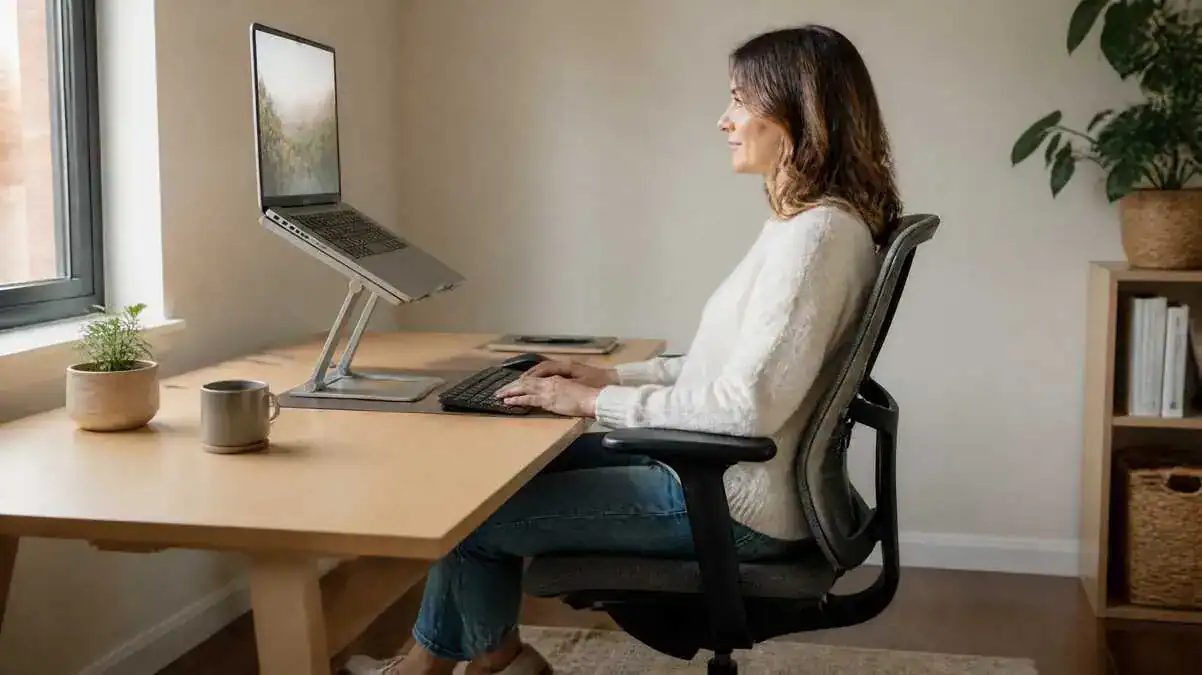
An ergonomic laptop setup helps the body stay in a more comfortable and supported position while working. Because the laptop screen and keyboard are attached, the most practical ergonomic laptop workstation for longer work sessions usually raises the screen toward a comfortable viewing height while using an external keyboard and mouse to separate screen height from typing height.
Keep the main screen directly in front of the body. Keep the wrists straight, the shoulders relaxed, and the keyboard and mouse close enough to avoid reaching. Support the lower back with suitable back support, keep the feet resting securely on the floor or on a footrest when needed, and avoid staying in one position for too long. Regular posture changes and movement help reduce discomfort during laptop work.
Table of Contents
When to Worry
Mild discomfort during laptop work does not always mean there is a serious problem. However, an ergonomic laptop setup should not be assumed to explain every symptom. The pattern, duration, and severity of the symptoms help show what action may be needed.
Mild Signs to Monitor
Mild signs often appear after a long computer session and improve after movement or a posture change. These signs may suggest temporary muscle fatigue or stiffness rather than an urgent problem.
Signs to monitor include:
- Mild stiffness after a long laptop session
- Neck, shoulder, or back tiredness mainly after computer work
- Discomfort that improves after walking
- Symptoms that ease after changing position
- An occasional need to stretch or reposition
These patterns should still be watched. Repeated discomfort may show that the laptop workstation setup, sitting position, or movement habits need review.
Signs That Need Professional Evaluation
Professional evaluation is important when symptoms keep returning, become worse, or limit normal activity. Setup changes alone may not be enough when symptoms persist.
Signs that need evaluation include:
- Pain that keeps returning despite setup changes
- Symptoms that worsen over time
- Pain that limits sitting, standing, walking, or working
- Persistent numbness
- Persistent tingling
- Weakness
- Pain that spreads into an arm or leg
These signs should not be treated as simple posture strain without further assessment.
Signs That Need Prompt Medical Attention
Some symptoms need prompt medical attention because they may point to more than an ergonomic problem.
Seek prompt medical care for:
- Severe pain after an injury or fall
- New weakness
- Loss of coordination
- Trouble walking
- Widespread numbness
- Bladder or bowel changes
- Severe pain with fever
- Unexplained weight loss
- Other systemic symptoms
These warning signs should not be managed only through workstation changes.
The table below helps separate temporary discomfort that often improves with simple adjustments from warning signs that should be professionally evaluated.
Temporary Discomfort vs Warning Signs
| Pattern | Monitor and Adjust | Seek Evaluation |
| Mild stiffness | Improves after movement | Persists or worsens |
| Muscle tiredness | Appears after long laptop use | Limits normal activity |
| Tingling | Brief or uncertain signs should be monitored carefully | Ongoing or repeated tingling |
| Weakness | — | Needs professional evaluation |
| Spreading symptoms | — | Needs professional evaluation |
Symptoms and Signs
Neck and Shoulder Signs
An ergonomic laptop setup should help the body stay supported during work. When the setup does not fit the user well, the neck and shoulders often show the first signs of strain.
Common signs include:
- Neck tightness after laptop use
- Shoulder tension
- Upper-back fatigue
- The head drifting forward
- Rounded shoulders
- Shoulders lifting during typing or mouse use
These signs often become more noticeable later in the work session, especially after spending a long time hunched over a laptop.
Wrist, Hand, and Forearm Signs
The hands and arms may also show signs that the typing position is not working well.
Common signs include:
- Bent wrists while typing
- Wrist soreness
- Forearm fatigue
- Reaching for the keyboard, touchpad, or mouse
- Hands working too high after the laptop is raised
These patterns may appear when the laptop keyboard sits too high, too far away, or in an awkward position.
Back and Sitting Signs
Poor support and long periods of static sitting may affect the lower back and overall sitting position.
Common signs include:
- Lower-back aching
- Lower-back pressure
- Slouching
- Leaning forward
- Leaning to one side
- A frequent need to reposition
- Stiffness when standing after prolonged sitting
A user may also find it difficult to stay comfortable in one position for long. This may point to a mismatch between the laptop, chair, desk, and sitting habits.
Screen and Work-Habit Signs
Screen position and work habits can gradually change posture without the user noticing.
Common signs include:
- Leaning toward the screen to read
- Squinting because of glare or small text
- Twisting toward a second screen
- Losing alignment while switching between:
- The laptop keyboard
- The touchpad
- An external mouse
- A secondary display
These repeated shifts may cause the head, shoulders, arms, or torso to move away from a comfortable working position.
Causes of a Poor Ergonomic Laptop Setup
A poor ergonomic laptop setup often begins with the way a laptop combines the screen and keyboard into one device. This design can make it difficult to support the neck, wrists, shoulders, back, and lower body at the same time.
The Screen and Keyboard Are Fixed Together
A laptop creates a built-in height conflict. Raising the screen also raises the keyboard. Lowering the keyboard also lowers the screen.
This means the user may struggle to keep both the neck and wrists comfortable:
Laptop screen and keyboard fixed together → no neutral height for both → neck bends or wrists bend → neck, shoulder, wrist, or forearm discomfort
This screen-height and typing-height tradeoff is the main challenge in laptop ergonomics.
The Laptop Screen Sits Too Low
A low laptop screen can make the user look downward for long periods. The head may drift forward, the shoulders may round, and the upper body may become hunched over the laptop.
The pattern often develops like this:
Screen too low → head bends forward → neck strain → neck discomfort → shoulder tension
Screen size and readability can make this problem worse. Small text or poor visibility may cause the user to lean closer to the screen.
Eyewear also matters. For example, a person who wears bifocals may need a slightly lower screen position to see the display without tipping the head back.
The Built-In Keyboard Limits Arm Position
When the laptop screen is raised, the built-in keyboard may sit too high for comfortable typing. The hands may work above elbow height, and the shoulders may lift or round.
The keyboard may also sit too far away. This can make the user reach forward, bend the wrists upward or sideways, and lose a relaxed arm position.
These problems relate to the limits of the built-in keyboard rather than detailed typing technique.
The Touchpad Can Restrict Hand Position
A touchpad keeps both hands close to the middle of the laptop. This may limit how freely the hand, wrist, and forearm can move.
Heavy touchpad use may also encourage repeated wrist movement or an awkward shoulder position. Switching frequently between typing and touchpad use can further disturb posture because the hands and arms keep changing position.
The Mouse Sits Too Far Away
A laptop can take up much of the desk space and push an external mouse farther to the side. The user may then reach away from the body each time the mouse is used.
This can create the following pattern:
Mouse too far away → reaching → shoulder loading → upper-back tension → shoulder tension
The mouse should stay close enough to avoid repeated outward reaching.
The Main Screen Is Off-Center
The main screen should stay directly in front of the user. When the laptop or external monitor sits to one side, the neck and torso may turn toward it repeatedly.
This can happen when:
- The user twists toward the laptop.
- The user turns toward an external monitor.
- The neck rotates repeatedly.
- The torso rotates repeatedly.
- A secondary screen is used as the main screen without being centered.
Repeated turning can create one-sided fatigue during long work sessions.
Glare and Small Text Encourage Leaning
Poor screen visibility can change posture without the user noticing. Screen glare or text that is hard to read may cause the user to lean toward the display.
The pattern may develop like this:
Poor visibility → leaning forward → forward head posture → neck strain
This problem may come from glare, small font size, poor contrast, or an unsuitable viewing distance.
The Chair and Desk Do Not Work Together
The laptop workstation may also become uncomfortable when the chair and desk do not fit each other well.
Common problems include:
- A chair that sits too high
- A chair that sits too low
- Desk height that prevents a relaxed arm position
- Feet that do not rest securely
- Poor seat depth
- Armrests that block access to the desk
- Poor lower-back support
These issues can make the user slouch, reach, raise the shoulders, or sit without stable foot support. Checking the desk height can help show whether the work surface matches the user’s seated arm position.
Long Static Sitting Builds Fatigue
Even a reasonable ergonomic setup for a laptop can become uncomfortable when the user stays in one position for too long.
Common causes include:
- Prolonged, uninterrupted sitting
- Too few position changes
- Reduced movement
- Repeating the same setup every day
The pattern often develops like this:
Prolonged sitting → muscle fatigue → stiffness → discomfort when standing → discomfort during movement
This type of discomfort usually builds gradually during the work session rather than coming from one faulty part of the setup.
The table below summarizes common laptop setup problems, how the body often responds to them, and the discomfort they may cause.
Laptop Setup Problems and Their Effects
| Setup Problem | What the Body May Do | Possible Discomfort |
| Screen too low | Head bends forward | Neck and shoulder tension |
| Built-in keyboard too high | Wrists bend or shoulders lift | Wrist and forearm discomfort |
| Mouse too far away | Arm reaches outward | Shoulder and upper-back tension |
| Screen off-center | Neck and torso twist | One-sided fatigue |
| Poor lower-back support | Body slouches | Lower-back discomfort |
| Glare or small text | User leans forward | Neck and eye discomfort |
What It May Indicate
The pattern of discomfort can help show which part of an ergonomic laptop setup may need attention. One symptom does not always point to one cause, but the timing and location of the discomfort can provide useful clues.
A Screen-Height Problem
A screen-height problem is more likely when discomfort becomes stronger during viewing than during typing.
Possible signs include:
- Neck tightness
- Looking downward for long periods
- Leaning toward the screen
- Forward head posture
- Symptoms that worsen more during viewing than typing
These signs may suggest that the laptop screen sits too low, too far away, or is difficult to read.
A Typing-Height Problem
A typing-height problem may appear when the built-in keyboard sits too high or does not allow a relaxed arm position.
Possible signs include:
- Bent wrists
- Raised shoulders
- Forearm fatigue
- Hands working too high
- Symptoms that become stronger during typing
This pattern may suggest that the hands, wrists, and shoulders cannot stay in a comfortable position while using the laptop keyboard.
A Reach-Distance Problem
Shoulder and upper-back symptoms may point to repeated reaching.
Possible signs include:
- Shoulder tension
- Upper-back fatigue
- The arm reaching for the mouse
- The keyboard, mouse, or laptop sitting too far away
When the work area sits beyond easy reach, the arm may move away from the body repeatedly. This can increase shoulder loading during the work session.
A Chair or Lower-Body Support Problem
Lower-back and leg discomfort may suggest that the chair, desk, or foot support does not fit the user well.
Possible signs include:
- Lower-back pressure
- Slouching
- Feet that do not rest securely
- Pressure behind the knees
- Frequent shifting in the chair
Poor lower-back support may create this pattern:
Poor lower-back support → pelvis loses support → slouching → lower-back discomfort
These signs relate to seated support and stability, not only to the laptop itself.
Static Sitting Rather Than One Faulty Component
Not all discomfort comes from one part of the workstation. A reasonable ergonomic laptop setup can still become uncomfortable when the body stays in the same position for too long.
Possible signs include:
- Stiffness that appears later in the work session
- Symptoms that improve after standing or walking
- Discomfort affecting several body areas at the same time
In these situations, prolonged static sitting may contribute as much as the workstation setup itself.
A Wider Workstation Mismatch
Sometimes discomfort develops because several workstation components do not work well together rather than because one item is set up incorrectly.
A wider workstation mismatch may be more likely when neck, shoulder, wrist, and lower-back symptoms appear together.
The overall setup may need coordination between:
- Chair height
- Desk height
- Screen height
- Keyboard position
- Mouse reach
- Foot support
Improving only one part of the workstation may not solve the problem if the other components still encourage awkward working positions.
When several workstation components need adjustment together, the guide to complete ergonomic desk setup explains how the chair, desk, monitor, keyboard, mouse, and laptop work together to create a more comfortable workstation.
More Than Ergonomic Strain
Some symptoms may point to something other than ergonomic strain alone.
Seek professional evaluation if there is:
- Persistent numbness
- Persistent tingling
- Weakness
- Symptoms that spread into an arm or leg
- Pain that does not improve after workstation changes
These symptoms should not be assumed to result from a poor ergonomic laptop setup. A healthcare professional can determine the underlying cause and recommend appropriate care.
What to Do
Improving an ergonomic laptop setup usually works best when the workstation is adjusted step by step. Each change should support the next one because changing one part of the setup can affect the others.
Set Up the Laptop Step by Step
Follow these steps to build a more comfortable laptop workstation:
1. Place the laptop directly in front of the body.
2. Decide which screen will be the main display.
3. Raise the screen toward a comfortable viewing height.
4. Add an external keyboard for longer work sessions.
5. Add an external mouse.
6. Keep the keyboard and mouse close to the body.
7. Adjust the relationship between the chair and desk.
8. Support the feet on the floor or with a footrest when needed.
9. Reduce screen glare.
10. Improve text readability if needed.
11. Test the setup during normal work.
12. Recheck the workstation after changing any component.
Choose the Main Screen
Decide whether the laptop screen or an external monitor will be the primary display.
Keep the main screen directly in front of the body. If a second display is used, place it where it does not require repeated neck or torso twisting.
When the laptop screen remains the primary display, build the rest of the workstation around that choice.
Raise the Laptop Screen
A laptop stand or riser can raise the screen toward a more comfortable viewing position.
Another secure support surface may also work if it keeps the laptop stable. The screen should remain easy to read at a comfortable viewing distance.
Avoid placing the laptop on unstable stacks that could shift during use.
Add an External Keyboard and Mouse
An external keyboard and mouse separate screen height from typing height. This allows the screen to stay higher while the hands remain closer to elbow height.
Keep the mouse beside the keyboard to reduce reaching. Keep the wrists aligned with the forearms and allow the shoulders to stay relaxed during normal work.
Center the Screen
Keep the primary screen directly in front of the body whenever possible. Avoid placing the main display far to one side. A centered screen helps reduce repeated neck and torso rotation throughout the workday.
Improve Screen Distance and Readability
A comfortable viewing distance often starts around an arm’s length, but the best distance depends on the screen size, text size, visual comfort, and eyewear. If leaning forward becomes a habit, increase the font size before moving closer to the screen.
Reducing glare and adjusting the screen angle can also make the display easier to read without changing posture.
For more detailed guidance on screen height, viewing distance, glare, and comfortable viewing, see the guide on correct monitor height.
Set the Chair Before Fine-Tuning the Laptop
The chair should provide stable lower-back support before the laptop position is adjusted.
Before fine-tuning the laptop setup, the guide to desk chair height and positioning explains how to adjust chair height, seat position, and lower-body support for a more comfortable workstation.
Keep the feet supported, sit close enough to the desk, and allow the elbows to stay close to the body. Armrests should not prevent the chair from moving close enough to the work surface.
Support the Feet
Keep both feet resting securely on the floor whenever possible. If the feet cannot rest comfortably after adjusting the chair, a footrest may provide better lower-body support. Avoid leaving the legs unsupported or creating pressure behind the knees.
Add Movement to the Workday
Even a well-adjusted workstation cannot replace regular movement. Change position often during the day. Stand or walk when practical, and naturally reset posture after phone calls, meetings, task changes, or switching between screens.
When a laptop is used at a sit-stand workstation, a good standing desk ergonomics setup can help position the screen, keyboard, and mouse comfortably while standing.
Recheck the Setup After Any Change
Review the workstation after changing any major component, including the:
- Chair
- Desk
- Laptop stand
- External monitor
- Keyboard
- Mouse
After each adjustment, make sure improving one part of the workstation has not made another part less comfortable.
Ergonomic Laptop Setup and Support Options
Different accessories can improve an ergonomic laptop setup, but each has a specific purpose and its own limitations. The best results usually come from choosing equipment that works together rather than expecting one accessory to solve every problem.
Laptop Stand or Riser
A laptop stand or riser raises the laptop screen toward a more comfortable viewing position.
For longer work sessions, it works best with an external keyboard and mouse because raising the laptop alone also raises the built-in keyboard, which may place the hands too high for comfortable typing.
External Keyboard
An external keyboard separates typing height from screen height. This allows the hands to stay closer to elbow height, supports straighter wrists, and helps keep the shoulders relaxed during longer work sessions.
Once an external keyboard is added, the guide on proper keyboard position explains how to position it for relaxed shoulders, neutral wrists, and comfortable typing.
External Mouse
An external mouse reduces dependence on the laptop touchpad and allows a more open hand and arm position. For the best support, keep the mouse beside the keyboard and close enough to avoid reaching.
After adding an external mouse, the guide on proper mouse position explains how to place it for comfortable reach, relaxed shoulders, and better wrist alignment.
External Monitor
An external monitor provides a larger or more flexible main screen and may make screen positioning easier. When used as the primary display, it should remain centered in front of the body.
Docking Station
A docking station can connect an external display, keyboard, mouse, and power through one central connection. It simplifies setting up the workstation each day but does not improve posture by itself.
Chair and Lumbar Support
A supportive chair helps maintain a more stable sitting position by supporting the lower back and reducing posture collapse during laptop work.
Depending on individual needs, this support may come from:
- A chair with suitable back support
- A lumbar cushion when extra lower-back support is needed
However, lumbar support has clear limits. It does not correct screen height, keyboard position, or mouse placement. Likewise, a supportive chair cannot compensate for a poorly arranged workstation.
Foot Support
Foot support helps stabilize the lower body when the feet do not rest securely on the floor after the chair has been adjusted.
A footrest may improve sitting comfort by supporting the legs and helping the body maintain a more stable seated position. It is most useful when stable foot contact cannot be achieved through chair adjustment alone.
Monitor Arm
A monitor arm can make an external monitor easier to position. It allows the screen height and viewing distance to be adjusted more easily while helping keep the main display centered in front of the user.
Small-Desk Options
A comfortable workstation is still possible in a limited space.
When desk space is tight, consider:
- A compact laptop riser
- A small external keyboard
- A mouse placed beside the keyboard
- A stable layout with minimal reaching
- Only the accessories needed for the current work
Keeping the layout simple can help reduce unnecessary movement and make the available space easier to use.
When limited desk space is part of a home workspace, the home office ergonomics guide explains how to adapt the wider work area when furniture, space, and equipment choices are restricted.
Limits of Ergonomic Accessories
No single accessory can create a complete ergonomic laptop setup on its own.
For example:
- A laptop stand raises the screen but does not solve typing-height problems by itself.
- A lumbar cushion supports the lower back but does not correct screen position.
- An ergonomic chair cannot replace regular movement throughout the day.
The goal is to use equipment that supports comfortable working positions while allowing the body to change posture naturally instead of remaining in one fixed position.
The table below summarizes the purpose of common laptop workstation accessories and the limits of each one.
Laptop Support Option and Its Role
| Option | Main Role | Important Limit |
| Laptop stand | Raises the screen | May make the built-in keyboard too high |
| External keyboard | Improves typing-height flexibility | Requires desk space |
| External mouse | Reduces touchpad dependence | Must stay close to the keyboard |
| External monitor | Improves screen-position flexibility | Still needs centering |
| Docking station | Simplifies connections | Does not improve posture alone |
| Lumbar cushion | Adds lower-back support | Does not correct screen position |
| Footrest | Supports the feet | Needed only when the feet lack stable support |
FAQ
What Is the Most Ergonomic Way to Use a Laptop?
The most ergonomic way to use a laptop is to raise the screen toward a comfortable viewing height while using an external keyboard and mouse for longer work sessions. Keep the main display centered, support the lower back and feet, and change position regularly instead of staying in one posture throughout the day.
How Can a Laptop Be Set Up Ergonomically?
Start by placing the laptop directly in front of the body. Choose the main screen, raise it to a comfortable viewing position, and separate screen height from typing height by adding an external keyboard and mouse for longer work sessions. Then adjust the chair, support the feet if needed, and check the setup during normal work.
Are Ergonomic Laptop Stands Worth It?
A laptop stand can improve screen position by raising the display to a more comfortable viewing height. However, it works best when paired with an external keyboard and mouse because raising the laptop also raises the built-in keyboard.
Can a Laptop Be Used Comfortably Without a Stand?
Yes. A secure raised surface may improve screen position when practical. During longer work sessions, separate input devices can still help create a more comfortable setup. Short-term laptop use and long-term workstation use often require different compromises.
Why Does the Back Hurt During Laptop Work?
Back discomfort during laptop work may be related to unsupported sitting, slouching, a low screen position, prolonged static sitting, or a combination of these factors. Reviewing the entire workstation is often more helpful than focusing on only one part of the setup.
How High Should a Laptop Screen Be for Comfortable Work?
The laptop screen should sit at a height that allows comfortable viewing without repeatedly bending the head downward. The best position depends on screen size, text readability, visual comfort, and eyewear, so there is no single height that suits everyone.
How Should a Laptop Stand Be Used?
Place the laptop stand on a stable surface and position the screen directly in front of the body. For longer work sessions, use an external keyboard and mouse so the screen height and typing height can be adjusted independently.
How Can Neck Discomfort Be Reduced While Using a Laptop?
Raise and center the screen, improve text readability, reduce glare, and avoid looking downward for long periods. Regular posture changes and movement also help reduce strain. Persistent pain or symptoms such as numbness, tingling, or weakness should be professionally evaluated.
Can a Chair Affect Laptop Comfort?
Yes. Chair height, lower-back support, stable foot support, and comfortable access to the desk all influence laptop comfort. A supportive chair works best as part of a well-coordinated workstation rather than as a solution by itself.
When Should Laptop-Related Numbness or Weakness Be Evaluated?
Persistent numbness, tingling, weakness, spreading symptoms, or reduced function should be professionally evaluated. These symptoms should not be assumed to result only from workstation setup.
Sources & References
- Laptop Ergonomics — University of Minnesota Twin Cities
- Laptop Ergonomics — Wake Forest University
- Office Ergonomics: Your How-To Guide — University of California, Berkeley
- Office Ergonomics — EU-OSHA
- Computer Workstations eTool — OSHA
- Laptop Workstation Set-Up — Posturite
- Laptop Computer Ergonomics — Colorado State University Risk Management & Insurance
Soft CTA
To build a more comfortable workstation, these guides provide additional step-by-step information:
- Complete Ergonomic Desk Setup: How to Create a Comfortable Workstation — Learn how the chair, desk, monitor, keyboard, mouse, and accessories work together to support a comfortable workstation.
- Proper Keyboard Position: How to Set Up a Keyboard for Comfortable Typing — Learn how to position a keyboard for comfortable typing and better arm and wrist support.
- Proper Mouse Position: How to Place and Use a Mouse Comfortably — Learn how to place and use a mouse to reduce reaching and support a more comfortable arm position.
Update Note
Last Reviewed / Updated
Last reviewed and updated: August 5, 2026
This article was reviewed for ergonomic accuracy, workstation relevance, and medical safety.
3 thoughts on “Ergonomic Laptop Setup: How to Set Up a Laptop for Comfortable Work”
Comments are closed.