
TL;DR
Key Takeaways
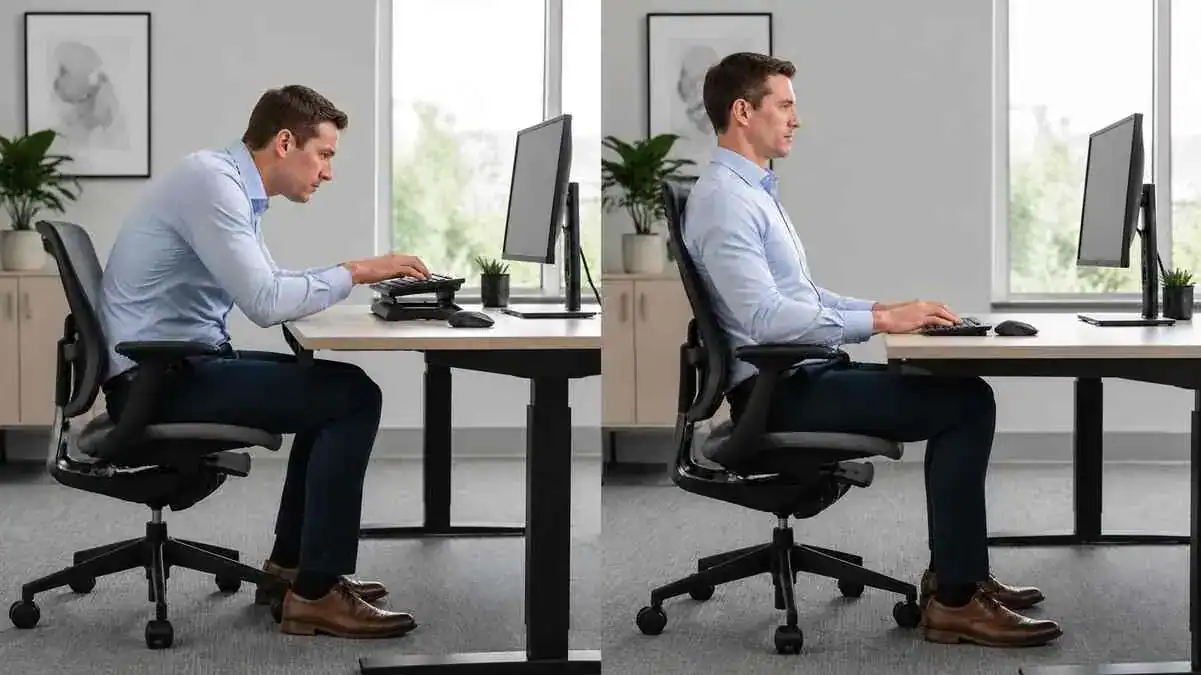
A proper keyboard position helps support comfortable typing by allowing the body to stay in a relaxed, natural working posture. The keyboard should work with the chair and desk instead of forcing awkward arm or wrist positions.
- Centre the keyboard directly in front of the body.
- Keep the keyboard close enough to prevent reaching.
- Position it low enough to keep the shoulders relaxed.
- Keep the elbows close to the sides.
- Keep the wrists straight or only slightly bent in a neutral position.
- Start with the keyboard flat or try a slight negative keyboard tilt if it feels more comfortable.
- Adjust the chair height, desk height, and keyboard height together instead of changing only one part of the setup.
- Change position regularly during long typing sessions because movement still matters, even with a well-adjusted workstation.
Quick Keyboard Position Check
| Setup Check | Comfortable Sign | Possible Problem |
| Keyboard centring | Main typing area is directly in front of the body | Body twists or one arm reaches farther |
| Keyboard height | Shoulders stay relaxed | Shoulders lift or wrists bend |
| Keyboard distance | Keyboard is within easy reach | Leaning forward or stretching |
| Shoulder position | Shoulders remain relaxed | Raised or rounded shoulders |
| Elbow position | Elbows stay close to the sides | Elbows move outward or behind the body |
| Wrist position | Wrists stay straight or only slightly bent | Wrists bend upward, downward, or sideways |
| Back support | Back stays against the backrest | Leaning away from the chair |
| Foot support | Feet rest on the floor or a footrest | Feet hang or slide forward |
Quick Answer
Proper keyboard position places the keyboard directly in front of the body so the hands can reach the keys without leaning or stretching. The keyboard should stay close enough to keep the back supported, the shoulders relaxed, and the elbows near the sides while typing.
The keyboard height should allow the forearms to rest comfortably while the wrists stay straight or only slightly bent. Avoid a setup that bends the wrists upward or sideways because this may place extra strain on the hands and forearms over time.
For many people, a flat keyboard is a good starting point. A slight negative keyboard tilt may also help maintain a neutral wrist position if it feels comfortable during normal typing.
A good keyboard setup depends on more than the keyboard alone. Chair height, desk height, and keyboard height should work together so the body can maintain relaxed shoulders, elbows close to the body, straight wrists, supported feet, and a comfortable sitting position.
Table of Contents
When to Worry
A poor setup or a long typing session may cause mild discomfort, even when the proper keyboard position only needs a small adjustment. However, symptoms that keep returning, worsen, or include nerve-like signs should not be ignored.
Mild Discomfort That May Improve With Adjustment
Mild symptoms may come from posture fatigue, static typing, or a keyboard setup that does not match the user well. These signs may improve after movement, rest, or a small setup change.
- Temporary soreness after a long typing session.
- Mild stiffness that improves with movement.
- Discomfort that changes after adjusting the chair or keyboard.
- Tension that eases after resting or changing position.
These patterns often suggest that the body needs more support, movement, or a better working position. They do not confirm a medical condition.
When Professional Evaluation May Help
Professional evaluation may help when symptoms do not improve after sensible setup changes. It may also help when discomfort starts to affect work, sitting tolerance, or daily activities.
Signs that may need further evaluation include:
- Pain that keeps returning despite keyboard or chair adjustments.
- Symptoms that last more than a few days.
- Pain or discomfort that continues to worsen.
- Pain that limits work or normal daily activities.
- Reduced tolerance for sitting or typing.
- Repeated numbness, tingling, or weakness.
Numbness, tingling, and weakness are different from normal muscle tiredness. Repeated symptoms may point to a problem that needs proper assessment rather than more workstation changes alone.
Warning Signs That Need Prompt Medical Attention
Some symptoms are more serious and should not be treated as a simple keyboard-position problem.
Prompt medical attention is important if any of the following occur:
- New severe weakness in an arm, hand, or leg.
- Severe or rapidly worsening pain after an injury.
- Loss of bowel or bladder control.
- Numbness around the saddle area.
- Fever with pain.
- Unexplained weight loss.
- Pain with other signs of serious illness.
These warning signs may have causes unrelated to typing posture or ergonomic setup. A healthcare professional should assess them promptly.
Symptoms / Signs
Changes in posture can show when the proper keyboard position does not match the user. These signs often appear in the shoulders, elbows, wrists, back, or forearms during normal typing.
Signs the Keyboard May Be Too High
A keyboard that sits too high often makes the upper body work harder.
Common signs include:
- Raised shoulders.
- Elbows held high.
- Forearms held up without support.
- Neck or shoulder tightness.
- Upper-back fatigue.
- Wrists bending upward.
These signs often become more noticeable as a typing session continues.
Signs the Keyboard May Be Too Low
A low keyboard can pull the body downward and away from a supported sitting position.
Observable signs include:
- Reaching downward to type.
- Slumping towards the desk.
- Losing comfortable contact with the backrest.
- Wrists bending downward.
- Forearms pressing against the desk edge.
The user may also keep changing position because the keyboard height feels difficult to maintain.
Signs the Keyboard May Be Too Far Away
A keyboard placed too far away increases the reach distance.
The user may show:
- Leaning forward.
- Rounded shoulders.
- Elbows moving away from the body.
- Reduced back support.
- Neck and upper-back tension.
The hands may still reach the keys, but the rest of the body may lose a relaxed working position.
Signs the Keyboard May Be Too Close
A keyboard can also sit too close.
Signs may include:
- Elbows moving behind the body.
- A crowded hand position.
- Limited forearm space.
- Wrists bending around the keyboard edge.
- Difficulty using the mouse comfortably.
Mouse discomfort may also appear, but mouse placement needs a separate setup review.
Signs the Keyboard May Be Off-Centre
A keyboard that is off-centre can create uneven arm and shoulder positions.
Common signs include:
- The torso turning to one side.
- One shoulder sitting farther forward.
- Uneven arm reach.
- Leaning towards the main typing area.
- Uneven neck or shoulder tension.
The main typing area may sit off-centre even when the full keyboard looks centred on the desk.
Signs the Wrists Are Not Neutral
A neutral wrist position keeps the wrists straight or only slightly bent.
Signs that the wrists are not neutral include:
- Wrists bending upward.
- Wrists bending downward.
- Wrists moving sideways.
- Pressure at the base of the palm.
- Hand or forearm discomfort.
- Frequent shaking or repositioning of the hands.
These signs may show that the keyboard height, distance, angle, or centring does not suit the user.
Signs the Setup May Not Match the User
Sometimes the problem involves the wider desk and chair setup rather than keyboard placement alone.
Signs of a poor fit include:
- The shoulders cannot relax at the available desk height.
- The feet lose support after the chair is raised.
- The armrests block close access to the keyboard.
- The back leaves the backrest during typing.
- The keyboard cannot stay close without crowding the desk.
- A laptop forces a choice between a comfortable screen position and a comfortable keyboard position.
These patterns suggest that the chair, desk, and keyboard may not work well together.
Symptoms After Long Typing Sessions
Long typing sessions can make setup problems easier to notice.
Symptoms may include:
- Stiffness after sitting.
- Tightness when standing after typing.
- Neck tightness.
- Shoulder tension.
- Lower-back pressure.
- Wrist discomfort.
- Forearm fatigue.
- A frequent need to change position.
- Numbness or tingling during typing.
Muscle tiredness and stiffness may build during long, static work. Repeated numbness or tingling is different and may need professional evaluation.
Causes That Disrupt Proper Keyboard Position
A proper keyboard position depends on the keyboard, chair, desk, and the user’s working posture. When one part of the setup is out of place, the body often adjusts in ways that increase muscle effort and reduce comfort over time.
The Keyboard Is Too High
When the keyboard is too high, the shoulders usually rise to reach the keys. The arms remain lifted instead of resting comfortably, which can increase muscle effort in the neck and upper back.
Keyboard too high → shoulders rise → arms remain lifted → neck and upper-back strain
Several setup problems can cause this, including:
- A desk surface that is too high.
- A keyboard tray set too high.
- A chair that is too low.
- A thick desktop that limits comfortable arm and leg positioning.
- Keyboard feet that raise the back edge and increase wrist extension.
The user may not notice the problem immediately, but shoulder tension often builds during longer typing sessions. If the work surface itself is too high, checking the desk height can help identify whether the desk and seated working position match.
The Keyboard Is Too Low
A keyboard that sits too low can cause the user to reach downward while typing. This often leads to a slumped trunk, reduced contact with the backrest, and increasing discomfort over time.
Keyboard too low → user reaches down → trunk slumps → back support decreases → discomfort builds
Possible causes include:
- A keyboard tray positioned too low.
- A chair that is too high.
- A work surface below a comfortable forearm height.
- Lowering the keyboard to compensate for another workstation problem.
The keyboard should allow the arms to work comfortably without pulling the body into a slouched position.
The table below compares the two most common keyboard-height problems and the signs to look for.
Keyboard Too High vs Keyboard Too Low
| Setup Problem | Common Posture Pattern | Possible Discomfort | Adjustment to Check |
| Keyboard too high | Raised shoulders, lifted elbows, wrists bend upward | Neck, shoulder, upper-back, or wrist discomfort | Lower the keyboard, raise the chair if needed, and check foot support |
| Keyboard too low | Slumping, reaching downward, wrists bend downward | Lower-back pressure, wrist discomfort, or forearm pressure | Raise the keyboard or adjust the chair and desk together |
The Keyboard Is Too Far Away
When the keyboard is too far from the body, the arms must reach forward. This can round the shoulders, reduce backrest contact, and increase strain in the neck and upper back.
Keyboard too far away → arms reach forward → shoulders round → backrest contact decreases → neck and upper-back strain increases
Common reasons include:
- Papers or equipment placed between the user and the keyboard.
- A desk that is too deep.
- A keyboard tray that does not extend far enough.
- A monitor or laptop position that pushes the keyboard farther away.
Even a small increase in reach distance can make it harder to maintain supported sitting throughout the day.
Keyboard distance can affect posture in different ways. The table below compares the two most common distance-related problems
Keyboard Too Close vs Too Far Away
| Position | Observable Sign | Likely Effect | Setup Check |
| Too close | Elbows move behind the body, limited hand space | Crowded posture or awkward wrist position | Move the keyboard slightly away while keeping elbows near the sides |
| Too far away | Leaning forward, rounded shoulders, arms reaching | Loss of back support, neck or shoulder tension | Bring the keyboard closer and keep the back against the chair |
The Keyboard Is Not Centred
An off-centre keyboard can create uneven loading across the upper body. One arm may reach farther than the other, causing the torso to rotate and one shoulder to work harder.
Off-centre keyboard → uneven arm reach → torso rotation → uneven shoulder loading → discomfort
This may happen because:
- The keyboard is centred using its outer edge instead of the main typing area.
- A built-in number pad shifts the letter keys to one side.
- Desk equipment blocks a centred keyboard position.
- The user sits off-centre from the workstation.
Keeping the main typing area aligned with the body usually supports a more balanced posture.
The Keyboard Angle Bends the Wrists
Keyboard angle affects wrist posture during typing. When the back edge of the keyboard is raised too much, the wrists often bend upward. This position can increase static loading in the hands and forearms.
Raised keyboard edge → wrist extension → static wrist loading → hand and forearm discomfort
Other possible causes include:
- Excessive positive keyboard tilt.
- An unsuitable keyboard tray angle.
- Pressure from the desk edge.
- A sloped or uneven typing surface.
The goal is to support a wrist position that feels relaxed rather than forced.
Chair Height Does Not Match Keyboard Height
Chair height and keyboard height work together. When they do not match, the body often compensates with raised shoulders, bent wrists, or poor elbow position.
Chair-height mismatch → poor elbow position → raised shoulders or bent wrists → typing discomfort
For example:
- A chair that is too low may force the shoulders to lift.
- A chair that is too high may leave the feet unsupported.
- Armrests may prevent the chair from moving close enough to the desk.
Changing only the keyboard height may not solve the problem if the chair height also needs adjustment.
Armrests Interfere With Typing
Armrests can improve comfort when they fit the user and the workstation. However, poorly adjusted armrests may interfere with keyboard positioning.
Examples include:
- Armrests that are too high may lift the shoulders.
- Armrests that are too low may provide little useful support.
- Wide armrests may push the elbows outward.
- Armrests may stop the chair from moving close enough to the desk.
The arms should be able to reach the keyboard comfortably without the armrests creating awkward positions.
The Back and Feet Lack Support
Stable sitting begins with good body support. Without it, posture often becomes harder to maintain during typing.
Unsupported sitting → pelvic and trunk imbalance → posture fatigue → typing discomfort
A lack of support may include:
- No useful lumbar support.
- Feet hanging without support.
- Slumping away from the backrest.
- Chair height or seat depth that prevents stable sitting.
These factors can reduce comfort even when the keyboard itself is positioned correctly.
Laptop Use Forces a Compromise
A laptop combines the keyboard and screen into one unit. Because they cannot move independently, improving one position often affects the other.
For example:
- Moving the laptop closer may improve typing but place the screen too close.
- Raising the laptop may improve screen height but also raise the keyboard.
- Long periods of laptop use may encourage forward leaning and bent wrists.
An external keyboard can provide more flexibility when using a laptop workstation.
Long Typing Sessions Increase Static Load
Typing for long periods without changing position increases static muscle loading. Over time, this may lead to muscle fatigue and reduced comfort.
A typical pattern is:
Prolonged typing → Reduced movement → Static muscle load → Fatigue → Neck, shoulder, wrist, or back discomfort
Contributing factors include:
- Repetitive typing over many hours.
- Too few movement breaks.
- Holding the same hand and arm position.
- General muscle tiredness after about three to four hours of keyboard work.
Regular movement remains important, even with a well-adjusted workstation.
Long periods of typing can increase static muscle load throughout the body. This pattern also contributes to desk job back pain, especially when movement breaks are limited.
Earlier Strain Makes Typing Feel Worse
Existing muscle strain can make normal typing feel more uncomfortable. Symptoms may flare more quickly during keyboard work, even when the workstation has improved.
This may relate to:
- Previous overuse.
- Previous muscle strain.
- Symptoms after a heavy workload.
- Discomfort that returns during repeated keyboard use.
These patterns do not identify a specific medical condition, but they may explain why typing feels more difficult than expected.
What It May Indicate
Symptoms do not always point to one problem. The same discomfort can have several possible causes, and the keyboard may be only one part of the overall workstation setup.
Not every typing problem starts with the keyboard. This table compares situations where the keyboard may be involved with situations that may come from the chair or desk.
Keyboard Problem vs Chair or Desk Problem
| Observable Problem | Keyboard May Be Involved | Chair or Desk May Be Involved | What to Check First |
| Raised shoulders | Keyboard too high | Chair too low or armrests too high | Chair height and keyboard height |
| Leaning forward | Keyboard too far away | Chair too far from the desk or deep work surface | Keyboard distance and chair position |
| Bent wrists | Keyboard height or tilt | Desk height mismatch | Keyboard angle and overall working height |
| Lower-back pressure | Keyboard causes reaching | Poor chair support or foot support | Backrest contact and keyboard distance |
| Uneven arm position | Keyboard off-centre | Limited desk space or chair position | Centre the main typing area |
Raised Shoulders May Point to Excessive Keyboard Height
Raised shoulders often suggest that the arms must work harder than necessary.
This may happen when:
- The keyboard is too high.
- The chair is too low.
- Armrests are set too high.
- The forearms do not receive enough support.
Each situation changes arm position in a different way, so the entire workstation should be reviewed rather than focusing on the keyboard alone.
Forward Leaning May Point to Excessive Reach
Leaning forward while typing usually means the body is trying to reach something.
Possible reasons include:
- The keyboard is too far away.
- Screen content is small or difficult to read.
- The chair sits too far from the desk.
- A long-standing sitting habit encourages forward leaning.
The keyboard may contribute, but the overall workstation and typing habits also matter.
Bent Wrists May Point to Height or Angle Problems
The direction of wrist bending can provide useful clues.
- Wrists bending upward may relate to a raised keyboard edge.
- Sideways bending may result from poor keyboard centring.
- Downward bending may occur when the keyboard is too low.
- Pressure at the base of the palm may develop when the hands rest heavily during typing.
Looking at the wrist position during normal typing often provides a better picture than checking posture for only a few seconds.
Shoulder Tension Is Different From Wrist Strain
Shoulder tension and wrist strain are not always caused by the same problem.
Shoulder tension often relates to:
- Keyboard height.
- Excessive reaching.
- Unsupported arms.
Wrist strain is more commonly linked to:
- Wrist angle.
- Keyboard tilt.
- Static loading during typing.
Both problems can occur together, but each may need a different adjustment.
Muscle Fatigue Is Different From Nerve-Like Symptoms
Muscle fatigue usually feels different from symptoms that affect the nerves.
Muscle fatigue may include:
- General soreness.
- Tight muscles.
- Tiredness after long typing sessions.
Nerve-like symptoms are more likely to include:
- Persistent numbness.
- Tingling.
- Weakness.
- Reduced grip strength or hand control.
Repeated numbness, tingling, weakness, or loss of hand control should be assessed by a healthcare professional, especially if these symptoms continue despite workstation adjustments.
Lower-Back Pressure May Point to Lost Chair Support
Lower-back pressure during typing does not always mean the keyboard is the only problem. It may develop when reaching for the keyboard pulls the body away from the backrest.
Other contributing factors include:
- Poor chair height that reduces stable foot support.
- Slumping during typing.
- Losing contact with the backrest over time.
The keyboard may contribute to these changes, but the chair and overall workstation setup often play an important role as well.
The Problem May Be the Desk or Chair, Not the Keyboard Alone
A keyboard that appears to be poorly positioned may actually reflect another workstation problem.
For example:
- A desk that is too high can make the keyboard seem too high.
- Poor chair height can affect elbow and wrist position.
- Armrests may stop the chair from moving close enough to the desk.
- Limited desk depth may prevent the keyboard from being placed close to the body.
Reviewing the entire workstation usually provides a better solution than adjusting the keyboard alone. A complete ergonomic desk setup explains how the chair, desk, monitor, keyboard, and other workstation components work together to support comfortable working.
The Setup May Not Be the Only Cause
Even with a well-adjusted workstation, discomfort can have more than one cause.
Symptoms may also relate to:
- A previous injury.
- A recent heavy workload.
- Long periods of sitting.
- Repetitive keyboard use.
- A health condition unrelated to workstation ergonomics.
What to Do
Small workstation adjustments often improve typing comfort more than one large change. Making one adjustment at a time also makes it easier to identify what improves the setup.
Adjust the Chair First
A properly adjusted chair provides the foundation for comfortable keyboard use.
- Sit fully back in the chair.
- Use the backrest and available lumbar support.
- Place both feet on the floor or on a stable footrest.
- Adjust the chair height until the arms can relax comfortably.
- Check that the armrests do not block access to the desk.
Once the chair is set correctly, adjust the keyboard to match it. Learn how to adjust desk chair height and positioning to improve seat height, armrest placement, foot support, and overall keyboard comfort.
Set the Proper Keyboard Position
After the chair is adjusted, set the proper keyboard position while sitting in the normal working posture.
- Place the keyboard directly in front of the body.
- Centre the main typing area rather than the keyboard’s full outer width.
- Keep the keyboard close enough to avoid reaching.
- Leave enough space in front of the keyboard for comfortable hand movement.
The keyboard should support a relaxed posture without encouraging twisting or leaning.
Set a Comfortable Keyboard Height
Adjust the keyboard until the shoulders can relax naturally.
- Keep the elbows near the sides.
- Allow the forearms to rest comfortably.
- Avoid raising the shoulders while typing.
- Adjust the chair, desk, and keyboard height together.
Many guides mention a 90-degree elbow angle, but this should be treated as a general reference rather than a fixed rule for every person.
Keep the Wrists Neutral
The wrists should stay straight or only slightly bent during normal typing.
To help maintain a neutral wrist position:
- Avoid bending the wrists upward.
- Avoid bending the wrists sideways.
- Let the hands move naturally across the keyboard instead of holding the wrists stiff.
- Use a light typing touch where practical.
Relaxed hand movement is usually easier to maintain than trying to hold one exact wrist position.
Check Keyboard Tilt
Start with the keyboard in a flat position.
Then:
- Try a slight negative tilt if it improves wrist alignment.
- Avoid raising the back edge if it causes the wrists to bend upward.
- Recheck wrist posture during normal typing rather than only while sitting still.
The most comfortable tilt varies between users and depends on the rest of the workstation.
The table below shows how neutral and bent wrist positions differ during typing
Neutral Wrist vs Bent Wrist
| Wrist Position | What It Looks Like | Common Cause | Possible Effect |
| Neutral wrist | Wrist stays straight or only slightly bent | Suitable keyboard height and angle | Comfortable typing position |
| Bent upward | Back of the hand lifts toward the forearm | Keyboard too high or excessive positive tilt | Increased wrist and forearm strain |
| Bent downward | Hand drops below the forearm | Keyboard too low | Wrist discomfort and reduced support |
| Bent sideways | Wrist angles toward the little finger or thumb | Poor keyboard centring or awkward reach | Uneven loading of the wrist and forearm |
Check Elbow and Forearm Position
Comfortable typing begins with relaxed arms.
- Keep the elbows close to the body.
- Avoid reaching outward.
- Let the shoulders remain relaxed.
- Support the forearms without pressing hard against the desk edge.
There is no single elbow angle that suits everyone. The goal is relaxed movement rather than a perfectly measured position.
Move the Keyboard Closer
If reaching is required, bring the keyboard closer before changing posture.
Helpful steps include:
- Remove papers or equipment from the reach zone.
- Pull the keyboard toward the body.
- Keep contact with the backrest.
- Recheck shoulder position after moving the keyboard.
- Make sure the keyboard is not so close that the elbows move behind the body.
A small change in keyboard distance can noticeably reduce unnecessary reaching.
Centre the Main Typing Area
The keyboard should be centred around the letter keys rather than its outer edges.
When adjusting the position:
- Align the main typing area with the middle of the body.
- Remember that a number pad shifts the keyboard to one side.
- Keep frequently used keys within comfortable reach.
- Avoid twisting toward one side while typing.
This approach helps both arms work in a more balanced position.
Test the Setup During Normal Work
A workstation should be tested during real typing, not just during a quick posture check.
While working, notice whether:
- The shoulders stay relaxed.
- The elbows remain comfortable.
- The wrists stay close to neutral.
- The back remains supported.
- The feet stay comfortably supported.
If changes are needed, adjust one setting at a time before checking the result again. Recheck the setup after moving the monitor, chair, or other desk equipment because each adjustment can affect the others.
Change Position During Long Sessions
Even a well-adjusted workstation cannot remove the effects of prolonged sitting.
During longer typing sessions:
- Avoid staying in one position for the entire work period.
- Take brief movement breaks.
- Relax the hands and shoulders.
- Stand or walk when practical.
- Recheck sitting posture after returning to the workstation.
When typing at a sit-stand workstation, a good standing desk ergonomics setup can help keep the keyboard at a comfortable height and within easy reach while standing. Regular movement helps reduce the static muscle loading that builds during long periods of typing.
Step-by-Step Keyboard Adjustment Checklist
Use this checklist to review the workstation in a logical order.
- Adjust the chair.
- Support the feet.
- Sit against the backrest.
- Move close to the desk.
- Centre the main typing area.
- Set the keyboard height.
- Bring the keyboard closer.
- Relax the shoulders.
- Check elbow position.
- Straighten the wrists.
- Check keyboard tilt.
- Test the setup during normal typing.
- Change one setting at a time.
- Recheck the setup after adding accessories.
Ergonomic & Support Options
Support tools can make the proper keyboard position easier to maintain when the desk, chair, or laptop setup has limits. However, no accessory works well unless its height, distance, and angle match the user.
Keyboard Tray
A keyboard tray may help when the desk is too high for comfortable typing. It can provide a better keyboard height without changing the height of the entire desk.
For the best results, a keyboard tray should:
- Allow a comfortable keyboard height.
- Keep the keyboard close enough to avoid reaching.
- Support a suitable keyboard angle.
- Leave enough legroom underneath the desk.
A keyboard tray does not automatically improve posture. It still needs to be adjusted to suit the rest of the workstation.
Adjustable Keyboard Tray
An adjustable keyboard tray offers more flexibility than a fixed tray.
Useful adjustment features include:
- Height adjustment.
- Distance adjustment.
- Tilt adjustment.
- Side-to-side alignment.
- A stable surface that does not move during typing.
These adjustments allow the keyboard to match the user’s sitting position more closely instead of forcing the user to adapt to the desk.
The table below summarises where a keyboard tray may help and where poor adjustment can create new problems
Keyboard Tray Benefits and Limits
| Tray Feature | When It May Help | When It May Cause Problems |
| Adjustable height | Desk is too high | Keyboard sits too low or too high |
| Adjustable distance | Keyboard needs to move closer | Keyboard remains too far away |
| Adjustable tilt | Improves wrist alignment | Unsuitable angle bends the wrists |
| Side-to-side adjustment | Centres the main typing area | Poor alignment encourages twisting |
| Adequate legroom | Allows comfortable sitting | Limited legroom reduces sitting comfort |
| Stable typing surface | Supports steady typing | Movement or wobbling makes typing difficult |
Flat and Negative-Tilt Setup
Many people begin with a flat keyboard because it works well in a wide range of workstation setups.
Some users may also find that a slight negative tilt improves wrist alignment by allowing the wrists to stay closer to a neutral position.
A raised positive tilt, which lifts the back edge of the keyboard, may increase wrist extension for some users. This does not mean a positive tilt is always unsuitable, but it should be reviewed if the wrists bend upward during normal typing.
The most comfortable keyboard angle depends on the user’s posture and the rest of the workstation rather than one setting that fits everyone.
Flat vs Positive vs Negative Keyboard Tilt
| Keyboard Angle | Wrist Effect | Possible Benefit | Limitation |
| Flat | Often helps keep the wrists neutral | Good starting position for most users | May not suit every workstation |
| Slight negative tilt | May reduce upward wrist bending | Can improve wrist alignment for some users | Only helpful if it feels comfortable during typing |
| Positive tilt | May increase wrist extension | May improve key visibility for some users | Can increase wrist strain if the keyboard is already too high |
Palm Rest and Wrist Rest
Palm rests and wrist rests are often treated as the same accessory, but they serve different purposes.
A palm rest may support the palms during pauses between typing. It is generally not intended to support body weight while the fingers are actively typing.
Heavy pressure on the wrists during typing may increase pressure around the base of the palm. A rest that is too thick may also push the wrists upward and affect wrist alignment.
When used, the height of the rest should match the keyboard as closely as practical.
Palm Rest vs Wrist Rest
| Support Type | Intended Contact Area | Best Use | Common Mistake |
| Palm rest | Lower part of the palms | Supports the hands during pauses | Resting heavily while actively typing |
| Wrist rest | Area close to the wrists | May provide light support when used correctly | Pressing the wrists into the support throughout typing |
External Keyboard for Laptop Use
An external keyboard allows the keyboard and screen to be positioned independently.
This can make it easier to:
- Keep the keyboard lower and closer to the body.
- Raise the laptop screen without raising the keyboard.
- Create a more flexible workstation.
An external keyboard also requires enough desk space for comfortable positioning. Screen height should still be adjusted separately to suit the user.
For a complete workstation, the ergonomic laptop setup guide explains how to position the laptop screen, keyboard, mouse, chair, and other components together for comfortable laptop work.
Split and Alternative Keyboards
Split and alternative keyboards may help some users reduce sideways wrist deviation during typing.
Different keyboard shapes and layouts change how the hands and arms are positioned. Some users may find these designs more comfortable after an adjustment period.
However, these keyboards are not a universal solution. Comfort depends on the individual, work tasks, and the rest of the workstation.
Compact Keyboard and Number Pad
A full-size keyboard with an attached number pad shifts the main typing area away from the centre of the body.
Depending on the work being performed:
- A compact keyboard may create more space near the mouse.
- A separate number pad allows the main typing area to stay centred more easily.
- A full-size keyboard may still be the best option for work that requires frequent number entry.
The most suitable keyboard depends on the user’s daily tasks rather than a single preferred design.
For more detailed guidance on mouse placement, wrist alignment, arm position, and comfortable mouse use, see the guide on proper mouse position.
Chair Height and Armrests
Chair height directly affects keyboard height because both determine where the arms and shoulders rest during typing.
Armrests should:
- Support relaxed shoulders.
- Avoid lifting the shoulders.
- Avoid blocking the chair from moving close to the desk.
If the chair must be raised to match the keyboard, a footrest may also be needed to keep the feet supported.
Lumbar Support and Backrest Contact
Lumbar support may help maintain supported sitting during keyboard work. The keyboard should be positioned close enough that reaching does not pull the body away from the backrest.
Support should feel natural rather than forcing an uncomfortable posture. Lumbar support also cannot replace regular movement during the workday.
Foot Support
Stable foot support helps maintain a balanced sitting position.
The feet should rest on:
- The floor, or
- A stable footrest when the chair must be raised for the correct keyboard height.
Stable foot support often makes it easier to maintain a comfortable upper-body position while typing.
Forearm Support
Forearm support may reduce the effort needed to hold the arms up during longer typing sessions.
Good forearm support should:
- Allow the shoulders to stay relaxed.
- Avoid creating pressure against the desk edge.
- Allow the hands to move freely across the keyboard.
Support should improve comfort without restricting natural arm movement.
Movement Still Matters
Even the proper keyboard position cannot completely prevent the effects of prolonged typing.
Long periods of typing increase static muscle loading, even with a well-adjusted workstation.
During the workday, it helps to:
- Change position regularly.
- Take brief movement breaks.
- Relax the hands and shoulders.
- Stand or walk when practical.
If discomfort continues after improving the workstation and adding regular movement, the setup should be reviewed again because another adjustment may still be needed.
FAQ
What Is the Proper Keyboard Position?
The proper keyboard position places the main typing area directly in front of the body. The keyboard should stay close enough to prevent reaching, while the shoulders remain relaxed and the wrists stay straight or only slightly bent.
How Should a Keyboard Be Positioned While Typing?
The keyboard should sit directly in front of the body and within easy reach. Its height should keep the shoulders relaxed and the elbows comfortably near the sides.
How High Should a Keyboard Be?
Keyboard height should allow the shoulders to relax and the forearms to rest comfortably. The wrists should remain straight rather than bending upward or downward.
How Close Should a Keyboard Be to the Body?
The keyboard should be close enough that the elbows remain near the sides. It should not sit so close that the elbows move behind the body or the hands feel crowded.
Should a Keyboard Be Flat or Tilted?
A flat keyboard is usually the best starting point. A slight negative tilt may also help when it supports straighter wrists, but no single angle works for everyone.
How Should the Wrists Be Positioned While Typing?
The wrists should stay straight or only slightly bent. They should not bend sharply upward, downward, or to either side.
What Is the Proper Elbow Position While Typing?
The elbows should stay near the sides in a relaxed position. They should not lift high, spread far outward, or move behind the body.
Should Keyboard Height and Desk Height Be Adjusted Together?
Yes. Keyboard height, desk height, and chair height work together. Changing only one part may improve the wrists while creating a new problem for the shoulders, back, or feet.
What Is the Best Keyboard Position for Typing?
The best keyboard position allows relaxed shoulders, elbows near the sides, and comfortable forearm support. The back should stay against the backrest, and the feet should remain supported.
Where Should a Keyboard Be Placed on a Desk?
The keyboard should sit near the front edge of the main working area on the desk. It should be close enough for the user to type without leaning forward or losing contact with the backrest.
Is a Negative Keyboard Tilt Better for the Wrists?
A slight negative tilt may reduce upward wrist bending for some people. It is only helpful when it improves wrist alignment and feels comfortable during normal typing.
Should the Wrists Rest on the Desk While Typing?
The wrists should not press heavily against the desk during active typing. Light palm support may help during pauses, but the hands should move freely while typing.
Do the Elbows Need to Stay at Exactly 90 Degrees?
No. An exact 90-degree elbow angle is not required for everyone. The elbows should rest at a comfortable angle that keeps the shoulders relaxed, the wrists straight, and the hands free to move.
How Can Someone Tell if a Keyboard Is Too High?
A keyboard may be too high when the shoulders rise, the elbows stay lifted, or the wrists bend upward. Neck, shoulder, or upper-back discomfort may also develop.
What Happens When a Keyboard Is Too Far Away?
A distant keyboard can cause the arms to reach forward. The shoulders may round, the back may leave the backrest, and neck or upper-back tension may increase.
Should a Keyboard Be Centred in Front of the Body?
Yes. The main typing area should sit directly in front of the body. With a full-size keyboard, the main typing area—not the outer edge—should line up with the body because the number pad makes one side wider.
Does Chair Height Affect Keyboard Position?
Yes. A chair that is too low may make the keyboard feel too high and lift the shoulders. A chair that is too high may improve arm position but leave the feet without support.
Does a Keyboard Tray Improve Typing Posture?
A keyboard tray may help when it provides suitable height, distance, and tilt. It does not improve posture on its own and may cause problems when set too low or too far away.
What Is the Difference Between a Wrist Rest and a Palm Rest?
A palm rest supports the lower part of the palm, often during pauses. A wrist rest supports the area closer to the wrist. Heavy pressure directly under the wrists during active typing may limit movement or cause discomfort.
Should a Wrist Rest Be Used While Typing?
A wrist or palm rest may help during pauses, but it should not hold the wrists in one position while typing. It should match the keyboard height and should not push the wrists upward.
How Does Laptop Use Affect Keyboard Ergonomics?
A laptop connects the screen and keyboard, so they cannot move separately. Raising the laptop screen also raises the keyboard, while moving the keyboard closer may place the screen too close.
Can an External Keyboard Improve a Laptop Setup?
An external keyboard can make a laptop setup more flexible. It allows the keyboard to stay lower and closer while the laptop screen can be placed at a more comfortable viewing height.
Are Split Keyboards Better for Posture?
Split keyboards may help some people reduce sideways wrist bending. Comfort depends on the keyboard layout, workstation setup, work tasks, and the individual. They are not a universal solution.
Can Poor Keyboard Position Cause Shoulder or Neck Discomfort?
It may contribute. A keyboard that sits too high or too far away can lead to raised shoulders, forward reaching, and greater static muscle effort. Other workstation factors or existing health conditions may also contribute.
Can Keyboard Position Affect Lower-Back Comfort?
Yes. Reaching for the keyboard may pull the body away from the backrest. Poor chair height or lost foot support may also lead to slumping and increased lower-back pressure.
Why Do the Wrists Hurt After Typing?
Wrist discomfort may result from bent wrists, unsuitable keyboard height, excessive tilt, palm pressure, repetitive typing, or static loading. Persistent or worsening pain may need professional evaluation.
Why Do the Shoulders Rise While Typing?
The keyboard may sit too high, the chair may sit too low, or the armrests may lift the shoulders. Limited forearm support can also increase the effort needed from the shoulders.
Why Does Someone Lean Forward to Reach the Keyboard?
The keyboard may sit too far away or behind desk equipment. Poor chair-to-desk distance, hard-to-read screen content, or a habit of leaning forward while working may also contribute.
How Often Should Someone Change Position While Typing?
There is no single schedule that suits everyone. Position should change regularly during long sessions, with brief pauses, standing, or walking when practical.
When Should Typing-Related Numbness or Weakness Be Checked?
Repeated numbness, tingling, weakness, reduced grip, or poor hand control may need professional evaluation. Prompt medical attention is important if weakness is new, severe, or getting worse quickly.
Sources & References
The following sources were reviewed to support the ergonomic guidance presented in this article.
- Cornell University Ergonomics Web — Neutral Posture Typing
- Canadian Centre for Occupational Health and Safety — Office Ergonomics: Keyboard Selection and Use
- UCLA Health — Office Ergonomics: Worksurface
- University of California Office of the President — Keyboards, Mice and Other Accessories
- Grand Valley State University — Keyboard: Office Ergonomics
- University of Minnesota — Setting Up Your Ergonomic Office Space
Related Articles
Building a comfortable workstation involves more than keyboard placement alone. These guides explain how other parts of the workstation work together.
Complete Ergonomic Desk Setup: How to Create a Comfortable Workstation
Desk Chair Height and Positioning: A Step-by-Step Guide to Proper Adjustment
Monitor Height and Position: How to Set Up a Screen for Comfortable Viewing
Update Note
Last Reviewed / Updated
Last reviewed and updated: July 29, 2026
It is reviewed periodically to keep its keyboard positioning, workstation ergonomics, and safety guidance accurate, practical, and up to date.
4 thoughts on “Proper Keyboard Position: How to Set Up a Keyboard for Comfortable Typing”
Comments are closed.