
TL;DR
Key Takeaways
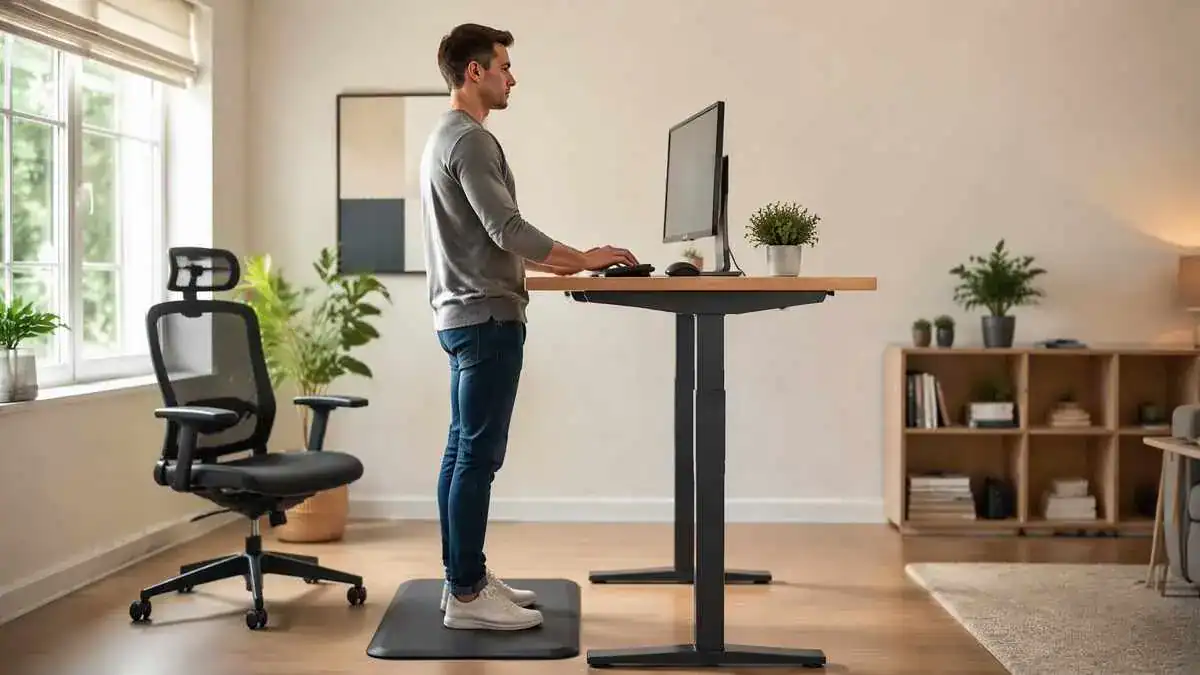
- Good standing desk ergonomics starts with the work surface around elbow height so the shoulders can stay relaxed.
- Keep the main monitor directly ahead at a comfortable viewing height and distance.
- Keep the keyboard and mouse close so the arms do not have to reach forward.
- Alternate between supported sitting, comfortable standing, and brief movement. A standing desk works best as a position-changing tool, not a reason to stand all day.
- Avoid standing still for long periods. Static standing can tire the feet, legs, and back.
- Change position before discomfort builds instead of waiting for pain or fatigue to become strong.
- Persistent or worsening numbness, weakness, or other concerning symptoms need medical evaluation rather than more desk adjustments.
Quick Answer
Standing desk ergonomics means setting up the desk, monitor, keyboard, and mouse so the body can work in a comfortable position. A standing desk should also make it easy to switch between sitting, standing, and brief movement instead of keeping the body in one position for too long.
Table of Contents
When to Worry
Discomfort during desk work is not always caused by standing desk ergonomics. Symptoms that persist, worsen, spread, or affect strength, balance, or walking need more attention rather than repeated workstation adjustments.
Signs That Need Medical Evaluation
Professional medical evaluation is appropriate when symptoms:
- Last for several weeks.
- Keep getting worse.
- Spread into an arm or leg.
- Cause repeated numbness or tingling.
- Cause weakness or reduced grip.
- Affect walking or balance.
These signs are different from mild, local fatigue that develops during a static position and improves after a position change. Weakness, repeated numbness, or radiating pain should not simply be treated as a posture or desk-setup problem.
When Symptoms Need Urgent Attention
Some symptoms need urgent medical attention rather than further ergonomic changes. These include:
- New bladder or bowel changes.
- New numbness around the saddle area, including the inner thighs, buttocks, or genital area.
- Rapidly worsening leg weakness.
- Back or neck pain after significant trauma, such as a serious fall or collision.
- Back pain with fever or feeling seriously unwell.
These warning signs should not be blamed on standing posture or workstation fit without medical assessment.
Symptoms and Signs of Poor Standing Desk Ergonomics
Poor standing desk ergonomics can show up as discomfort, fatigue, or repeated posture changes during work. These signs may appear while sitting or standing and can help show when the workstation or working position needs a closer look.
Neck and Shoulder Tension While Working
Neck tightness, upper-shoulder tension, or soreness between the shoulder blades may develop during computer work. The head may move toward the screen, one shoulder may rise, or the neck may stay turned toward a side monitor.
These patterns may become more noticeable as a work session continues. They can provide useful clues about standing desk posture, but discomfort alone does not identify its cause.
Wrist and Forearm Discomfort During Typing
The wrists, forearms, hands, or fingers may feel sore or tired during keyboard and mouse use. A raised shoulder, a reaching arm, or wrists that repeatedly bend while typing may appear at the same time.
These signs are especially useful when they appear during a specific computer task and ease after the working position changes. They show a pattern worth checking, but they do not prove an injury or medical condition.
Foot and Leg Fatigue While Standing
Static standing can lead to tired feet, aching soles or heels, calf fatigue, or a feeling of heaviness in the legs. As standing becomes less comfortable, the user may also begin shifting weight more often.
Standing discomfort should not be confused with movement. Standing changes the working position, but standing still does not provide the same movement as walking.
Lower Back Pressure During Sitting or Standing
Lower-back pressure or a dull ache may appear after desk work. During sitting, stiffness or pressure may become more noticeable when the body stays in one position for a long time or when the lower back loses contact with the backrest.
During standing, the back may also feel tired as static standing continues. Repeated arching, leaning, or shifting can appear as the body tries to find a more comfortable position.
Posture Clues That the Setup Needs Adjustment
Changes in posture can provide early clues that the standing desk setup may need attention. Common signs include:
- Leaning toward the screen.
- Raising the shoulders while working.
- Leaning on the desk or forearms.
- Repeatedly shifting weight from side to side.
- Standing mainly on one leg.
These patterns may appear as fatigue or discomfort builds. They are useful observations for checking the workstation, but they do not diagnose the cause of pain or discomfort.
What Causes Poor Standing Desk Ergonomics?
Poor standing desk ergonomics can develop when the desk, monitor, keyboard, mouse, or chair does not fit the user well. It can also happen when sitting or standing continues for too long without enough position changes.
A Standing Desk That Is Too High or Too Low
Getting the desk height right can help the shoulders stay relaxed while the user works. A standing desk that is too high can force the shoulders upward. The elbows may move outward, the forearms may angle upward, and the wrists may bend back.
Desk too high → shoulders rise → upper-shoulder muscles stay loaded → neck or shoulder discomfort may develop.
A desk that is too low creates a different problem. It may encourage the neck or trunk to bend toward the work surface. The user may also reach downward or place more pressure through the hands.
Poor Monitor Position
A monitor that is too low, too high, too far away, or off-center can pull the head and neck away from a comfortable position. The user may lean toward the screen, tilt the head, squint, or keep the neck turned.
Monitor too low → repeated neck bending → more neck-muscle work → neck and upper-shoulder tightness.
Monitor too far away → forward leaning → more trunk bracing → neck and back fatigue.
Reaching for the Keyboard or Mouse
The keyboard and mouse can also affect standing desk posture. When they sit too far away, the elbows move forward and the shoulders have to reach.
Mouse too far away → arm reaches forward → shoulder stays forward → shoulder-blade and upper-back fatigue may develop.
A keyboard that sits too high can bend the wrists upward and increase forearm muscle loading.
These problems can occur even when the desk itself seems comfortable for standing.
Standing in One Position for Too Long
Standing is still a static posture when the body barely moves. Holding that position for too long can fatigue the feet, calves, hips, and back.
Prolonged static standing → continuous lower-body and back loading → foot and leg fatigue → leaning or repeated weight shifting.
Standing still is also different from walking. A sit-stand desk provides another working position, but it does not replace regular movement.
Switching to Standing Too Quickly
A new standing desk can encourage someone to stand for longer than the body is used to. This may lead to temporary fatigue or soreness in the feet, calves, or lower back.
Standing time increases too quickly → current standing tolerance is exceeded → foot, calf, or back soreness develops → standing becomes harder to maintain comfortably.
There is no single ideal sitting-to-standing schedule for everyone. Standing time should increase according to individual comfort rather than a rigid daily target.
Chair and Sitting Setup Still Matter
A sit-stand desk does not make the seated setup less important. Incorrect desk chair height can leave the feet unsupported, while sitting away from the backrest can reduce lower-back support.
Chair too high → feet hang or pressure builds behind the thighs → sitting becomes less stable → leg or lower-back discomfort may develop.
The chair, desk, monitor, keyboard, mouse, and foot support work together as one workstation. A standing desk cannot correct a poor seated position when these parts still do not fit the user well.
Common Standing Desk Mistakes at a Glance
Several common mistakes can make a standing workstation less comfortable. A simple first check can help identify which part of the setup deserves attention without assuming that the workstation is the only cause of discomfort.
| Common setup problem | What may happen | First ergonomic check |
| Desk or keyboard too high | Shoulders rise or wrists bend upward | Check whether the work surface allows relaxed shoulders and straighter wrists |
| Desk too low | Neck or trunk bends toward the work surface | Check the working height |
| Monitor too low or far away | Head bends or moves toward the screen | Check screen height, distance, and text size |
| Main monitor off-center | Neck stays turned | Center the main visual task |
| Mouse too far away | Arm and shoulder reach forward | Move the mouse beside the keyboard |
| Standing too long | Feet or legs tire and weight shifts repeatedly | Shorten the standing period and change position |
| Chair too high | Feet hang or pressure builds under the thighs | Check chair height and foot support |
| Sitting away from the backrest | Lower back loses support | Check whether the back can comfortably contact the backrest |
What It May Indicate
Patterns linked with standing desk ergonomics can offer clues about how well the workstation and working habits fit the user. They do not prove that the desk caused the discomfort, but they can show when workstation fit, static posture, or position habits deserve attention.
The Workstation May Not Fit the User Well
Repeated leaning, reaching, raised shoulders, or awkward wrist positions may suggest that the workstation does not fit the user well. A complete ergonomic desk setup considers how the desk, monitor, keyboard, mouse, and chair work together.
When discomfort repeatedly appears during desk work and improves after a position change, the pattern may point to a workstation or posture-related trigger. However, that response does not diagnose the cause of the discomfort.
Static Standing Can Be Just as Tiring as Static Sitting
A standing desk reduces the need to sit continuously, but standing still can also become tiring.
Prolonged static standing can increase fatigue in the feet, legs, and back, just as prolonged sitting can lead to stiffness and discomfort.
Standing should therefore not be treated as the opposite of sitting or as a posture that must be held for hours. Both positions can become uncomfortable when the body stays still for too long.
Position Changes Matter More Than One Perfect Posture
There is no single perfect posture that needs to be held throughout the workday. Even a comfortable standing desk posture can become tiring when it stays unchanged for too long.
A sit-stand workstation is most useful when it allows the user to vary positions. Sitting, standing, and brief movement provide more position variety than trying to maintain one fixed posture all day.
Sitting, standing, and walking each serve a different purpose during the workday, so one should not be treated as a complete replacement for the others.
| Position | What it provides | Main limitation |
| Sitting | A supported working position | Can become stiff or tiring when held too long |
| Standing | Changes position and reduces continuous sitting | Can still be static and tiring |
| Walking | Adds active movement and greater position change | Usually cannot replace the main computer-working position |
Symptoms That Spread Beyond the Workstation Need More Attention
Symptoms that appear only during a certain working position may suggest a relationship with that position or workstation exposure. However, symptoms that persist away from the desk, keep worsening, or spread into an arm or leg need more attention.
Repeated numbness, tingling, weakness, reduced grip, or changes in walking or balance should not simply be blamed on poor posture or standing desk setup. These patterns may need professional medical evaluation.
What to Do
Good standing desk ergonomics starts with a setup that fits the user, followed by regular changes between sitting, standing, and movement. The goal is not to hold one position for as long as possible, but to make each working position comfortable and easy to change.
Set the Standing Desk Before Starting Work
Before work begins, the standing desk should be adjusted around standing elbow height. The shoulders should stay relaxed, the upper arms should remain near the sides, and the wrists should stay fairly straight during keyboard and mouse use.
The main monitor should sit directly ahead at a comfortable viewing height and distance. The keyboard and mouse should also stay close enough that the arms do not need to reach forward.
A Simple Ergonomic Adjustment Sequence
When several parts of the workstation need adjustment, checking them in a consistent order can make the setup easier to fine-tune.
- Set the seated chair height and foot support.
- Adjust the seated desk or keyboard height so the shoulders stay relaxed and the wrists stay fairly straight.
- Position the monitor for centered, comfortable viewing.
- Stand and adjust the work surface around standing elbow height.
- Recheck the monitor height and viewing distance while standing.
- Bring the keyboard, mouse, and commonly used items within easy reach.
- Save comfortable sitting and standing heights if the desk has memory controls.
- Recheck the setup after changing footwear, an anti-fatigue mat, or the monitor arrangement.
Alternate Sitting, Standing, and Walking
A standing desk works best as a position-changing workstation. The user can move between supported sitting, comfortable standing, and brief periods of walking or other movement during the workday.
Standing still should not replace sitting still for long periods. Moving from sitting to standing adds position variety, while walking adds movement that neither static position provides.
Build Standing Time Gradually
A new standing routine should begin with short, comfortable periods. Standing time can then increase gradually based on how the body responds.
There is no single sit-stand schedule that works for everyone. Fatigue, repeated leaning, frequent weight shifting, or growing discomfort can signal that it is time to change position rather than keep standing to meet a fixed target.
Adjust One Part of the Setup at a Time
When the workstation feels uncomfortable, changing one part at a time can make the result easier to judge. For example, the user might first change the desk height and observe the working position before adjusting the monitor, keyboard, or mouse.
This approach can make it easier to notice which adjustment improves comfort or removes an awkward posture. It also avoids changing several parts of the setup at once without knowing which change mattered.
Recheck the Workstation After Equipment Changes
A comfortable setup can change when new equipment is added. A different monitor, keyboard, mouse, chair, desk converter, or other accessory may change the height, reach, or viewing position.
The workstation should therefore be checked again after equipment changes rather than assuming the old settings still fit. Changes in footwear, prescription lenses, or recurring symptoms can also be reasons to recheck the setup.
Standing Desk Self-Check
A quick self-check can help the user spot simple setup problems during normal desk work.
- Shoulders stay relaxed while typing.
- Elbows remain close to the body.
- Wrists stay fairly straight.
- The main monitor sits directly ahead.
- The screen can be read without leaning forward.
- The keyboard and mouse stay within easy reach.
- Both feet have support while sitting.
- Standing does not continue until strong fatigue develops.
- Sitting, standing, and movement are used throughout the workday.
Ergonomic & Support Options
An ergonomic standing desk setup should support both comfortable standing and supported sitting. Good standing desk ergonomics depends on how the desk, monitor, keyboard, mouse, chair, and foot support work together rather than on any single piece of equipment.
Start With the Standing Desk Height
A useful starting point is to set the standing work surface around elbow height. The shoulders should stay relaxed, the upper arms should remain near the sides, and the forearms should be roughly horizontal during keyboard work.
The wrists should also stay fairly straight rather than bending up or down. Body size and working position vary, so a comfortable individual fit matters more than following one fixed height measurement.
Position the Monitor for Comfortable Viewing
The main monitor should sit directly ahead so the neck does not need to stay turned. A practical starting point for standing desk monitor height is to place the top of the screen at or slightly below eye level.
The screen can begin about an arm’s length away, with a broad starting range of about 20–40 inches (50–100 cm). If the user has to lean forward to read, increasing the text size may be more useful than bringing the screen very close.
A monitor arm or riser can help when the screen needs a different height from the keyboard. This allows screen height and hand position to be adjusted separately.
Keep the Keyboard and Mouse Within Easy Reach
The keyboard should sit in front of the body at a height that allows relaxed shoulders and fairly straight wrists. The mouse should stay beside the keyboard at about the same working level.
Both should remain close enough that the upper arms can stay near the body. If the elbow moves outward or the shoulder reaches forward to use the mouse, the device may be too far away.
Use the Chair as Part of the Sit–Stand Setup
A chair remains an important part of a sit-stand workstation. During sitting, the user should be able to sit back against the backrest with both feet supported and the lower back comfortably supported.
Armrests should not lift the shoulders or prevent the chair from moving close enough to the desk.
The seated position should work with the desk rather than forcing the user to perch on the front of the chair. Choosing an ergonomic office chair also depends on whether its fit, support, and useful adjustments work with the user and the rest of the workstation.
Support the Feet When Needed
During sitting, both feet should rest securely on the floor or on a stable footrest. Feet that hang without support can make the seated position less stable.
During standing, body weight can stay generally balanced instead of remaining on one leg. A small foot support may also allow the user to alternate one foot at a time when that feels comfortable.
Anti-Fatigue Mats and Footrests
A suitable anti-fatigue mat may improve comfort during standing, especially on a hard floor.
Supportive footwear may also help with standing comfort. These supports do not make prolonged static standing harmless. A mat or footrest should support a comfortable setup, not replace regular position changes and movement.
Laptop and Dual-Monitor Standing Desk Setups
For longer laptop sessions, the built-in screen and keyboard usually cannot both be positioned well at the same time. An ergonomic laptop setup can raise the screen while using an external keyboard and mouse so the screen and hands can be positioned separately.
With two monitors, the arrangement depends on how they are used. If one screen is the main display, it should sit directly ahead with the second screen beside it. If both receive similar use, the pair can be centered together at similar heights and viewing distances.
FAQ
How Should a Standing Desk Be Set Up for Ergonomics?
For good standing desk ergonomics, set the work surface around elbow height with relaxed shoulders and fairly straight wrists. Keep the monitor directly ahead and the keyboard and mouse close enough to use without reaching.
What Is the Correct Posture for a Standing Desk?
A comfortable standing desk posture keeps the head balanced, shoulders relaxed, and arms close to the body. Keep the forearms roughly horizontal, wrists fairly straight, knees comfortable rather than locked, and body weight balanced. Avoid holding one rigid position for too long.
How Long Should Someone Stand at a Standing Desk?
There is no single standing time or sit-stand ratio that works for everyone. Start with short, comfortable standing periods and increase them gradually based on comfort. Alternate between sitting, standing, and brief walking rather than waiting for discomfort to build.
Is It Healthy to Use a Standing Desk All Day?
A standing desk should not be used for standing all day. Prolonged standing may contribute to foot, leg, and back fatigue. Instead, alternate between supported sitting, comfortable standing, and regular movement.
How High Should the Monitor Be on a Standing Desk?
A useful starting point is to place the top of the monitor at or slightly below eye level, directly ahead and about an arm’s length away. Adjust it as needed to avoid bending the neck, lifting the chin, or leaning forward.
Can a Standing Desk Fix Poor Posture?
No. A standing desk can provide more position choices, but it cannot permanently correct posture. Its main benefit is allowing the user to alternate between sitting, standing, and movement instead of holding one position for too long.
Can a Standing Desk Cause Lower Back Pain?
Lower-back discomfort can develop while using a standing desk. Possible contributors include standing too long, leaning on one leg, arching the lower back, using a desk that is too low, or exceeding the body’s current tolerance for static standing.
Persistent, severe, worsening, or spreading pain needs more attention. Numbness or weakness with back pain also needs medical evaluation rather than assuming the standing desk is the cause.
Why Do Feet Hurt While Using a Standing Desk?
Foot discomfort may develop from prolonged static standing, hard flooring, unsupportive footwear, or increasing standing time too quickly.
Shorter standing periods, more movement, supportive footwear, or a suitable anti-fatigue mat may improve standing comfort. Persistent foot pain should be assessed rather than simply pushed through.
Sources & References
- Office Ergonomics – Sit/Stand Desk — CCOHS
- Office Ergonomics: Your How-To Guide — Mayo Clinic
- Sit-Stand Desk Guidance — Chartered Institute of Ergonomics & Human Factors
- CUergo: Sitting and Standing — Cornell University Ergonomics
- Computer Workstations & Ergonomics — Princeton University
- Sit Stand Workstations — University of Toronto
- Computer Workstations eTool — OSHA
- Working in a Standing Position — CCOHS
- The Effects of Prolonged Sitting, Standing, and an Alternating Sit-Stand Pattern on Discomfort — PubMed
- Evidence of Health Risks Associated With Prolonged Standing at Work
- Effect of Using a Sit-Stand Desk on Ratings of Discomfort and Task Productivity
- Back Pain: When to See a Doctor — Mayo Clinic
- Back Pain — NHS
- Cauda Equina Syndrome — North Bristol NHS Trust
Soft CTA
For readers who want to build on standing desk ergonomics, these related guides explain other important parts of a comfortable workstation.
- Complete Ergonomic Desk Setup: How to Create a Comfortable Workstation
- Desk Height: How High Should a Desk Be for Proper Ergonomics?
- Desk Chair Height and Positioning: A Step-by-Step Guide to Proper Adjustment
Update Note
Last Reviewed / Updated
Last reviewed and updated: September 21, 2026
This article was reviewed and updated in September 2026 to keep the standing desk ergonomics guidance clear, practical, and aligned with current ergonomic research.
10 thoughts on “Standing Desk Ergonomics: How to Set Up and Use a Standing Desk”
Comments are closed.